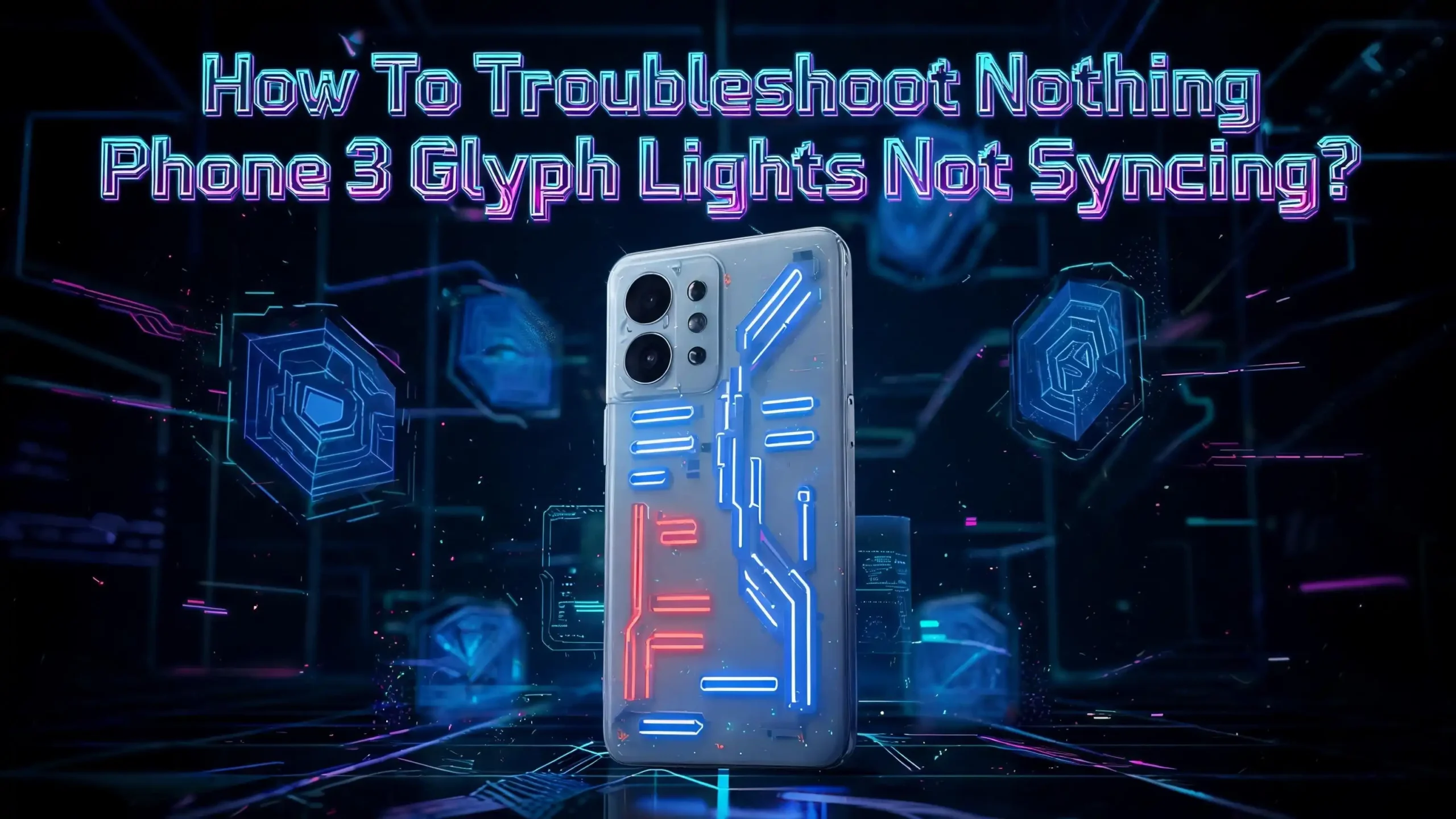
How To Troubleshoot Nothing Phone 3 Glyph Lights Not Syncing?
The Nothing Phone 3 introduced the Glyph Matrix, a circular arrangement of 489 micro LEDs that replaced the traditional LED strips from previous Nothing phones. This new interface displays notifications, acts as a clock, runs mini games, and even works as a torch. But what happens when these lights stop syncing properly with your ringtones, notifications, or apps?
Many Nothing Phone 3 users have reported that their Glyph lights behave randomly during calls, fail to sync with notification sounds, or simply stop responding altogether. The issue can show up right out of the box or after a software update. It affects calls, WhatsApp alerts, Google Meet rings, and other app notifications.
The good news? Most Glyph syncing problems are software related and can be fixed without visiting a service center. This guide walks you through every practical solution to get your Glyph Matrix working perfectly again.
In a Nutshell
- Check your Glyph Interface settings first. The most common reason for Glyph lights not syncing is a simple toggle that got turned off, a Bedtime Schedule that silences the LEDs, or a Do Not Disturb mode that blocks light patterns from activating during calls and notifications.
- Software updates fix most syncing bugs. Nothing has released multiple patches specifically for Glyph Matrix behavior on the Phone 3. Running the latest version of Nothing OS often resolves random light patterns and notification sync failures instantly.
- Third party apps can break Glyph behavior. If you installed a custom Glyph composer app or any LED control tool, it may override the default Glyph settings and cause lights to act unpredictably. Removing these apps or resetting Glyph settings can restore normal function.
- A restart or cache clear solves temporary glitches. Software conflicts and cached data sometimes cause the Glyph Matrix to fall out of sync with audio. A simple restart or clearing the system cache can fix this without losing your data.
- Factory reset is the last resort. If nothing else works, a full factory reset will return all Glyph Matrix settings to their original state and remove any software conflicts causing the sync issue.
- Hardware problems require professional support. If your Glyph lights still do not sync after trying every software fix, the issue may involve the LED hardware itself. Contact Nothing Support directly for warranty service or repair.
What Is the Glyph Matrix on Nothing Phone 3
The Nothing Phone 3 replaced the LED light strips of the Phone 1 and Phone 2 with a completely new system called the Glyph Matrix. This circular display sits in the top right corner of the phone’s back panel and contains 489 individual micro LEDs. These tiny lights work together to show patterns, animations, text, and even small games.
The Glyph Matrix serves several functions. It displays a digital clock, shows a battery indicator, works as a stopwatch, and provides a visual countdown for the camera timer. It also lights up for incoming calls and notifications with patterns that match your selected ringtone. A dedicated Glyph Button on the side lets you cycle through tools and widgets without unlocking the phone.
Nothing also introduced Glyph Toys, which are mini experiences and games that run directly on the Glyph Matrix. These include Spin the Bottle, Magic 8 Ball, and Rock Paper Scissors. The system also features a Glyph Mirror mode for taking selfies using the rear camera, and a Solar Clock that tracks the sun’s position visually.
The Glyph Matrix is open to third party developers, meaning new features and tools can be added over time. A red Recording Light also blinks when you shoot video or use the voice recorder. All of these features depend on proper software synchronization between the LED controller and the phone’s operating system. When this sync breaks, the lights may flash randomly, show incorrect patterns, or stop working entirely.
Why Are Your Glyph Lights Not Syncing
Understanding the root cause helps you pick the right fix faster. Glyph sync issues on the Nothing Phone 3 typically fall into a few categories. Software bugs are the most common cause. Nothing OS updates sometimes introduce glitches that affect how the Glyph Matrix communicates with the ringtone engine and notification system.
Incorrect settings are another frequent culprit. The Glyph Interface has multiple toggles, schedules, and brightness controls. A single misconfigned option can stop the lights from responding to calls or notifications. The Bedtime Schedule feature, for example, automatically disables Glyph lights during set hours. If this schedule overlaps with your active hours, your lights will appear broken.
Third party apps that modify Glyph behavior can also cause conflicts. Apps like custom Glyph composers override the default LED patterns. When these apps conflict with the stock Nothing OS behavior, the result is random or mismatched light patterns during calls.
Cached data corruption is another possibility. The system stores temporary files that help the Glyph Matrix run smoothly. When these files become corrupted, the lights may lag behind audio cues or display the wrong animation. A simple cache clear often resolves this.
Finally, in rare cases, hardware faults can cause syncing problems. A damaged LED module or a loose internal connection will produce inconsistent behavior that no software fix can address. If you have tried every solution in this guide and the problem persists, hardware damage is the likely explanation.
Check Your Glyph Interface Settings
The first step in any troubleshooting process is to verify your settings. Open your Settings app and tap on Glyph Interface. Make sure the main toggle for Glyphs is turned on. This seems obvious, but many users accidentally disable this toggle and then wonder why their lights stopped working.
Next, check the brightness level of your Glyph Matrix. If the brightness is set very low, the lights may appear to not sync because you simply cannot see them clearly. Increase the brightness to a comfortable level and test again with an incoming call or notification.
Look at the Glyph ringtone assignment. Each contact or call type can have a different Glyph pattern. If the pattern assigned to your general ringtone does not match what you expect, it can seem like the lights are out of sync. Go to the ringtone settings within the Glyph Interface and preview the pattern. Watch if the lights match the audio in the settings screen.
Also check if you have set custom Glyph patterns for specific contacts. These individual assignments override the default pattern. If your lights sync fine for some callers but not others, the issue lies with contact specific Glyph assignments rather than a system wide bug.
Finally, scroll to the bottom of the Glyph Interface settings and look for the DND/Schedule option. This setting can suppress Glyph activity during certain hours or when Do Not Disturb is active. Disable any active schedules temporarily to test if this resolves the syncing problem.
Disable Bedtime Schedule and Do Not Disturb
The Bedtime Schedule is one of the most overlooked causes of Glyph sync issues. This feature automatically silences your Glyph Matrix during a set time window, typically overnight. If you changed your schedule recently or set it incorrectly, your Glyph lights may stay inactive during times you expect them to work.
Go to Settings > Glyph Interface > Bedtime Schedule and check the start and end times. Make sure the schedule does not overlap with your daytime hours. If you are unsure, disable the Bedtime Schedule entirely and test whether your Glyph lights start syncing again. You can always re-enable it later with correct times.
Do Not Disturb (DND) mode also affects Glyph behavior, but the relationship is not always straightforward. The Flip to Glyph feature is separate from DND. Flip to Glyph causes the phone to flash lights for notifications without making sound when placed face down. However, standard DND mode can suppress Glyph animations depending on your configuration.
To test this, go to Settings > Sound & Vibration > Do Not Disturb and turn it off completely. Then trigger a notification or ask someone to call you. If the Glyph lights now sync properly, the issue was DND related. You can then fine tune your DND settings to allow Glyph activity while still silencing audio alerts.
Some users have reported that even after disabling DND, the Glyph lights remain suppressed until a full restart of the phone. If toggling DND off does not immediately fix the sync, restart your device and test again. This clears any temporary state that DND may have left behind in the system.
Restart Your Nothing Phone 3
A restart is one of the simplest and most effective fixes for Glyph sync issues. When your phone runs continuously for days or weeks, temporary software glitches can accumulate. These glitches sometimes affect the communication between the Glyph Matrix controller and the main operating system.
To restart your Nothing Phone 3, press and hold the power button until the power menu appears. Tap Restart and wait for the phone to fully reboot. This process clears temporary memory, resets background processes, and reinitializes the Glyph hardware controller.
After the restart, test the Glyph sync immediately. Ask someone to call you or send yourself a test notification from another device. Watch the Glyph Matrix carefully and compare the light pattern to the ringtone audio. If the lights now match the sound pattern correctly, the issue was a temporary software glitch that the restart resolved.
If a standard restart does not fix the problem, try a forced restart. Press and hold both the power button and the volume down button simultaneously for about 10 seconds. The phone will shut down and restart automatically. A forced restart is more thorough than a standard reboot because it interrupts all running processes immediately.
Some users find that Glyph sync issues return after a few days or weeks even after a successful restart. If this happens to you, the root cause is likely a deeper software conflict rather than a temporary glitch. Move on to the next solutions in this guide, such as updating your software or clearing cached data.
Update Nothing OS to the Latest Version
Nothing has released several software updates that specifically address Glyph Matrix syncing problems on the Phone 3. These updates fix bugs in the LED controller software, improve timing accuracy for ringtone animations, and resolve compatibility issues with third party apps.
To check for updates, go to Settings > System > System Updates. Tap Check for Updates and wait for the phone to search for available firmware. If an update is available, download and install it immediately. Make sure your phone has at least 50% battery and is connected to a stable Wi Fi network before starting the update.
Nothing often includes Glyph specific fixes in their changelogs. One notable update improved Glyph Toys behavior and fixed syncing issues with dual SIM ringtones. Another patch addressed the Always On Glyph Matrix refresh rate and resolved notification light delays. Reading the changelog before installing helps you understand exactly what the update fixes.
Keep in mind that firmware rollouts are staggered. This means not all users receive the update at the same time. If no update appears for your device, check again after a few days. You can also visit the Nothing Community forums to see if other users in your region have received the update yet.
After installing the update, restart your phone even if the system does not prompt you to. Test the Glyph sync with calls and notifications. In many cases, a single update resolves all syncing problems completely. If the issue persists after updating, continue with the next troubleshooting steps.
Remove Third Party Glyph Apps
Third party Glyph customization apps are popular among Nothing Phone users. Apps like custom Glyph composers allow you to create unique ringtone patterns and sync them with LED animations. However, these apps can conflict with the stock Glyph Interface and cause syncing issues.
If you installed any app that modifies Glyph behavior, try uninstalling it temporarily. Go to Settings > Apps and find the third party Glyph app. Tap Uninstall and confirm. After removing the app, restart your phone and test the Glyph sync with the default Nothing ringtone patterns.
Some third party apps change system level settings that persist even after the app is removed. If uninstalling the app does not restore proper sync, you may need to reset your Glyph settings. Go to Settings > Glyph Interface and look for a reset or restore defaults option. This returns all Glyph configurations to their factory state without affecting the rest of your phone.
Users on the Nothing Community forums have reported that certain Glyph composer apps override the essential notification settings. This means the phone treats all notifications the same way instead of giving priority to calls and important alerts. Removing these apps and resetting Glyph settings usually fixes this behavior immediately.
If you want to continue using a third party Glyph app, make sure it is compatible with your current Nothing OS version. Check the app’s update history and user reviews for reports of sync issues. Some developers release patches after major Nothing OS updates to restore compatibility. Always update both the app and your phone’s firmware to the latest versions for the best results.
Clear System Cache on Your Nothing Phone 3
Cached data helps your phone load apps and processes faster, but corrupted cache files can cause all sorts of problems, including Glyph sync failures. Clearing the system cache removes these temporary files and forces the phone to rebuild them fresh.
To clear cached data, go to Settings > Storage > Free Up Space > Clean. The phone will detect and remove temporary folders, cookies, and cache files that are no longer needed. This process does not delete your personal data, photos, or app settings. It only removes temporary system files.
For a more targeted approach, you can clear the cache for the Glyph Interface system app specifically. Go to Settings > Apps > Show System Apps (you may need to tap the three dot menu to see this option). Find the Glyph related system process and tap Clear Cache. This removes only the cached data associated with the Glyph Matrix.
After clearing the cache, restart your phone to allow the system to rebuild its temporary files from scratch. Test the Glyph sync by playing a Glyph ringtone preview in the settings and checking if the lights match the audio pattern.
If clearing the cache fixes the problem but it returns after a few days, a recurring software conflict is creating corrupted cache files repeatedly. In this case, you should look for the source of the conflict, such as a recently installed app, a specific notification setting, or a background process that interferes with the Glyph controller.
Use the CIT Menu for Advanced Diagnostics
The Nothing Phone 3 includes a hidden diagnostic tool called the CIT (Component Integration Test) menu. This tool lets you test individual hardware components, including the Glyph Matrix LEDs. It helps you determine whether your syncing issue is caused by software or hardware.
To access the CIT menu, open the Phone dialer app and type the code ##0##**. The CIT menu will open automatically. Look for options related to sensors and LED testing. The menu may include tests for the accelerometer, gyroscope, proximity sensor, and the Glyph lights.
Run the Glyph LED test if one is available. This test activates each LED segment individually and checks if it responds correctly. If all LEDs light up properly during the test, your hardware is working fine. The sync issue is confirmed to be software related, and you can focus your troubleshooting efforts accordingly.
If certain LEDs fail to respond during the CIT test, you have a hardware problem. Do not attempt to fix hardware issues yourself. Contact Nothing Support or visit an authorized service center for repair. Hardware problems are typically covered under the manufacturer’s warranty if the phone has not been physically damaged.
The CIT menu is a powerful tool, but use it carefully. Do not change any settings within the menu unless you know exactly what they do. Simply run the diagnostic tests and exit. Running sensor calibration tests like the compass or gyroscope test can also help if those components affect Glyph behavior indirectly.
Reset Glyph Interface Settings to Default
If your Glyph lights still do not sync after trying basic fixes, resetting the Glyph Interface to its default configuration often works. This process removes all custom ringtone assignments, brightness adjustments, Bedtime Schedule settings, and contact specific patterns. It gives you a clean starting point.
Go to Settings > Glyph Interface and look for a Reset or Restore Defaults option. Tap it and confirm. Your Glyph Matrix will return to its factory configuration. All custom Glyph patterns, notification assignments, and Glyph Toy preferences will be erased.
After the reset, test the default Glyph ringtone by calling your phone from another device. The lights should now sync perfectly with the default Nothing ringtone. If they do, the problem was caused by a custom configuration that introduced a conflict. You can now reconfigure your Glyph settings one by one, testing after each change to identify which setting causes the sync failure.
If resetting the Glyph settings alone does not fix the issue, you can also reset your sound and notification settings. Go to Settings > System > Reset Options > Reset All Settings. This resets Wi Fi, Bluetooth, and app preferences without deleting your personal files. It also clears any hidden notification settings that might conflict with the Glyph Matrix.
Keep in mind that a settings reset is different from a factory reset. A settings reset only returns system preferences to default values. Your apps, photos, messages, and files remain untouched. This makes it a safe middle ground between basic troubleshooting and a full factory wipe.
Check for App Specific Notification Conflicts
Sometimes the Glyph sync issue only appears with specific apps like WhatsApp, Skype, or Google Meet. The Glyph Matrix may work perfectly for regular phone calls but fail to sync with third party app notifications. This happens because each app handles notifications differently.
Go to Settings > Apps > [App Name] > Notifications and verify that notifications are enabled for the problematic app. Check each notification category within the app. Some apps have separate channels for messages, calls, and alerts. The Glyph lights may not respond if the specific notification channel is set to silent or minimal.
Also check if the app has its own notification sound settings that override the system ringtone. If the app uses a custom sound that the Glyph Interface does not recognize, the lights may not know which pattern to display. Try setting the app’s notification sound to the default system tone and test again.
Another common conflict arises from battery optimization. Android may restrict background activity for certain apps, preventing them from triggering Glyph notifications properly. Go to Settings > Battery > Battery Optimization and set the problematic app to Unrestricted. This ensures the app can send notifications without delay.
If the issue only affects one or two apps, the problem is almost certainly app specific rather than system wide. Check the app’s Play Store page for recent updates that might fix notification compatibility with Nothing OS. You can also try uninstalling and reinstalling the app to refresh its notification registration with the system.
Perform a Factory Reset as a Last Resort
A factory reset erases everything on your phone and returns it to its original out of the box state. This is the most thorough software fix available, and it resolves nearly all Glyph syncing issues caused by software conflicts, corrupted files, or misconfigured settings.
Before performing a factory reset, back up all your important data. Save your photos, videos, contacts, messages, and app data to Google Drive or another cloud service. A factory reset will permanently delete everything on your phone.
To factory reset your Nothing Phone 3, go to Settings > System > Reset Options > Erase All Data (Factory Reset). Tap Reset Phone and confirm with your PIN or password. The phone will erase all data, restart, and present the initial setup screen as if it were brand new.
After the reset, complete the setup process and go directly to Settings > Glyph Interface. Test the Glyph Matrix sync before installing any third party apps. Call your phone from another device and watch the lights. If they sync perfectly at this stage, the issue was caused by something you installed or configured after your initial setup.
Reinstall your apps one by one, testing Glyph sync after each installation. This helps you identify the exact app or setting that causes the conflict. Once you find the culprit, you can either avoid that app, adjust its settings, or look for an alternative.
If the Glyph lights still do not sync properly even after a factory reset on the latest firmware, the problem is almost certainly hardware related. Proceed to contact Nothing Support.
Contact Nothing Support for Hardware Issues
If every software solution in this guide fails to fix your Glyph sync problem, you should contact Nothing’s customer support team. Persistent sync issues after a factory reset on the latest firmware typically indicate a hardware defect in the LED module, the Glyph controller chip, or the internal wiring.
Visit the official Nothing support page or go to Settings > System > Feedback on your phone to submit a support request directly. Describe the issue in detail, mention every troubleshooting step you have already tried, and include a video recording of the problem if possible. This helps the support team diagnose the issue faster.
Nothing provides warranty coverage for manufacturing defects. If your phone is within the warranty period and has no physical damage, the repair or replacement should be free of charge. The support team may ask you to visit an authorized service center for a physical inspection of the Glyph hardware.
While waiting for support, avoid opening the phone yourself or attempting any physical repairs. The Nothing Phone 3 has an IP68 water and dust resistance rating, and opening the device voids this protection. Unauthorized repairs can also void your warranty entirely.
If you purchased your phone from an authorized retailer, you can also contact them for exchange or return options. Some retailers offer extended protection plans that cover hardware defects beyond the standard manufacturer warranty. Check your purchase receipt for details about your coverage options.
Frequently Asked Questions
Why does my Nothing Phone 3 Glyph Matrix flash randomly during calls?
Random flashing during calls is usually caused by a software sync bug between the ringtone engine and the Glyph LED controller. The lights respond correctly in the settings preview but behave unpredictably during actual calls. Updating to the latest Nothing OS version and restarting your phone typically fixes this issue. If the problem persists, reset your Glyph Interface settings to default and test again with the stock ringtone.
Can third party apps cause Glyph lights to stop syncing?
Yes. Third party Glyph composer apps and custom LED control tools can override the default Glyph settings and create conflicts. These apps sometimes change system level notification configurations that persist even after uninstalling the app. If you installed any such app before the syncing issue started, remove it and reset your Glyph Interface settings to restore normal behavior.
Will a factory reset fix Glyph syncing problems on Nothing Phone 3?
A factory reset resolves most software related Glyph sync issues. It removes all apps, settings, and cached data that might conflict with the Glyph Matrix controller. However, it will not fix hardware defects. If your Glyph lights still do not sync after a factory reset on the latest firmware, the issue is likely hardware related, and you should contact Nothing Support.
Does Do Not Disturb mode affect Glyph Matrix behavior?
Yes. DND mode can suppress Glyph light animations for calls and notifications. The Bedtime Schedule feature within the Glyph Interface also disables lights during set hours. Check both settings if your Glyph Matrix stops responding during certain times of the day. Disabling DND and the Bedtime Schedule followed by a restart usually resolves this issue.
How do I access the diagnostic test for Glyph lights on Nothing Phone 3?
Open the Phone dialer app and type ##0##** to access the CIT (Component Integration Test) menu. This hidden tool lets you test individual hardware components including the Glyph LEDs. If all lights respond correctly during the test, your issue is software related. If some LEDs fail to light up, you have a hardware problem that needs professional repair.
Is the Glyph sync issue covered under Nothing’s warranty?
Yes, if the issue is caused by a manufacturing defect and your phone is within the warranty period. Software related sync problems are expected to be resolved through updates and troubleshooting. Hardware defects in the LED module, controller chip, or internal wiring are covered under warranty as long as there is no physical damage from drops, water exposure beyond IP68 limits, or unauthorized repairs.

Hi, I’m Siya — the founder and writer behind Craftifyy.com. I’m a tech enthusiast who loves reviewing gadgets, comparing products, and helping people make smarter buying decisions. Got a question? Feel free to reach out!