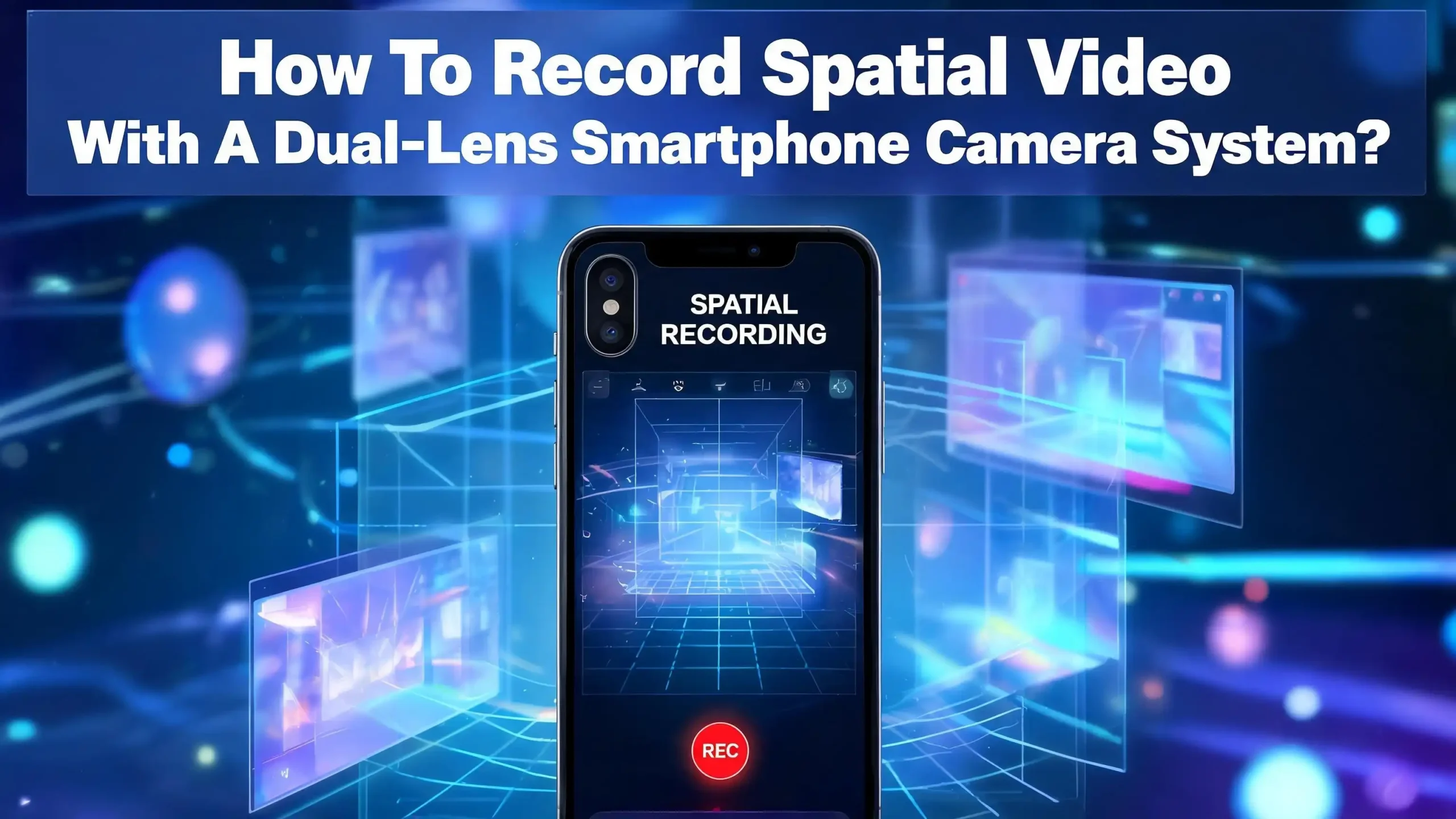
How To Record Spatial Video With A Dual Lens Smartphone Camera System?
Have you ever watched a video and wished you could step right into the scene? That is exactly what spatial video offers. It turns flat recordings into three dimensional experiences that feel real, deep, and truly alive. The best part? You do not need a professional camera rig or expensive studio setup. Your smartphone can do it.
But here is the thing. Most people activate the feature, press record, and end up with footage that looks flat or blurry. The depth effect feels weak. The lighting looks off. The file sizes eat up their storage. Sound familiar?
This guide solves all of those problems. You will learn exactly how spatial video works, which devices support it, and how to record stunning 3D footage step by step. You will also discover tips for lighting, framing, editing, and troubleshooting common issues. Let us get started.
Key Takeaways
- Spatial video uses two lenses simultaneously to capture two slightly different perspectives of the same scene. These two views combine to create a stereoscopic 3D effect that mimics how human eyes perceive depth. Your dual lens smartphone does this automatically once you enable the spatial recording mode.
- Compatible devices include iPhone 15 Pro, all iPhone 16 models, and Samsung Galaxy S25 series phones. Each device uses its dual camera system to record spatial content. You need the latest software updates installed to access the spatial recording feature on your phone.
- Proper framing and subject distance matter more than you think. Apple recommends keeping your main subject between 3 and 8 feet from the camera for the strongest depth effect. Objects too close or too far will appear flat in the final spatial video.
- Good lighting is essential for quality spatial recordings. The dual lens system needs bright, even lighting to produce clear images from both cameras. Low light causes noise and reduces the 3D depth effect significantly.
- Spatial video files are large, averaging about 130 MB per minute at 1080p. Plan your storage accordingly before recording long sessions. A one hour spatial recording could use nearly 8 GB of space on your device.
- You can view spatial videos on Apple Vision Pro, Meta Quest headsets, and Samsung Galaxy XR. Each platform supports the MV HEVC format used by spatial video recordings. Transfer your files through iCloud sync, AirDrop, or direct file sharing depending on your headset.
What Is Spatial Video And How Does It Work
Spatial video is a recording format that captures three dimensional depth in your footage. It works by recording two separate video streams at the same time from two slightly different positions. This setup mimics how your left and right eyes see the world from two offset angles.
Your smartphone achieves this using its dual lens camera system. One lens records the left eye view. The other lens records the right eye view. The phone then combines both streams into a single file using a format called MV HEVC (Multiview High Efficiency Video Coding). This format stores both perspectives efficiently without doubling the file size.
When you play a spatial video on a compatible headset, the device sends each view to the correct eye. Your brain processes these two views and creates the perception of real depth. Objects in the foreground appear closer. The background feels farther away. It is the same principle behind 3D movies, but captured casually with your phone.
The key difference between spatial video and regular video is dimensionality. A standard 2D video shows a flat image on a screen. A spatial video adds layers of depth that make scenes feel lifelike and present. This makes spatial video ideal for personal memories, travel footage, and any moment where you want to feel like you are truly back in that place.
Which Smartphones Support Spatial Video Recording
Not every phone can record spatial video. The feature requires two rear cameras working in sync and software that can encode the dual stream into the MV HEVC format. Here is a breakdown of supported devices.
On the Apple side, the iPhone 15 Pro and iPhone 15 Pro Max were the first iPhones to support spatial video recording. Apple introduced this feature with the iOS 17.2 update in December 2023. These phones record spatial video at 1080p and 30 frames per second using the main and ultrawide cameras.
The entire iPhone 16 lineup expanded spatial video support significantly. The iPhone 16, iPhone 16 Plus, iPhone 16 Pro, and iPhone 16 Pro Max all support spatial video recording. The base iPhone 16 models gained this ability thanks to a redesigned vertical camera layout that provides the correct lens separation for stereoscopic capture.
Samsung joined the spatial video space with the Galaxy S25 series. The Galaxy S25 Ultra supports 3D capture through a Camera Assistant app update. This feature records spatial photos at 4000×3000 pixels per eye and spatial videos at 1920×1080 per eye. Samsung built this feature to work with the upcoming Galaxy XR headset.
Always check that your phone runs the latest operating system update. Spatial video features arrive through software updates, so older firmware versions may not include the recording option even on supported hardware.
How The Dual Lens System Creates 3D Depth
Understanding how your phone creates spatial video helps you record better footage. The process relies on stereoscopic capture, a technique used in 3D filmmaking for over a century.
Your smartphone’s two rear cameras sit a fixed distance apart on the back of the phone. This distance is called the stereo baseline. On the iPhone 15 Pro, the main and ultrawide lenses provide a specific baseline that works well for subjects at typical conversation distances.
Each lens captures the scene from its own position. The slight horizontal offset between the two views creates what filmmakers call parallax. Objects close to the camera show a larger difference between the left and right views. Objects far away show almost no difference. Your brain interprets these parallax differences as depth information.
The phone’s software processes both video streams in real time. It synchronizes the frames so both views are perfectly aligned in time. It also adjusts exposure and color balance between the two lenses to ensure a consistent look across both streams. Any mismatch in brightness or color between the left and right views would cause visual discomfort when viewed in 3D.
The final file uses MV HEVC encoding. This format stores the primary view as a standard video stream and adds the secondary view as a stereo layer. This approach keeps file sizes manageable. A one minute spatial video on iPhone takes about 130 MB of storage. That is roughly double a regular 1080p video, which is efficient given that you are recording two complete perspectives.
Step By Step Guide To Record Spatial Video On iPhone
Recording spatial video on an iPhone is straightforward once you know the steps. Follow this process to start capturing 3D content with your device.
Step 1: Update your iPhone software. Go to Settings, then General, then Software Update. Make sure your iPhone 15 Pro or iPhone 16 runs the latest iOS version. The spatial video feature requires iOS 17.2 or later on iPhone 15 Pro models and iOS 18 or later on iPhone 16 models.
Step 2: Open the Camera app. Launch the default Camera application on your iPhone. You will use the built in camera for this process. No third party app is required for basic spatial recording.
Step 3: Switch to Spatial mode. On iPhone 16 models, swipe right on the camera mode selector to find Spatial mode. On iPhone 15 Pro, switch to Video mode first, then tap the spatial video icon that appears in the top corner. This icon looks like two overlapping rectangles.
Step 4: Rotate your phone to landscape orientation. Spatial video only records in landscape mode. Hold your iPhone horizontally with the cameras on the left side. The phone will prompt you to rotate if you are holding it in portrait mode.
Step 5: Frame your subject and press record. Position your main subject 3 to 8 feet from the camera. Tap the red record button to start. A spatial video indicator will appear on screen confirming that you are recording in 3D mode.
Step 6: Stop recording. Tap the record button again to finish. Your spatial video saves automatically to the Photos app with a special spatial video tag.
How To Record Spatial Video On Samsung Galaxy Phones
Samsung Galaxy phones have gained spatial video support through a Camera Assistant app update. The process differs slightly from the iPhone method. Here is how to set it up.
First, update your Camera Assistant app. Open the Galaxy Store on your Samsung Galaxy S25 Ultra or compatible device. Search for Camera Assistant and install the latest version (v4.0.0.3 or later). This update adds the 3D Capture feature to your camera settings.
Second, enable 3D Capture in settings. Open the Camera Assistant app and look for the 3D Capture toggle in the settings menu. Turn this feature on. This tells your phone to use both the main sensor and a cropped view of the ultrawide sensor for stereoscopic recording.
Third, open your Camera app. Launch the default Samsung Camera application. You will see a new option or indicator showing that 3D capture mode is available. Select this mode before recording.
Fourth, hold your phone in landscape orientation. Just like the iPhone, Samsung’s spatial video requires landscape mode. Hold the phone horizontally and keep it steady during recording.
Fifth, record your video. Press the record button and capture your scene. The Galaxy S25 Ultra records spatial video at 1920×1080 per eye at 30fps. The files are saved with a “Shot in 3D” label in your Gallery app.
Spatial photos on Samsung devices capture at an impressive 4000×3000 pixels per eye in HEIC format. This gives you high resolution 3D still images alongside your video content. You can view these files on the upcoming Samsung Galaxy XR headset or through compatible third party VR viewers.
Best Camera Settings For Spatial Video Recording
Getting the right settings before you record makes a major difference in spatial video quality. Here are the key settings to check and adjust.
Resolution and frame rate are set automatically on most phones. The iPhone 15 Pro records spatial video at 1080p 30fps. The iPhone 16 Pro models also support 1080p 30fps spatial recording through the default Camera app. Third party apps like Spatialify can unlock 4K spatial video at 30fps and 1080p at 60fps on supported devices, which provides sharper and smoother footage.
HDR (High Dynamic Range) should be enabled if your phone supports it. Spatial video benefits greatly from HDR because the wider color and brightness range creates more realistic depth perception in the final 3D footage. Check your camera settings to confirm HDR is turned on.
Video format settings matter for compatibility. On iPhone, go to Settings, then Camera, then Formats. Select High Efficiency instead of Most Compatible. The spatial video feature uses HEVC encoding, and selecting the Most Compatible (H.264) option can interfere with proper spatial metadata tagging. Several users have reported playback issues caused by this incorrect format setting.
Auto exposure and auto focus should remain enabled for most spatial video recordings. Manual focus adjustments can cause the two lenses to focus at different distances, which creates an uncomfortable viewing experience. Let the phone handle focus and exposure automatically for the best stereoscopic result.
Stabilization is generally applied automatically during spatial video recording. However, you should still use a tripod or rest your phone on a stable surface whenever possible. Software stabilization can crop the image and reduce the effective field of view.
Lighting Tips For Better Spatial Video Quality
Lighting plays a critical role in spatial video quality. The dual lens system needs sufficient light to produce clear, detailed images from both cameras simultaneously. Poor lighting degrades the 3D effect quickly.
Bright, even lighting produces the best results. Direct sunlight, studio lights, or well lit indoor spaces all work well. The goal is to provide enough light so both camera sensors can capture sharp, low noise footage. When one lens produces a noisier image than the other, the viewer’s brain struggles to merge the two views comfortably.
Avoid mixed lighting conditions. A scene with bright sunlight on one side and deep shadow on the other creates problems. The contrast between the two lenses may differ, which reduces the stereoscopic comfort of the final video. Try to position yourself so the light falls evenly across your entire scene.
Front lighting works better than backlighting for spatial video. Place your main light source behind you or to the side, pointing at your subject. Backlighting (light behind the subject) creates silhouettes that lack the detail needed for good 3D depth. If you must shoot with a bright background, consider using fill light on your subject.
Indoor recording benefits from multiple light sources. A single overhead light creates harsh shadows that look unflattering in 3D. Use two or three lamps positioned at different angles to create soft, even illumination. This approach reveals more surface detail on your subject, which strengthens the depth effect when viewed on a headset.
Low light spatial video is technically possible, but the results are often disappointing. The phone may boost ISO on both sensors, introducing visible grain. This noise differs between the left and right views and can cause visual fatigue for the viewer. Record in good light whenever you can.
Framing And Subject Distance For Maximum Depth Effect
How you position your subject relative to the camera determines how strong the 3D effect appears in your spatial video. Distance and depth layering are the two most important factors.
Keep your main subject between 3 and 8 feet from the camera. Apple specifically recommends this range for the best spatial video depth on iPhone. At this distance, the parallax between the two lenses creates a noticeable but comfortable sense of depth. Subjects closer than 3 feet can produce exaggerated depth that feels unnatural. Subjects beyond 8 feet start to look flat because the parallax difference becomes too small.
Create layers of depth in your scene. The most impressive spatial videos include objects at multiple distances. Place something interesting in the foreground, position your main subject in the middle ground, and let the background extend behind them. This layered composition gives the viewer’s brain more depth information to process, creating a richer 3D experience.
Avoid shooting flat walls or surfaces. A scene with no depth variation looks almost identical to a regular 2D video. Spatial video shines when there is a clear separation between foreground and background elements. If you are recording indoors, try positioning your subject a few feet in front of a wall rather than standing against it.
Keep the camera level and steady. Tilting the phone vertically during recording can misalign the stereoscopic views. Hold the phone straight in landscape mode with both lenses on the same horizontal plane. A slight tilt introduces vertical parallax, which causes eye strain when viewed on a headset. A tripod with a level bubble is a helpful accessory for consistent framing.
How To View And Share Your Spatial Videos
Recording spatial video is only half the experience. You also need to view it on the right device to see the 3D effect. Here is how to watch and share your spatial footage.
Apple Vision Pro is the primary viewing device for iPhone spatial videos. If your iPhone and Vision Pro use the same Apple ID with iCloud Photos enabled, your spatial videos sync automatically. Open the Photos app on Vision Pro, go to the Spatial album, select a video, and choose Immersive View. The headset displays each eye’s perspective on its micro OLED displays, creating a full stereoscopic 3D experience.
AirDrop offers a faster manual transfer option. Open the Photos app on your iPhone, select the spatial videos you want to share, tap the Share button, and choose AirDrop. Select your Vision Pro from the nearby devices list. The transfer happens over a direct wireless connection, which is quicker than waiting for iCloud to sync large files.
Meta Quest headsets can also play spatial video files. You need to transfer the MV HEVC files to your Quest device or use a compatible player app. Several third party apps support spatial video playback on Meta Quest 3 and newer models.
Samsung Galaxy XR is the viewing destination for Samsung spatial videos. The Galaxy Gallery app labels 3D content with a special tag. When you connect your Galaxy XR headset, these videos play in stereoscopic 3D automatically.
For sharing spatial videos with others, keep in mind that most social media platforms strip out the 3D metadata. The video will appear as a standard 2D clip on platforms like Instagram or YouTube. To share the full 3D experience, send the original file directly through AirDrop, email, or cloud storage.
Third Party Apps That Improve Spatial Video Recording
The default camera app on your phone provides basic spatial video recording. Third party apps can unlock higher quality settings and additional creative controls.
Spatialify is one of the most popular spatial video apps for iPhone. It allows you to record spatial video at 4K resolution and 30fps or 1080p at 60fps. The default iPhone Camera app limits spatial recording to 1080p at 30fps. This means Spatialify produces significantly sharper footage with more detail visible in the final 3D playback. The app costs a few dollars and is available on the App Store.
Spatialify also provides manual camera controls for spatial recording. You can adjust focus distance, exposure, white balance, and ISO independently. These controls give experienced videographers more creative flexibility while still encoding the output in proper MV HEVC format with spatial metadata.
SpatialCut is a tool focused on editing spatial video. It lets you trim, stitch, and combine multiple spatial video clips while preserving the 3D depth information. Standard video editors often strip out spatial metadata during export, which destroys the 3D effect. SpatialCut solves this problem specifically.
Final Cut Pro on Mac supports spatial video editing natively. You can import spatial clips shot on iPhone, arrange them on a timeline, add transitions, and export the final project in MV HEVC format. This is currently the most complete professional editing solution for spatial content.
On the Samsung side, ImmerGallery is a useful app that enables viewing of Samsung 3D captures on various VR headsets. It bridges the gap between Samsung’s spatial capture system and non Samsung viewing devices. This gives Samsung spatial video creators more flexibility in how they share their 3D content.
Storage Management For Spatial Video Files
Spatial video files are significantly larger than standard video recordings. Planning your storage strategy prevents you from running out of space during important moments.
A one minute spatial video on iPhone takes approximately 130 MB of storage at 1080p 30fps. This is roughly double the size of a regular 1080p video because the file contains two complete video streams. If you use a third party app to record at 4K resolution, expect the file sizes to increase substantially, potentially reaching 300 to 400 MB per minute.
Check your available storage before recording sessions. Go to Settings, then General, then iPhone Storage (or Device Care on Samsung) to see how much free space you have. A 10 minute spatial video recording at 1080p will need about 1.3 GB of free space. At 4K, you might need 3 to 4 GB for the same duration.
Offload spatial videos to cloud storage regularly. iCloud Photos, Google Drive, or other cloud services can back up your spatial files and free up local storage. Make sure you download the original quality files when transferring to a headset for viewing, as compressed cloud versions may lose spatial metadata.
Use an external drive or computer for long term archiving. Connect your phone to a Mac or PC and transfer spatial video files directly. This keeps your phone’s storage available for new recordings. Store files in their original MV HEVC format to preserve the 3D metadata for future playback.
Delete spatial videos you no longer need from your device after backing them up. The Recently Deleted folder on iPhone holds files for 30 days before permanently removing them. Empty this folder manually if you need to reclaim space immediately.
Troubleshooting Common Spatial Video Problems
Several issues can prevent spatial video from recording or playing back correctly. Here are the most common problems and their solutions.
Problem: The spatial video option does not appear in your Camera app. This usually means your phone software is outdated. Update to the latest iOS or Android version. On iPhone 15 Pro, you need iOS 17.2 or later. On iPhone 16, you need iOS 18 or later. On Samsung Galaxy S25, update the Camera Assistant app through the Galaxy Store.
Problem: Your spatial video looks flat with no 3D effect. Check your subject distance. If everything in your scene is far away (more than 10 feet), the parallax between the two lenses is too small to create visible depth. Move closer to your subject or reposition elements to create foreground and background separation.
Problem: Spatial video files will not play in 3D on your headset. Verify that your camera format settings are set to High Efficiency on iPhone. The Most Compatible setting encodes video in H.264 instead of HEVC, which can strip the spatial metadata. Switch to High Efficiency in Settings, Camera, Formats, and re record your footage.
Problem: Colors or brightness look different between the left and right views. This happens in extreme lighting conditions where the two camera sensors respond differently. Record in even, bright lighting to minimize this issue. Clean both camera lenses with a microfiber cloth, as smudges or fingerprints on one lens can cause imbalanced image quality.
Problem: Storage fills up quickly during spatial video recording. Spatial files are roughly 130 MB per minute. Free up space before recording by offloading photos and videos to cloud storage or an external drive. Consider recording shorter clips instead of one long continuous take.
Future Of Spatial Video On Smartphones
Spatial video technology is advancing quickly. The feature is expected to become standard across more smartphone brands and price points in the coming years.
Apple has already expanded spatial video from its Pro models to the entire iPhone 16 lineup. This move signals that Apple views spatial capture as a mainstream feature rather than a premium exclusive. Future iPhone models will likely support higher resolution spatial video, potentially 4K natively through the default Camera app, along with improved low light performance.
Samsung’s entry into spatial video with the Galaxy S25 series marks a major shift. The upcoming Samsung Galaxy XR headset creates a full ecosystem for recording and viewing spatial content on Android. This competition between Apple and Samsung will drive faster improvements in spatial video quality, resolution, and ease of use for consumers.
Third party app developers continue to push boundaries. Apps like Spatialify already offer 4K spatial recording on hardware that Apple’s own app limits to 1080p. This gap suggests that future official camera app updates may unlock higher quality settings currently held back by software rather than hardware limitations.
The MV HEVC format is gaining broader support across platforms and devices. As more headsets, TVs, and displays adopt this standard, spatial video content will become easier to share and view without format conversion. Social media platforms may eventually support spatial video playback natively, allowing creators to share immersive 3D content with their audiences directly.
Spatial video represents a fundamental shift in how we record and relive memories. What started as a niche feature for early adopters is quickly becoming an accessible tool for everyone with a modern dual lens smartphone.
Frequently Asked Questions
Do I need a special phone to record spatial video?
You need a smartphone with a supported dual lens camera system and the correct software. On the Apple side, iPhone 15 Pro, iPhone 15 Pro Max, and all iPhone 16 models support spatial video. On Samsung, the Galaxy S25 Ultra supports 3D capture through the Camera Assistant app. Other phones with dual cameras cannot record spatial video unless they have the specific software support and correct lens configuration for stereoscopic capture.
How much storage does one minute of spatial video use?
One minute of spatial video at 1080p 30fps uses approximately 130 MB on iPhone. This is about double the size of a regular 1080p video because the file stores two simultaneous video perspectives. Recording at 4K resolution through third party apps increases the file size to around 300 to 400 MB per minute. Plan your storage accordingly, especially for longer recording sessions.
Can I watch spatial video without a VR headset?
You can play spatial video on a regular phone or computer screen, but you will only see a flat 2D version of the footage. The 3D depth effect requires a compatible headset like Apple Vision Pro, Meta Quest 3, or Samsung Galaxy XR. These headsets display separate views for each eye, which creates the stereoscopic 3D experience that makes spatial video special.
Why does my spatial video look flat or have no depth?
Flat looking spatial video usually results from incorrect subject distance or lack of depth variation in the scene. Keep your main subject between 3 and 8 feet from the camera. Include objects at multiple distances to create foreground, middle ground, and background layers. Shooting against a plain wall or recording distant landscapes will produce minimal 3D effect because the parallax between the two lenses is too small.
Can I edit spatial video without losing the 3D effect?
Yes, but you need the right tools. Standard video editors like iMovie strip the spatial metadata during export, which destroys the 3D effect. Use specialized tools like Final Cut Pro on Mac, SpatialCut, or CosmiCut that preserve MV HEVC encoding and spatial metadata throughout the editing process. These tools let you trim, combine, and enhance spatial clips while keeping the full stereoscopic 3D depth intact.
Does spatial video work in low light conditions?
Spatial video can technically be recorded in low light, but the quality drops significantly. Both camera sensors need clear, well exposed images to produce a convincing 3D effect. In dim environments, the sensors increase ISO sensitivity, which introduces visible noise. Because the noise pattern differs between the two lenses, it creates visual discomfort during 3D playback. Always record spatial video in bright, even lighting for the best results.

Hi, I’m Siya — the founder and writer behind Craftifyy.com. I’m a tech enthusiast who loves reviewing gadgets, comparing products, and helping people make smarter buying decisions. Got a question? Feel free to reach out!