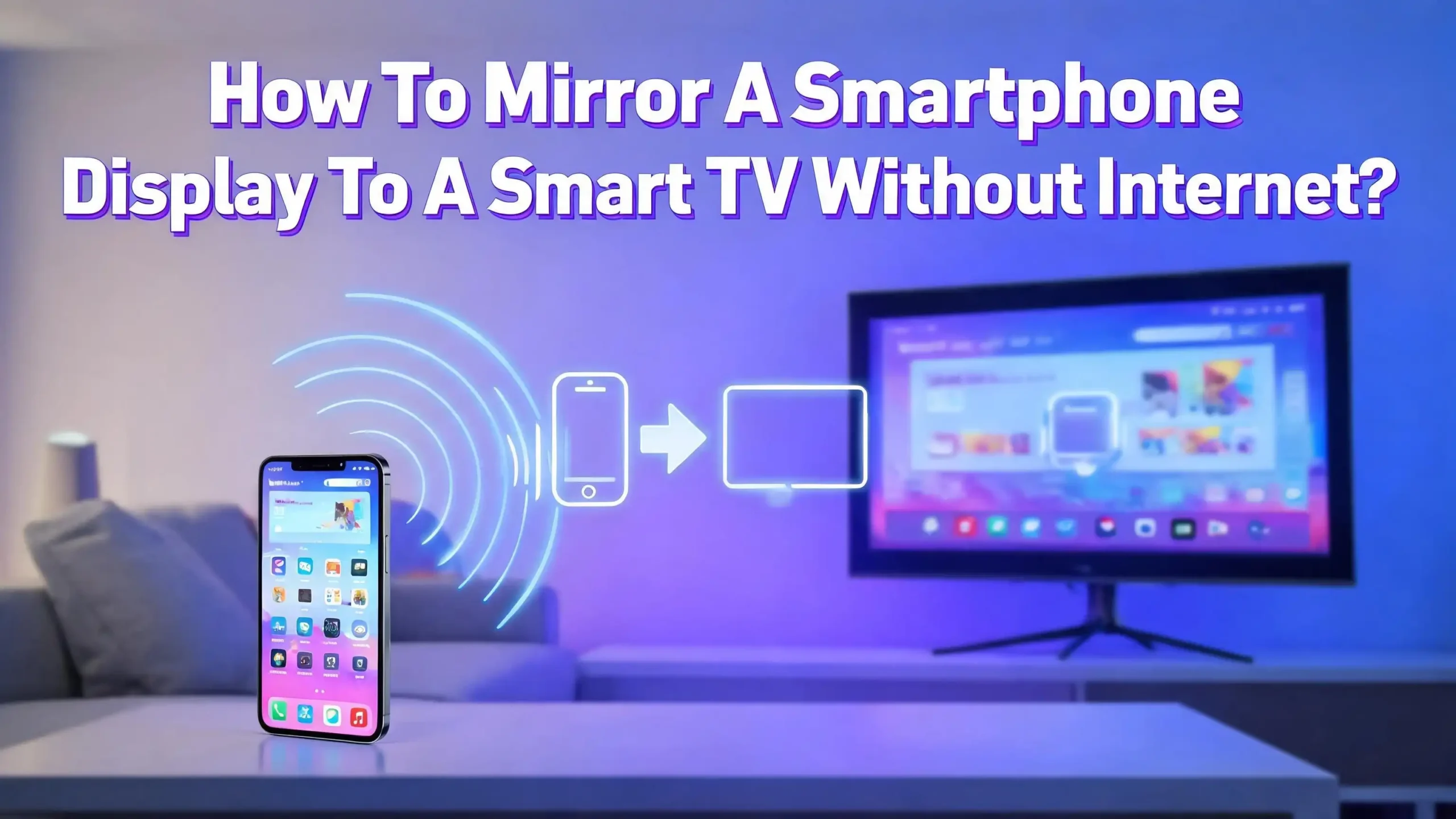
How To Mirror A Smartphone Display To A Smart TV Without Internet?
You just arrived at a vacation rental. There is no WiFi. You want to show photos and videos from your phone on the big screen TV. Or maybe the internet went down at home, and movie night is about to start. Can you still mirror your smartphone to the TV?
Yes, you absolutely can. Most people assume screen mirroring requires an active internet connection, but that is not true. Several reliable methods exist to mirror your phone’s display to a smart TV with zero internet access. Some are wireless. Some use a simple cable. All of them work offline.
This guide covers every method available to you. It explains how Miracast, WiFi Direct, Peer to Peer AirPlay, HDMI adapters, and mobile hotspot tricks can help you get your phone screen on the TV. Each section includes clear steps so you can follow along and get it done in minutes.
Whether you own an Android phone or an iPhone, a Samsung TV or an LG TV, the right solution is here. Keep reading to find the method that fits your setup.
Key Takeaways
- Screen mirroring does not require internet access. Technologies like Miracast, WiFi Direct, and Peer to Peer AirPlay create direct connections between your phone and TV. No router or internet service is needed for these methods.
- Miracast is the most common wireless option for Android users. It uses WiFi Direct to build a private link between your phone and TV. Many smart TVs made after 2015 from Samsung, LG, Sony, and other brands support Miracast or a similar built in feature.
- Apple users can rely on Peer to Peer AirPlay. This feature uses Bluetooth for discovery and a temporary WiFi connection for data transfer. It works between iPhones, iPads, Macs, and Apple TV devices without any network at all.
- A USB C to HDMI adapter offers the most reliable wired solution. It works with almost every modern phone and TV. You plug one end into your phone and the other into the HDMI port on the TV. No setup, no compatibility issues, and no lag.
- Your phone’s mobile hotspot can also serve as a bridge. Turn your phone into a WiFi hotspot, connect the TV to that hotspot, and then use a screen mirroring app. This method uses no internet data for local content like saved photos and videos.
- Always check device compatibility first. Not every phone supports every mirroring protocol. Older TVs may lack WiFi Direct or Miracast support. Knowing your devices saves time and frustration.
Why You Might Need Screen Mirroring Without Internet
There are many real situations where internet access is unavailable. You might be at a remote cabin, a conference room with restricted WiFi, or a hotel where the network blocks casting. Power outages can knock out your home router while your TV and phone still have battery life.
Screen mirroring without internet is useful for offline media playback. If you have downloaded movies, saved photos, or local video files on your phone, you can display them on a larger screen. The content lives on your phone. It does not need the internet to play.
Presentations also benefit from offline mirroring. Business travelers and teachers often face unreliable or restricted WiFi at venues. A direct phone to TV connection lets you present slides and documents from your phone without depending on any network.
Privacy is another reason people prefer offline mirroring. A direct connection between your phone and TV does not send your data through a router or the internet. This reduces the risk of someone intercepting your screen content on a shared network.
Game streaming is another popular use case. Some mobile games look much better on a big screen. If you mirror directly to the TV, you avoid the extra latency that internet routing can introduce. The connection stays local, fast, and private.
What Is Miracast And How Does It Work
Miracast is a wireless display standard created by the WiFi Alliance. It allows one device to send its screen output to another device over a direct WiFi connection. Think of it as HDMI without the cable.
Miracast uses WiFi Direct as its foundation. WiFi Direct lets two devices connect to each other without a router. Your phone creates a small private network, your TV joins it, and video data flows directly between them. No internet is involved.
The connection works through the WiFi chipset already built into your phone and TV. You do not need extra hardware. Most Android phones running Android 4.2 through Android 9.0 natively support Miracast. Many smart TVs from Samsung, LG, Sony, Philips, TCL, Hisense, and Panasonic include Miracast support.
Miracast supports video up to 1080p and includes audio transmission. This makes it suitable for watching movies, showing presentations, and displaying photos. Some newer devices support even higher resolutions.
However, Miracast does have limits. It can experience slight latency, so fast action games may show minor delays. The effective range is typically limited to the same room, usually about 30 to 50 feet. But for basic mirroring tasks, it handles the job well.
How To Mirror Android Phone To TV Using Miracast
The process varies slightly by brand, but the core steps remain the same. Here is how to do it on most Android phones and smart TVs.
Step 1: Open the Settings menu on your smart TV. Look for a network or connectivity section. Find and enable WiFi Direct or Screen Mirroring. On Samsung TVs, go to Settings, then General, then Network, and select WiFi Direct. On LG TVs, look for Screen Share in the home menu.
Step 2: On your Android phone, swipe down from the top of the screen to open the Quick Settings panel. Look for a button labeled Cast, Smart View, Wireless Display, or Screen Mirroring. The exact name depends on your phone brand. Samsung phones use Smart View. Google Pixel phones use Cast Screen.
Step 3: Tap the button, and your phone will search for available devices. Your TV should appear in the list. Tap the TV name to start the connection.
Step 4: Your TV may display a confirmation prompt. Accept the connection on the TV. Within seconds, your phone screen will appear on the TV display.
If your phone does not show a casting option, go to Settings, then Display, and look for Wireless Display or Cast. Some phones require you to enable this feature before it appears in Quick Settings.
How To Use WiFi Direct For Screen Mirroring
WiFi Direct is the underlying technology behind Miracast. But it also works independently for connecting devices. It creates a peer to peer connection using WiFi hardware, but no router or internet is needed.
Your device’s WiFi chipset handles everything. It searches for other WiFi Direct capable devices nearby, establishes a secure link, and begins transferring data. The maximum transfer speed is about 250 Mbps, and the range can extend up to 200 meters under ideal conditions.
To use WiFi Direct for screen mirroring, both your phone and TV must support it. Most smart TVs made after 2015 include WiFi Direct. Most Android phones also include this feature.
On your phone, open Settings, go to WiFi, and look for a WiFi Direct option. On Samsung phones, tap the three dot menu inside WiFi settings and select WiFi Direct. On your TV, enable WiFi Direct in the network settings.
Once both devices have WiFi Direct active, they will detect each other. Select the TV from your phone’s WiFi Direct device list. Accept the pairing request on the TV. After the connection is established, open your phone’s casting feature, such as Smart View, Cast, or Screen Mirroring. Select the TV, and your screen will appear on the display.
This method works without any internet, any router, or any app download. It relies entirely on the hardware already in your devices.
How iPhone Users Can Mirror To Apple TV Without Internet
Apple’s Peer to Peer AirPlay feature allows iPhones, iPads, and Macs to connect directly to an Apple TV without any WiFi network. This feature has been available since Apple TV HD with tvOS 9 and Apple TV 4K with tvOS 11.
The process uses Bluetooth for device discovery and a temporary WiFi connection for data transfer. Your iPhone broadcasts a small Bluetooth signal looking for nearby Apple TV devices. When the Apple TV detects this signal, both devices create a temporary private WiFi network between them. Your content streams over this direct link.
Here is how to set it up:
Step 1: Make sure both Bluetooth and WiFi are turned on for both your iPhone and your Apple TV. They do not need to be connected to any network. WiFi just needs to be enabled so the hardware is active.
Step 2: On your iPhone, open the Control Center by swiping down from the top right corner of the screen.
Step 3: Tap Screen Mirroring. Your Apple TV should appear in the list of available devices.
Step 4: Select your Apple TV. A code may appear on the TV screen. Enter it on your iPhone to confirm the connection.
Your iPhone screen will now mirror to the Apple TV. This works for photos, videos, presentations, and everything else on your screen. No internet, no router, and no network required. Apple’s implementation is seamless and secure, with built in encryption protecting the data stream.
Using A USB C To HDMI Adapter For Wired Mirroring
If wireless methods are not available or reliable, a wired connection is the most dependable option. A USB C to HDMI adapter lets you mirror your phone screen to any TV with an HDMI port. This works without internet, WiFi, Bluetooth, or any wireless protocol.
The adapter plugs into your phone’s USB C port on one end. An HDMI cable connects the adapter to your TV on the other end. Your phone’s display appears on the TV instantly.
Step 1: Get a USB C to HDMI adapter that is compatible with your phone. Most modern Android phones with USB C ports support HDMI output, but not all do. Check your phone’s specifications first.
Step 2: Connect the USB C end of the adapter to your phone.
Step 3: Plug an HDMI cable from the adapter into an available HDMI port on your TV.
Step 4: Switch your TV input to the correct HDMI channel using your remote.
Your phone’s screen should appear on the TV immediately. The video quality is excellent because there is no wireless compression. You get a stable, lag free connection at up to 4K resolution depending on your adapter and phone.
For iPhone users, Apple sells a Lightning to HDMI adapter (for older models) and USB C to HDMI adapters (for iPhone 15 and newer). Both work the same way. Plug in the adapter, connect the HDMI cable, and select the correct input on the TV.
How To Use Your Phone’s Mobile Hotspot For Mirroring
This method turns your phone into a WiFi access point that your TV connects to. It does not require a router or home internet. Your phone creates its own wireless network, and the TV joins it.
Step 1: On your Android or iPhone, open Settings and find the Mobile Hotspot or Personal Hotspot option. Enable it and note the network name and password.
Step 2: On your smart TV, go to the WiFi settings. Select your phone’s hotspot network from the list. Enter the password to connect.
Step 3: Once the TV is connected to your phone’s hotspot, use a screen mirroring feature or app. On Android, try the built in Cast or Smart View feature. On iPhone, use AirPlay if the TV supports it, or use a compatible mirroring app.
Step 4: Select the TV from the list of available devices and begin mirroring.
An important note about data usage: The hotspot connection itself does not use cellular data for mirroring local content. If you mirror saved photos, downloaded videos, or offline presentations, no mobile data is consumed. However, if you stream content from an app like YouTube or Netflix during mirroring, it will use your cellular data plan.
This method is a great backup when WiFi Direct and Miracast are not supported by your TV. It works with most smart TVs and does not require specific protocol support.
Screen Mirroring On Samsung TVs Without Internet
Samsung smart TVs offer multiple ways to mirror a phone screen without internet. The most common method is Smart View, Samsung’s built in screen mirroring feature.
To use Smart View, open the Quick Settings panel on your Samsung Galaxy phone by swiping down from the top of the screen. Tap Smart View. Your Samsung TV should appear in the list if both devices support WiFi Direct. Tap the TV name and accept the connection on the TV.
Samsung TVs also support WiFi Direct directly. Go to Settings on the TV, select General, then Network, and choose WiFi Direct. Enable it, then connect from your phone’s WiFi Direct settings. Once paired, use Smart View to start mirroring.
For non Samsung phones, Samsung TVs often support Miracast as well. Use your phone’s built in cast or wireless display feature to find the Samsung TV and connect.
If wireless methods fail, the USB C to HDMI adapter method works with all Samsung TVs. Every Samsung smart TV has at least one HDMI port. Plug in the adapter, connect the cable, and switch the TV input. This is the fastest and most reliable option when wireless connectivity is a problem.
Samsung TVs from 2016 onward generally support all these features. Older models may require a wired connection for offline mirroring.
Screen Mirroring On LG TVs Without Internet
LG smart TVs feature a built in tool called Screen Share that supports Miracast connections. This tool allows any Miracast compatible phone to connect wirelessly without internet.
Step 1: On your LG TV, press the Home button on the remote. Open the Screen Share app from the app list. The TV will enter a waiting mode, ready to receive connections.
Step 2: On your Android phone, open Quick Settings and tap Cast, Screen Mirroring, or Wireless Display. Your LG TV should appear as an available device.
Step 3: Tap the TV name on your phone. The LG TV will display a connection request. Accept it using your remote.
Step 4: Your phone’s screen will now appear on the LG TV. No internet, no router, and no extra apps are needed.
LG’s Screen Share feature uses WiFi Direct and Miracast protocols. It supports most Android phones that have Miracast capability. The connection is direct between the two devices.
For iPhone users with an LG TV, the wired HDMI adapter method is the best option for offline mirroring. LG TVs do support AirPlay on newer models, but AirPlay typically requires both devices to be on the same WiFi network unless you are using an Apple TV as the receiver.
Troubleshooting Common Screen Mirroring Problems Without Internet
Problem: The TV does not appear in the list of available devices. Make sure WiFi Direct or Miracast is enabled on the TV. Restart both devices. Move the phone closer to the TV. Some TVs require you to open a screen sharing app before they become discoverable.
Problem: The connection drops frequently. Distance and physical barriers can weaken the WiFi Direct signal. Keep the phone within 15 feet of the TV during mirroring. Remove large metal objects or electronic devices between the two. Close unnecessary apps on the phone to free up processing power.
Problem: The phone says the TV is not compatible. Your TV may not support Miracast or WiFi Direct. Check the TV manual or the manufacturer’s website for supported protocols. If the TV lacks wireless mirroring support, use a USB C to HDMI adapter as a guaranteed alternative.
Problem: Audio plays from the phone but not the TV. Check the TV volume and the HDMI input audio settings. For Miracast connections, audio should transfer automatically. If it does not, go to your phone’s sound settings and select the TV as the audio output device.
Problem: There is noticeable lag or delay. Wireless mirroring will always have slight latency. For time sensitive tasks like gaming, a wired HDMI connection eliminates this issue. Close background apps on your phone to improve wireless performance.
Which Method Should You Choose
The best method depends on your devices and your priorities. Here is a quick comparison to help you decide.
Choose Miracast or WiFi Direct if you want a wireless connection and both your phone and TV support it. This is the most convenient option for Android users. No cables, no apps, and no internet. It works well for photos, videos, and presentations.
Choose Peer to Peer AirPlay if you are in the Apple ecosystem. An iPhone paired with an Apple TV gives you a seamless offline mirroring experience. Setup takes less than a minute.
Choose a USB C to HDMI adapter if you want the most reliable connection with zero lag. This works with any TV that has an HDMI port. It is the best option for presentations, gaming, and situations where wireless methods are unavailable. It is also the only guaranteed method for older TVs that lack smart features.
Choose the mobile hotspot method as a backup when other wireless options are not supported. It works with most smart TVs and gives you flexibility, though it requires a few more setup steps.
For most people, trying Miracast or WiFi Direct first makes sense. If that fails, the HDMI adapter is the universal fallback that always works.
Tips For A Better Screen Mirroring Experience Without Internet
Keep your devices updated. Software updates often fix bugs in screen mirroring features. Check for updates on both your phone and your smart TV.
Charge your phone before mirroring. Screen mirroring, especially over wireless connections, uses significant battery power. A fully charged phone ensures your session is not cut short. If you are using an HDMI adapter, choose one that includes a charging port so you can power your phone while mirroring.
Close background apps on your phone. Running many apps at once slows down the processor. This can cause lag and frame drops during mirroring. Close apps you are not using before starting the session.
Reduce the distance between your phone and TV. For wireless methods, shorter distances mean stronger signals. Keep the phone within the same room as the TV. Avoid placing the phone behind furniture or large objects that could block the signal.
Lower the screen resolution if you experience stuttering. Some phones allow you to adjust the casting resolution. Dropping from 1080p to 720p can make the connection smoother on older TVs or phones with limited processing power.
Use airplane mode with WiFi on for Peer to Peer AirPlay. Some users report that enabling airplane mode and then turning WiFi back on forces the iPhone to use Peer to Peer AirPlay instead of searching for a network. This can speed up the connection process.
Frequently Asked Questions
Can I mirror my phone to a smart TV without WiFi or internet?
Yes. You can use Miracast, WiFi Direct, Peer to Peer AirPlay, a USB C to HDMI adapter, or a mobile hotspot to mirror your phone to a smart TV without any internet connection. These methods create direct connections between your phone and TV or use a physical cable.
Does screen mirroring use mobile data?
Screen mirroring itself does not use mobile data when you display local content like saved photos, videos, and offline apps. However, if you use the mobile hotspot method and stream online content during mirroring, that streaming will consume your cellular data.
Which phones support Miracast for screen mirroring?
Most Android phones running Android 4.2 through Android 9.0 support Miracast natively. Samsung, LG, Sony, Xiaomi, OnePlus, and Motorola phones from that era include this feature. Newer Android phones may have replaced Miracast with brand specific casting tools like Samsung Smart View, but many still support WiFi Direct connections that work the same way.
Can I mirror an iPhone to a non Apple TV without internet?
Mirroring an iPhone to a non Apple TV without internet is limited. Peer to Peer AirPlay only works with Apple TV devices. For non Apple TVs, the most reliable option is a Lightning to HDMI or USB C to HDMI adapter connected with a cable. Some non Apple smart TVs support AirPlay, but they usually require both devices to be on the same WiFi network.
Is wired or wireless mirroring better without internet?
Wired mirroring using an HDMI adapter is more reliable. It provides a stable connection with no lag, no compatibility issues, and works with virtually every TV. Wireless mirroring is more convenient because it eliminates cables, but it depends on device compatibility and can have slight latency. For important presentations or gaming, wired is the better choice. For casual photo sharing and video watching, wireless works well.
What should I do if my TV does not support any wireless mirroring?
If your TV does not support Miracast, WiFi Direct, or AirPlay, your best option is a USB C to HDMI adapter. This works with any TV that has an HDMI input, including older non smart TVs. Simply connect the adapter to your phone, plug in the HDMI cable, and switch the TV to the correct input. No smart features or wireless protocols are required.

Hi, I’m Siya — the founder and writer behind Craftifyy.com. I’m a tech enthusiast who loves reviewing gadgets, comparing products, and helping people make smarter buying decisions. Got a question? Feel free to reach out!