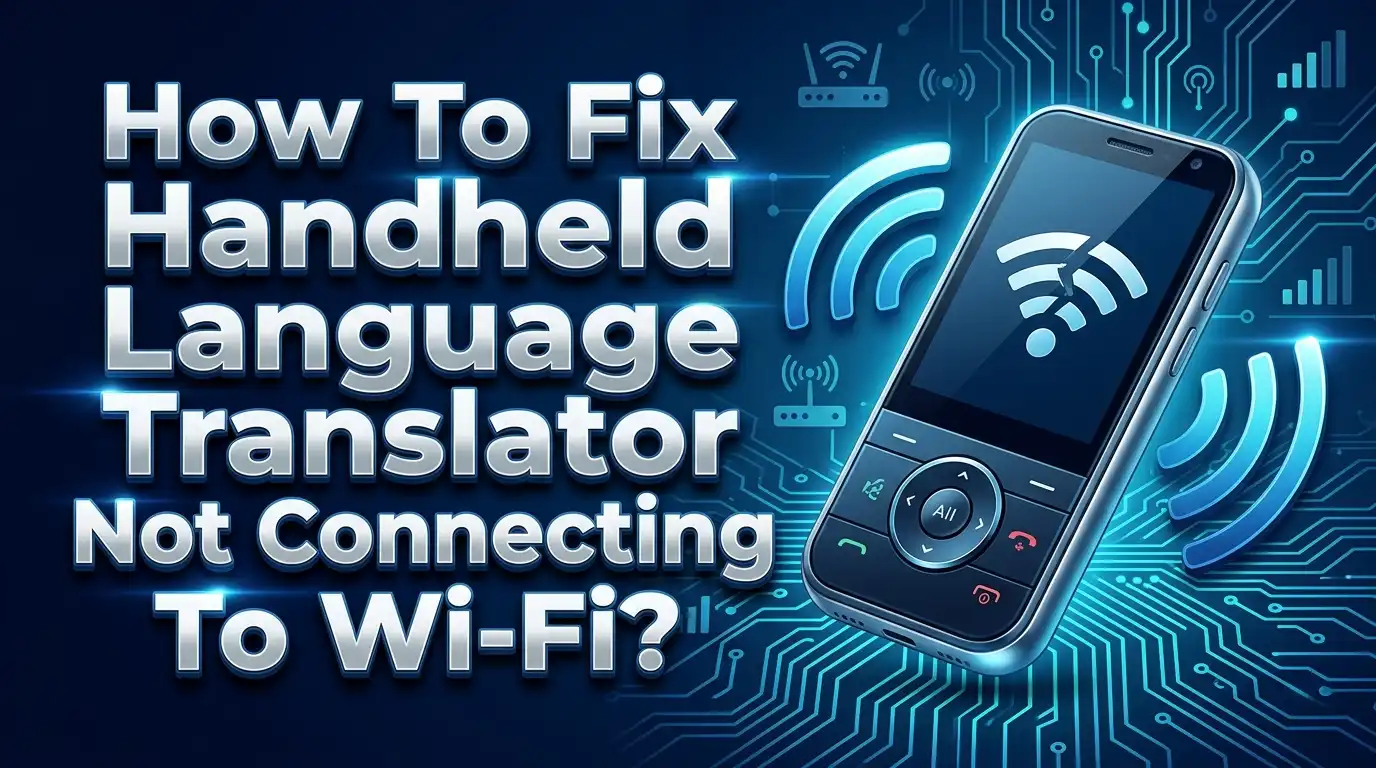
How To Fix Handheld Language Translator Not Connecting To Wi-Fi?
Your handheld language translator won’t connect to Wi-Fi, and now it feels completely useless. We get it. That frustration is real, especially when you need it most.
The good news? Most Wi-Fi connection issues are easy to fix once you know where to look.
A stable internet connection helps your translator deliver real-time, accurate results. Without it, some features simply won’t work. But that doesn’t always mean your device is broken.
In this guide, you’ll learn exactly why your handheld translator struggles to connect to Wi-Fi. You’ll also discover step-by-step fixes you can try right now, even if you’re not tech-savvy.
Let’s get your translator back up and running so you can communicate without barriers again.
In a Nutshell
Check your Wi-Fi signal first. A weak or unstable network is the most common reason your translator fails to connect.
Restart your translator and your router. This simple step clears minor glitches and refreshes the connection on both ends.
Go into your device settings and confirm that Wi-Fi is enabled and that you are connected to the right network.
Download offline language packs while connected to Wi-Fi so you can still translate even when internet access is unavailable.
Not all translators need Wi-Fi to work. Some devices use pre-downloaded language packs or built-in AI to translate without any internet connection.
Check that speech-to-text is turned on in your settings if voice translation is not responding, as this feature sometimes gets disabled accidentally.
Why Your Handheld Language Translator Needs Wi-Fi
Your handheld language translator relies on Wi-Fi for several important functions. Understanding why this connection matters helps you troubleshoot problems more effectively.
Real-time translation accuracy depends on internet access. When your device connects to Wi-Fi, it can pull the latest language databases and dialect updates from servers. This means your translations stay current and reflect modern usage patterns.
Online mode also enables speech-to-text conversion. Your translator can process spoken words and convert them into text for translation. This feature requires a stable connection to send audio data to processing servers and receive results back.
Cloud-based dictionaries work through Wi-Fi too. Instead of storing every possible word translation on your device, translators access massive online libraries. This saves storage space on your device while giving you access to millions of word combinations and context-specific meanings.
However, you should know that not all translators require Wi-Fi constantly. Many devices come with offline language packs you download while connected to the internet. Once downloaded, these packs let you translate without any connection at all.
Some standalone AI translators function completely independently. They don’t need Wi-Fi, apps, or phone connections. These devices use built-in technology to process translations directly on the hardware.
Understanding your specific device matters here. Check your translator’s manual to see whether it offers offline translation modes. If it does, you can download language packs for your most-used languages while connected to Wi-Fi.
This dual-mode approach gives you flexibility. You get online accuracy when Wi-Fi is available and offline functionality when it isn’t. Knowing which mode your device supports helps you use it more effectively in different situations.
Common Reasons Your Translator Won’t Connect To Wi-Fi
Your handheld translator may fail to connect to Wi-Fi for several straightforward reasons. Understanding these causes helps you fix the problem quickly.
Weak or unstable Wi-Fi signals rank as the top culprit. Your translator needs a strong connection to function properly. If you’re too far from your router, the signal weakens. Thick walls and interference from other devices can also block the connection. Move closer to your router and check if the connection improves.
Router issues frequently cause connection failures. Your router may need a restart to refresh its connection pool. Sometimes the router stops recognizing new devices trying to connect. Power cycling both your translator and router often solves this instantly.
Incorrect network settings on your device prevent successful connections. Your translator might be set to connect to a different network than the one you’re using. Check your device settings to confirm you’re selecting the correct Wi-Fi network. Verify that Wi-Fi is actually enabled on your translator.
Outdated firmware or software can create compatibility problems. Your device may struggle to recognize newer Wi-Fi standards or security protocols. Updating your translator’s software usually fixes these connection glitches.
Disabled speech-to-text features sometimes confuse users about connectivity. Your translator might be in offline mode or have speech functions turned off. This makes it seem like a Wi-Fi problem when it’s actually a settings issue.
Interference from nearby electronics disrupts Wi-Fi signals too. Microwaves, cordless phones, and baby monitors operate on similar frequencies. Move away from these devices when connecting.
Authentication problems occur when your device forgets your Wi-Fi password. Your translator may need the password re-entered to reconnect successfully. Check your saved networks and remove old connections that no longer work.
Basic Checks Before Troubleshooting Your Translator
Before you start troubleshooting your handheld language translator, take a few minutes to verify the basics. These simple checks often solve connection problems without needing advanced fixes.
First, check your Wi-Fi network directly. Open another device like a phone or laptop and confirm the network is working properly. If other devices connect fine but your translator doesn’t, the problem lies with your translator. If nothing connects, your router needs attention instead.
Next, verify your translator is in Wi-Fi mode. Some devices have offline and online modes. Check your device settings to confirm Wi-Fi is actually enabled. Look for a Wi-Fi icon on your screen. If you see it grayed out or missing, tap into settings and turn Wi-Fi on manually.
Make sure you’re connected to the correct network. Your translator might have connected to a neighbor’s Wi-Fi or an old network from memory. Go to your device’s network list and select the right Wi-Fi name. Enter your password carefully, as incorrect passwords block connections completely.
Check your translator’s battery level next. A low battery sometimes causes connection failures. Charge your device to at least 50 percent before attempting to reconnect.
Look at your physical location too. Move closer to your router if you’re far away. Walls, metal objects, and other electronics can weaken Wi-Fi signals. Try moving to an open area near your router.
These basic checks take just a few minutes. They eliminate the most common causes of connection issues. If your translator still won’t connect after these steps, you’re ready to move forward with deeper troubleshooting techniques.
Step-By-Step Guide To Fix Wi-Fi Connection Issues
Start by restarting both your translator device and your Wi-Fi router. Turn off your translator completely, then power it back on after 30 seconds. This simple reset often clears temporary connection errors.
Next, restart your router by unplugging it for about one minute, then plugging it back in. Wait for all lights to stabilize before attempting to reconnect your translator. This process refreshes your router’s connection capacity.
Navigate to your translator’s settings menu and locate the Wi-Fi section. Forget the network you previously connected to, then scan for available networks again. Select your Wi-Fi network and re-enter your password carefully. Passwords are case-sensitive, so verify each character matches exactly.
Check your translator’s firmware version in the settings. Outdated software can prevent proper Wi-Fi connections. If an update is available, connect temporarily to any stable Wi-Fi network and install it immediately.
Move your translator closer to your router to test signal strength. Walls, metal objects, and other electronics can weaken Wi-Fi signals significantly. If connection improves when closer, your signal strength is the issue.
Enable your translator’s Wi-Fi feature explicitly if it has a toggle switch. Some devices have separate buttons or menu options to activate wireless connectivity. Verify this setting is actually turned on.
If your translator supports offline mode, download language packs through Wi-Fi while connected. This allows you to translate without internet access later. Access your settings menu and find the offline translation or language pack download option.
Check if your router requires specific security settings. Some older translators struggle with newer Wi-Fi security protocols. Contact your internet provider if you suspect protocol incompatibility issues.
If problems persist after these steps, perform a factory reset on your translator according to your device manual.
How To Update Firmware And Language Packs Over Wi-Fi
Updating your translator’s firmware and language packs over Wi-Fi keeps your device running smoothly. This process ensures you have access to the latest translation features and improved accuracy.
First, confirm your Wi-Fi connection is stable and strong. Your translator needs a consistent internet signal to download updates without interruption. Weak connections may cause downloads to fail or pause unexpectedly.
Open your translator’s settings menu and look for an “Updates” or “System” section. Most devices display your current firmware version here. Check if an update is available by selecting the update option.
Next, locate your language pack settings. This menu typically shows which languages you have downloaded and which ones are available for download. Select the languages you want to add or update. Your device will display file sizes so you know how long the download may take.
Connect to your Wi-Fi network before starting any downloads. Ensure the connection remains active throughout the entire process. Do not disconnect or move away from your router during updates.
Some translators allow you to schedule updates for specific times. This feature helps you update during periods when you won’t need your device. Enable automatic updates if your translator offers this option.
Monitor the download progress on your device’s screen. Most translators show a progress bar or percentage completed. Wait until the update finishes completely before closing the menu or turning off your device.
After updates finish, restart your translator to apply the changes. Test your device with one of your newly downloaded language packs. Verify that translations work correctly and that new features function as expected.
Regular updates improve performance and add new capabilities to your translator.
How To Use Offline Language Packs When Wi-Fi Is Unavailable
Offline language packs are pre downloaded translations stored directly on your handheld translator. They work without any internet connection, making them perfect for travel or areas with poor Wi-Fi coverage.
Understanding offline packs means knowing your device can function independently. Many modern translators include basic offline packs for popular languages. These packs contain vocabulary, phrases, and grammar rules needed for common conversations.
Check your translator’s storage capacity first. Offline language packs require space on your device. Some translators let you store multiple language packs simultaneously, while others limit you to one or two at a time.
Accessing offline mode is usually simple. Open your device’s settings menu and look for “Offline Translation” or “Offline Mode.” Your translator should display which language packs are already installed and ready to use.
Download additional language packs while connected to Wi-Fi. Navigate to your language settings and select the packs you need. The download process typically takes a few minutes depending on pack size and your connection speed.
Enable speech to text features if your translator offers them. This setting lets you speak into your device and see translations without Wi-Fi. Check your settings menu for “Voice Input” or “Speech Recognition” options.
Test your offline functionality before you travel. Try translating a simple phrase using offline mode. This confirms your language packs work correctly and your device is ready for areas without internet access.
Offline packs provide reliable translation whenever you need it. They eliminate dependence on Wi-Fi signals and keep your conversations flowing smoothly. Your translator becomes a truly portable tool for breaking language barriers anywhere.
Common Mistakes That Prevent Successful Wi-Fi Connection
People make several mistakes that stop their handheld translators from connecting to Wi-Fi. Understanding these errors helps you fix connection problems faster.
Assuming your translator always needs internet is a major mistake. Many devices work perfectly offline with pre-downloaded language packs. You don’t need Wi-Fi for basic translation if your offline packs are already installed on the device.
Another common error is connecting to unstable Wi-Fi networks. Your translator struggles when the signal keeps dropping or the connection is weak. Test your Wi-Fi speed on another device first. If it’s slow or unreliable, move closer to your router or try a different network.
People often forget to check if speech-to-text is actually enabled in their settings. Your translator might connect to Wi-Fi fine, but speech features won’t work if this toggle is off. Look in your device’s settings menu and verify this feature is turned on.
Not restarting your devices causes more problems than you’d think. Your translator and router both need a fresh start sometimes. Unplug your router for one minute, then plug it back in. Also restart your translator by turning it completely off and on again.
Many users don’t check their translator’s Wi-Fi toggle switch. Some devices have a physical switch or a settings option that disables Wi-Fi entirely. Make sure this feature is explicitly enabled before you troubleshoot anything else.
Finally, people assume their translator is broken when it’s actually just operating in offline mode. Check which mode your device is currently using. Switch to online mode if you need real-time internet translation, or stick with offline mode if you have the language packs you need already installed.
When To Reset Your Handheld Translator To Factory Settings
A factory reset brings your handheld translator back to its original settings. You should consider this step when your device refuses to connect to Wi-Fi after trying basic fixes.
When should you reset? Reset your translator if it still won’t connect after restarting both the device and your router. If you’ve checked your Wi-Fi toggle switch and the network appears in your available list but won’t connect, a factory reset often solves the problem. Also reset if your translator keeps disconnecting from Wi-Fi every few minutes.
Signs you need a reset Your device may have corrupted settings that prevent proper Wi-Fi communication. If your translator worked before but suddenly stopped connecting, settings corruption is likely the cause. Another sign is when you see error messages about network configuration.
Before you reset Back up any custom settings or downloaded language packs if your device allows it. Write down which offline language packs you currently have installed. Take a photo of your translator’s current settings so you remember your preferences.
The reset process Most translators have a factory reset option in their settings menu. Look for “System,” “Advanced,” or “About Device” sections. You may need to hold a physical reset button on the back of your device for several seconds. Some translators require you to confirm the reset by pressing a button multiple times.
After resetting Your translator returns to factory conditions. You’ll need to reconnect to Wi-Fi from scratch. Download your language packs again and reconfigure your preferences. Test the Wi-Fi connection immediately to confirm it works properly now.
Final Thoughts
A Wi-Fi connection issue on your handheld translator is almost always fixable. The steps are straightforward once you know what to check.
Start with the basics. Verify your Wi-Fi is active and stable before assuming the translator is faulty. Restart both your router and your translator device. This alone solves most connection problems.
Check your translator’s Wi-Fi toggle in the settings menu. Many users overlook this simple switch. Make sure it is turned on before trying anything else.
If restarting doesn’t help, move closer to your router. Weak signals cause unstable connections that prevent your translator from syncing properly. Distance and physical barriers both affect signal strength.
Not all translators need Wi-Fi to function. Some devices use pre-downloaded language packs that work completely offline. If you are in an area with poor coverage, offline mode keeps you translating without interruption.
Always download your offline language packs while connected to a stable Wi-Fi network. This prepares your device for situations where internet access is unavailable. Test offline functionality before you travel to avoid surprises.
If your device still won’t connect after all these steps, a factory reset may be the final solution. This clears corrupted settings and restores proper Wi-Fi communication.
The most important takeaway is this: most Wi-Fi issues come from simple oversights, not hardware failures. A quick restart, a settings check, or an offline pack download usually resolves the problem fast.
Stay patient and work through each step systematically. Your handheld translator is a powerful communication tool, and keeping it connected ensures you get the best performance from it every time.
Frequently Asked Questions
Can my handheld translator work without an internet connection?
Yes, absolutely. Many translators function completely offline using pre-downloaded language packs. You download these packs while connected to Wi-Fi, then use them anywhere without needing a signal.
Some standalone AI translators require no apps, Wi-Fi, or phone connection at all. They work independently right out of the box. Always download your offline language packs while connected to a stable Wi-Fi network so you’re ready for areas without coverage.
Why is my translator stuck in offline mode?
Your device may have offline mode enabled in its settings. Check your translator’s settings menu and look for an offline translation option. Toggle it off if you want to use online features instead.
Make sure your Wi-Fi is actually turned on in your device settings. Sometimes the Wi-Fi toggle gets switched off accidentally. You should also verify your router is working and other devices can connect to it.
What should I do if my translator won’t connect even after restarting?
Try moving closer to your router first. Walls and distance weaken Wi-Fi signals significantly. If that doesn’t work, check if you’re connecting to a stable network. Unstable or public Wi-Fi networks sometimes block translator apps from functioning properly.
Verify that speech-to-text is enabled in your settings if that feature matters to you. Some translators require this setting activated for online translation to work. If nothing helps, your device may need a factory reset to clear corrupted settings.
Do all handheld translators need Wi-Fi to function?
No. Some devices operate as standalone units without internet dependency. Others need Wi-Fi only for real-time translations and updates. Check your specific device’s manual to understand its online versus offline capabilities.

Hi, I’m Siya — the founder and writer behind Craftifyy.com. I’m a tech enthusiast who loves reviewing gadgets, comparing products, and helping people make smarter buying decisions. Got a question? Feel free to reach out!