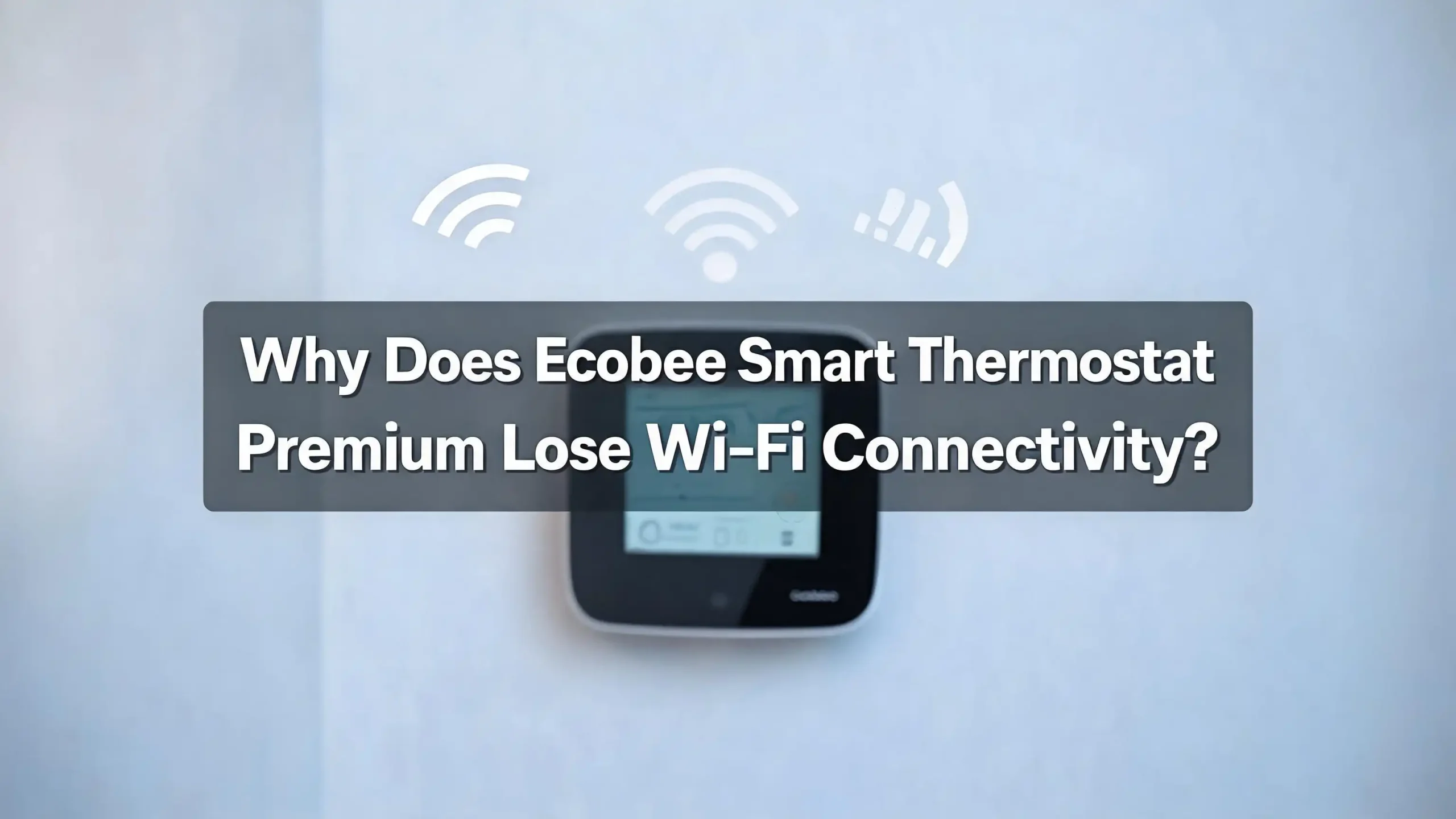
Why Does Ecobee Smart Thermostat Premium Lose Wi-Fi Connectivity?
You wake up, grab your phone, and open the Ecobee app. Instead of seeing your home’s temperature, you see a frustrating message: “Thermostat Offline.” Your Ecobee Smart Thermostat Premium has lost its Wi-Fi connection again. The worst part? Every other device in your home is connected just fine.
This is a problem that thousands of Ecobee owners face. The thermostat drops off the network randomly, Alexa says “not responding,” and HomeKit stops working. You pull the unit off the wall, wait a few seconds, and snap it back in place. It reconnects. Then two days later, the same thing happens.
The good news is that this issue almost always has a fixable cause. It could be your router settings, mesh network behavior, signal strength, or even your HVAC wiring. This post will walk you through every common reason your Ecobee Smart Thermostat Premium loses Wi-Fi and give you clear, step by step solutions for each one.
In a Nutshell
- Mesh networks are the biggest offender. Systems like Eero, TP Link Deco, and Google Nest Wi-Fi use band steering and node handoffs that can confuse the Ecobee and cause it to drop off the network entirely.
- Router channel auto switching causes silent disconnects. When your router changes its Wi-Fi channel automatically, the Ecobee may fail to follow and stay stuck in a disconnected state until you manually reboot it.
- A DHCP reservation (static IP) prevents many “offline in app” issues. IP address changes can break the connection between the thermostat, the Ecobee cloud, and your smart home integrations.
- Power instability from your HVAC system can mimic Wi-Fi problems. If your thermostat drops off the network right when heating or cooling kicks in, the issue may be electrical rather than wireless.
- A factory reset is rarely the first answer. Most disconnection problems are caused by network configuration, not a broken thermostat. Adjusting your router settings and Wi-Fi environment will solve the majority of cases.
- Keeping the thermostat on a dedicated, stable 2.4 GHz connection remains one of the most reliable long term fixes, even though the Premium model supports 5 GHz.
Understanding How the Ecobee Smart Thermostat Premium Connects to Wi-Fi
The Ecobee Smart Thermostat Premium uses dual band Wi-Fi: 802.11 b/g/n on the 2.4 GHz band and 802.11 a/n/ac on the 5 GHz band. It also includes Bluetooth 5.0 for sensor pairing and initial setup. The thermostat uses roughly 15 to 20 MB of data per month to stay connected to Ecobee’s cloud servers.
Once connected, the thermostat maintains a persistent outbound connection to Ecobee’s servers using encrypted TLS. No incoming connections from the internet reach the device directly. This means the thermostat must initiate and sustain its own link to the cloud. If that connection breaks for any reason, the app shows the thermostat as offline.
The Wi-Fi radio inside the Ecobee is not as powerful as the one in your phone or laptop. It is a small, low power module designed to minimize energy use. This means it is more sensitive to signal drops, interference, and network changes than most other devices in your home. Your phone may show full bars in the hallway where the thermostat is mounted, but that does not guarantee the Ecobee has the same experience.
This hardware limitation is why so many users report that “everything else works fine” while the Ecobee keeps dropping. The thermostat’s Wi-Fi module simply does not recover as gracefully from brief signal interruptions or network changes.
Mesh Networks and Band Steering Cause Frequent Disconnections
Mesh Wi-Fi systems are the single most reported cause of Ecobee Wi-Fi drops. Users on Reddit, Apple support forums, and Ecobee’s own community consistently point to mesh networks from brands like Eero, TP Link Deco, Google Nest, and Orbi as the source of the problem.
Here is what happens. Mesh systems use multiple access points (nodes) to blanket your home with Wi-Fi. They constantly evaluate which node and which frequency band each device should use. When the mesh system decides to move the Ecobee from one node to another, or from 2.4 GHz to 5 GHz, the thermostat may not handle the transition smoothly. It loses its connection and fails to reconnect on its own.
The fix involves disabling the features that cause these handoffs. Look in your mesh app for options labeled “band steering,” “client steering,” “smart connect,” or “automatic optimization.” Turn these off, at least temporarily, to test whether they are causing the drops. Many users report that this single change eliminates the problem entirely.
If your mesh system does not let you disable steering, consider creating a separate 2.4 GHz only network (sometimes called a guest network) and connecting the Ecobee to that instead. This prevents the mesh from trying to push the thermostat to a different band or node.
Your Router’s Automatic Channel Switching May Be the Culprit
Most modern routers scan for the least congested Wi-Fi channel and switch to it automatically. This is great for phones and laptops that handle channel changes seamlessly. The Ecobee’s Wi-Fi module, however, does not always follow along when the channel changes.
When the router switches from channel 1 to channel 6, the Ecobee may stay “listening” on the old channel. The result is a silent disconnect. The thermostat display may look normal, but the app shows it as offline. The only fix at that point is a manual reboot of the thermostat.
To solve this, log into your router’s admin panel and set the 2.4 GHz channel to a fixed value. Channels 1, 6, and 11 are the standard non overlapping channels for 2.4 GHz in the United States. Pick the one with the least interference in your area. You can use a free Wi-Fi analyzer app on your phone to check which channels your neighbors are using.
Multiple users have confirmed that locking the 2.4 GHz channel to a static value stopped their Ecobee from disconnecting entirely. One user on Reddit reported that their thermostat went from disconnecting 12 to 15 times per day to zero disconnections after setting a static channel on their TP Link router.
Weak Wi-Fi Signal at the Thermostat Location
The Ecobee Smart Thermostat Premium is typically mounted on a wall in a hallway, stairway, or central location. These spots are great for reading your home’s temperature accurately, but they are often far from your router or behind multiple walls.
The thermostat’s small Wi-Fi antenna does not penetrate walls as effectively as a laptop or phone would. Metal ductwork, concrete, brick, and even large appliances between the router and the thermostat can weaken the signal significantly. A signal that looks “good enough” on your phone may be too weak for the Ecobee’s less powerful radio.
Test the signal strength directly from the thermostat. Go to Main Menu, then About, then Wi-Fi on the thermostat’s screen. This page shows the current signal strength and connection status. If the signal is weak or borderline, you need to improve coverage at that location.
You can move your router or the nearest mesh node closer to the thermostat. Even a few feet of adjustment can make a meaningful difference, especially if the current placement puts thick walls or metal objects between the router and the Ecobee. A strong, stable signal at the thermostat is the foundation of a reliable connection.
DHCP and IP Address Changes Break the Cloud Connection
Every device on your network gets an IP address from your router’s DHCP server. By default, these addresses are temporary and can change whenever the lease expires or the router restarts. When the Ecobee’s IP address changes, the connection between the thermostat, the Ecobee cloud, and your app can break.
This is why the thermostat display may look fine while the app says “offline.” The thermostat is still on your Wi-Fi, but the cloud has lost track of it because the IP address shifted. Smart home integrations like HomeKit and Alexa also lose contact, showing “not responding” errors.
The solution is to create a DHCP reservation (also called a static IP assignment) for your Ecobee in your router’s settings. Open your router’s admin panel or app, find the Ecobee in the list of connected devices, and assign it a fixed IP address. This ensures the thermostat always gets the same address, no matter how many times the router restarts.
This is one of the simplest and most effective fixes. Multiple users confirm that adding a DHCP reservation stopped their Ecobee from going offline in the app, especially on mesh networks where IP churn is more common.
Power and C Wire Problems That Mimic Wi-Fi Issues
Not every disconnection is actually a Wi-Fi problem. If your Ecobee Smart Thermostat Premium drops off the network right when your heating or cooling system turns on, the issue may be electrical. The HVAC system can cause brief voltage dips that reset the thermostat’s Wi-Fi radio without triggering a full visible reboot.
The Ecobee requires a steady flow of 24VAC power to operate its screen, sensors, Wi-Fi radio, and built in Alexa speaker. A dedicated C wire (common wire) provides this continuous power. If your C wire is missing, loose, or your Power Extender Kit (PEK) is not functioning correctly, the thermostat may experience intermittent power drops.
Check the wiring at the thermostat by gently pulling the faceplate off the wall plate. Make sure all wires are firmly seated in the correct terminals. If you are using a PEK instead of a direct C wire, inspect the connections at both the thermostat and the furnace control board.
Also ensure the faceplate is fully snapped onto the base plate. A loose connection between the faceplate and the base can cause intermittent pin contact, which leads to random power fluctuations that look exactly like Wi-Fi connectivity issues.
Router Security Settings That Block the Ecobee
Your router’s security configuration can silently prevent the Ecobee from maintaining a stable connection. The thermostat supports WPA and WPA2 AES encryption. If your router is set to WPA3 only, the Ecobee may connect initially but drop off later when the security handshake fails during a reconnection attempt.
Set your router’s Wi-Fi security to WPA2/WPA3 mixed mode rather than WPA3 only. This allows both modern devices and IoT devices like the Ecobee to connect without issues. You can find this setting in your router’s wireless security or advanced Wi-Fi section.
Client isolation is another setting to check. Some routers enable client isolation on guest networks by default. This blocks devices on the network from talking to each other and can also prevent the Ecobee from reaching the cloud. If your Ecobee is on a guest network, either move it to your main network or disable client isolation on that guest network.
DNS filtering, ad blocking services, and parental controls can also interfere. These features may block the Ecobee’s connection to ecobee.com servers. If you use custom DNS or network level ad blocking, test with standard DNS temporarily to see if the disconnection stops.
How to Properly Reboot Your Ecobee to Restore Connectivity
When your Ecobee Smart Thermostat Premium goes offline, a simple reboot often brings it back. But there is a right way to do it that gives the thermostat the best chance of reconnecting cleanly.
Pull the thermostat faceplate straight out from the wall plate. Do not twist or angle it. Wait at least 30 seconds with the unit off the wall. This allows the internal capacitors to fully discharge and the Wi-Fi radio to completely reset. Then place it back on the wall plate firmly.
After the Ecobee boots up, it will attempt to reconnect to your saved Wi-Fi network automatically. Give it two to three minutes before checking the app. If it does not reconnect on its own, go to Main Menu, then Settings, then Wi-Fi on the thermostat and manually rejoin your network.
For a more thorough network reset, you can forget the saved Wi-Fi network first and then reconnect from scratch. This clears any cached network data that might be causing problems. Navigate to Settings, then Wi-Fi, then Network on the thermostat. Select your network and reconnect by entering your password again.
If you also suspect your router is part of the problem, reboot it before rebooting the Ecobee. Power off your modem, then your router, wait 60 seconds, power the modem back on first, wait for it to fully connect, then power on the router. Once your network is stable, reboot the Ecobee.
Firmware Updates and Their Impact on Wi-Fi Stability
Ecobee pushes firmware updates to thermostats automatically over Wi-Fi. These updates can fix bugs, add features, and sometimes change how the Wi-Fi radio behaves. In some cases, a firmware update can improve connectivity. In other cases, users have reported that new firmware introduced new disconnection issues.
You can check your current firmware version by going to Main Menu, then About on the thermostat. Compare this to the latest version listed on Ecobee’s support page. If your thermostat is not up to date, it may be missing important Wi-Fi stability patches.
The catch is that the thermostat needs to be connected to Wi-Fi to receive updates. If your Ecobee keeps disconnecting before it can download the update, you may need to stabilize the connection first using the other fixes in this guide. Once connected long enough to pull the update, the new firmware may resolve the issue on its own.
After a firmware update, reboot the thermostat once by removing it from the wall for 30 seconds. This helps the new firmware initialize cleanly. Also reboot your router after updating its own firmware, since router updates can reset channel assignments and steering behavior that affect the Ecobee.
Setting Up a Dedicated 2.4 GHz Network for Your Ecobee
One of the most reliable long term solutions is to create a separate Wi-Fi network that only broadcasts on 2.4 GHz and connect your Ecobee to it. This removes all the variables that cause problems: band steering, 5 GHz interference, and aggressive mesh optimization.
Most routers and mesh systems allow you to create a guest network or secondary SSID. Set this network to broadcast on 2.4 GHz only with WPA2 AES security. Give it a unique name so it does not get mixed up with your main network. Then connect your Ecobee to this dedicated network through the thermostat’s Wi-Fi settings.
Some users take this a step further by using a separate, inexpensive standalone router placed near the thermostat. This router broadcasts only on 2.4 GHz from a single access point. There is no band steering, no node handoffs, and no channel optimization. The Ecobee gets a simple, stable, uninterrupted signal.
This approach has been confirmed as effective by many users in online forums who struggled with mesh network disconnections for months or even years. The connection becomes “boring and stable,” which is exactly what a smart thermostat needs to work reliably.
When to Contact Ecobee Support or Request a Replacement
If you have tried every fix listed above and your Ecobee Smart Thermostat Premium still drops Wi-Fi regularly, the issue may be hardware related. The Wi-Fi module inside the thermostat can degrade over time or arrive with a defect from the factory.
Signs of a hardware problem include the thermostat refusing to see any Wi-Fi network at all, connecting and dropping within minutes on a strong signal, or entering a “Wi-Fi socket state” where it will not connect to any network until you reboot it. If these symptoms persist after a full network reset and stable router configuration, the Wi-Fi radio itself may be failing.
Contact Ecobee support directly through their app, website, or by phone at 1 877 932 6233. They can view your thermostat’s connection history remotely and determine whether the issue is software or hardware. If your thermostat is still under warranty (the Smart Thermostat Premium comes with a three year warranty), they may send a replacement unit.
Before calling, note down your thermostat’s serial number, firmware version, and the specific symptoms you are experiencing. Include details like how often it disconnects, whether the display reboots or stays on, and whether disconnections align with HVAC cycles. This information helps the support team diagnose the problem faster.
Best Practices to Prevent Future Wi-Fi Disconnections
Keeping your Ecobee Smart Thermostat Premium reliably connected requires a few ongoing habits. These preventive measures save you from repeating the troubleshooting cycle every few weeks.
Keep your DHCP reservation active at all times. Do not remove it even if the thermostat seems stable. IP address changes are a silent cause of disconnections that may not show up for days or weeks. Also make sure your router firmware stays updated, but always reboot the full network after a router update to prevent unexpected channel or setting changes.
Place your nearest router or mesh node within a clear line of sight to the thermostat if possible. Avoid placing the router behind metal objects, inside closets, or on the opposite side of a concrete wall from the Ecobee. Signal strength is the foundation of everything else.
Avoid putting your Ecobee on a guest network that uses client isolation. Guest networks can block cloud connectivity and local device discovery. If you must use a guest network, ensure client isolation is turned off and that the network has full internet access.
After any major change to your home network, such as a new router, new mesh nodes, or an ISP change, reconnect the Ecobee’s Wi-Fi from scratch. Do not assume the thermostat will automatically adapt. Go to the Wi-Fi settings on the thermostat, forget the old network, and set up the connection again with the new credentials.
A Quick Troubleshooting Checklist for Ecobee Wi-Fi Drops
When your Ecobee drops off Wi-Fi, run through this list before doing anything drastic. Start with the simplest fixes and work your way down to more involved solutions.
First, check whether the thermostat display shows a Wi-Fi icon or says “disconnected.” If the display looks normal but the app says offline, the problem is likely DHCP, DNS, or cloud connectivity rather than the Wi-Fi signal itself. If the thermostat shows no Wi-Fi, the issue is at the signal or router level.
Reboot the thermostat by pulling it off the wall for 30 seconds. If it reconnects and stays connected, the drop was likely caused by a temporary interference event or a channel change on your router. If it drops again within hours, move to router settings.
Check your router’s 2.4 GHz channel and set it to a fixed value (1, 6, or 11). Disable band steering and client steering if available. Create a DHCP reservation for the Ecobee. If you are on a mesh network, disable automatic optimization features and lock the Ecobee to the nearest node if your system supports that option.
If the disconnections happen during HVAC cycles, inspect your C wire and thermostat wiring. Make sure the faceplate is firmly seated on the wall plate. A power issue will keep causing drops no matter how perfect your Wi-Fi setup is.
FAQs
Does the Ecobee Smart Thermostat Premium work on 5 GHz Wi-Fi?
Yes. The Ecobee Smart Thermostat Premium supports both 2.4 GHz and 5 GHz Wi-Fi bands. It uses 802.11 a/n/ac on the 5 GHz band and 802.11 b/g/n on the 2.4 GHz band. However, many users find that connecting to a dedicated 2.4 GHz network provides more stable performance because 2.4 GHz has better range through walls and is less affected by physical obstacles. If you are experiencing frequent drops on a combined band network, try switching to 2.4 GHz only.
Why does my Ecobee show connected but the app says offline?
This usually means the thermostat has a Wi-Fi connection but cannot reach Ecobee’s cloud servers. The most common causes are DHCP/IP address changes, DNS filtering, or guest network restrictions that block outbound cloud connections. Set a DHCP reservation for the thermostat and make sure it is on a network with full internet access and no client isolation enabled.
Will a factory reset fix Ecobee Wi-Fi problems?
A factory reset can help if the thermostat’s network settings are corrupted, but it rarely solves the root cause of repeated disconnections. If the problem is caused by mesh steering, channel switching, or weak signal, the Ecobee will disconnect again after the reset. Try a Wi-Fi network reset first (forget and rejoin your network) before resorting to a full factory reset.
How do I check the Wi-Fi signal strength on my Ecobee?
On the thermostat, go to Main Menu, then About, then Wi-Fi. This screen shows your connection status, signal strength, and network details. If the signal strength is weak, move your router or nearest mesh node closer to the thermostat to improve coverage.
Can HVAC wiring cause my Ecobee to lose Wi-Fi?
Yes. A missing, loose, or faulty C wire can cause brief power drops that reset the Wi-Fi radio without fully rebooting the thermostat. This makes it look like a Wi-Fi problem when it is actually a power problem. Check that all wires are securely connected and that the faceplate is firmly seated on the wall plate. If disconnections happen right when heating or cooling starts, wiring is the most likely cause.
How often does the Ecobee receive firmware updates?
Ecobee pushes firmware updates automatically when the thermostat is connected to Wi-Fi. There is no set schedule, but updates typically arrive a few times per year. You can check your current version under Main Menu, then About on the thermostat. If you suspect an update caused your Wi-Fi issues, contact Ecobee support to report the problem and ask about known issues with the current firmware version.

Hi, I’m Siya — the founder and writer behind Craftifyy.com. I’m a tech enthusiast who loves reviewing gadgets, comparing products, and helping people make smarter buying decisions. Got a question? Feel free to reach out!