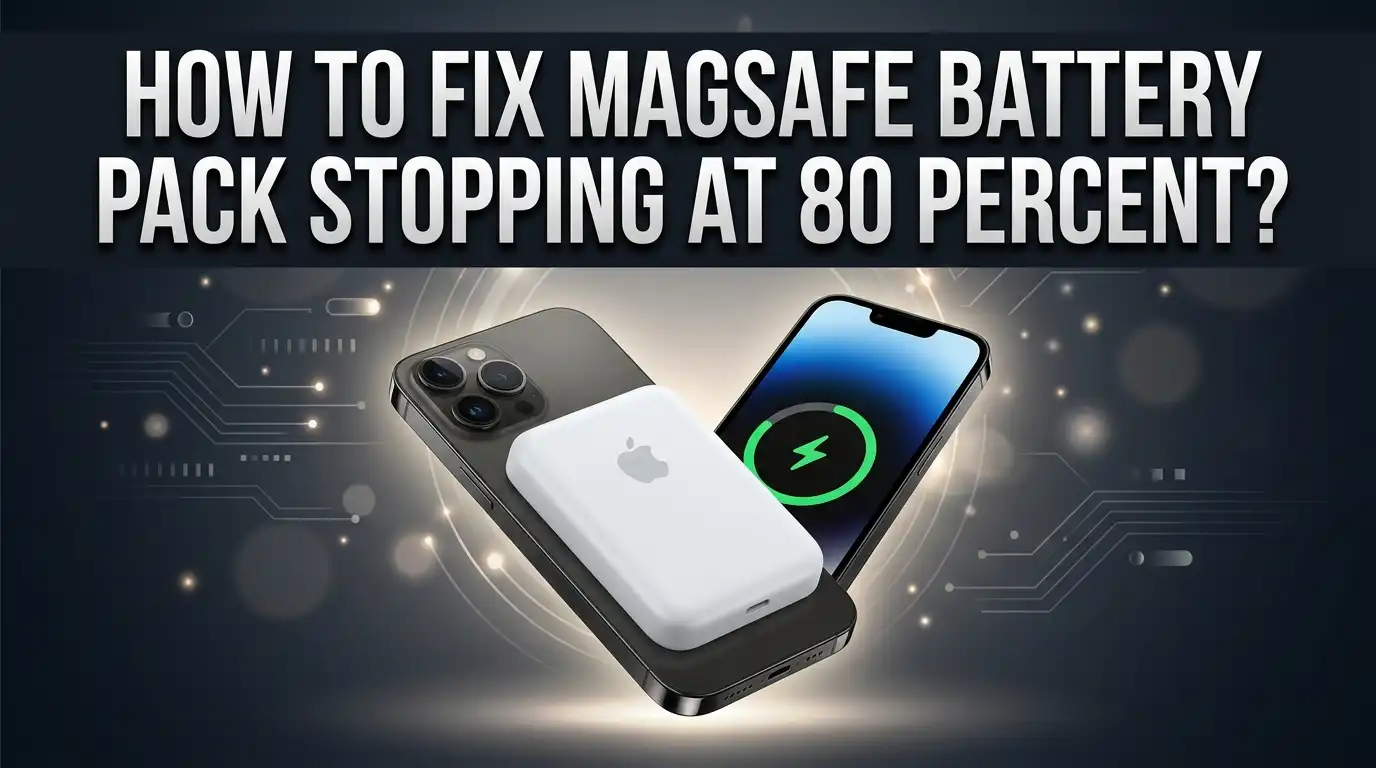
How To Fix MagSafe Battery Pack Stopping At 80 Percent?
You plug in your MagSafe Battery Pack, walk away, and come back to find your iPhone stuck at 80%. Frustrating, right? You might think something is broken, but the fix is usually simpler than you expect.
The 80% stop is almost always caused by a software feature, not a hardware problem. Apple’s Optimized Battery Charging is designed to protect your battery’s long-term health. It learns your charging habits and slows down the charge near the end on purpose.
The problem is that this feature sometimes stays active even when you don’t want it to. It can also behave unexpectedly after an iOS update or on certain iPhone models.
The good news? This is completely fixable.
In this guide, you will learn exactly why your MagSafe Battery Pack keeps stopping at 80%. You will also get clear, step-by-step fixes to get your battery charging to 100% again.
In a Nutshell
- Your MagSafe Battery Pack stops at 80% because of a feature called Optimized Battery Charging on your iPhone.
- This feature is turned on by default and intentionally slows or pauses charging to protect your battery’s long-term health.
- Sometimes the feature keeps the limit active even after you think you’ve disabled it, due to a software glitch.
- iPhone 15 Pro users on iOS 17.0.2 and later may experience a known bug that makes this problem more persistent than usual.
- The fix is almost always software-based, not a sign of a broken MagSafe Battery Pack or faulty hardware.
- You can resolve this by disabling Optimized Battery Charging in your iPhone settings, doing a force restart, or resetting your network settings.
Why Your MagSafe Battery Pack Stops Charging At 80 Percent
Your MagSafe Battery Pack stops at 80% because your iPhone has a built in protection system. This system is called Optimized Battery Charging, and it works by limiting charge speed and capacity to keep your battery healthy long term.
Apple designed this feature to reduce battery wear. Batteries degrade faster when they stay at 100% charge for extended periods. By stopping at 80%, your iPhone extends the overall lifespan of its internal battery. This is intentional behavior, not a malfunction.
The feature activates automatically on most iPhones. Your device learns your charging habits and turns on the limit during times when you typically charge overnight or for long periods. Once enabled, it can be difficult to turn off completely.
Software glitches make this problem worse. Sometimes the 80% limit stays active even after you disable it in settings. Your iPhone may also re enable the feature without your knowledge after a software update. This happens more often on newer models and recent iOS versions.
iPhone 15 Pro users have reported this issue more frequently. The bug appears on iOS 17.0.2 and later versions. Users disable the feature, restart their device, and find it has turned back on by itself. This creates frustration because the problem seems to repeat.
The good news is this issue is almost always software related. Your MagSafe Battery Pack hardware is working correctly. Your iPhone’s charging system is functioning as designed. The problem lies in how your device’s software manages the charging process.
Understanding this distinction matters. Many people assume their battery pack is broken when the real issue is a software setting. Once you know what causes the 80% limit, you can fix it quickly. Most solutions take just a few minutes to complete.
What Is Optimized Battery Charging And How It Affects MagSafe
Optimized Battery Charging is a feature Apple built into iPhones to protect your battery’s health. It works by limiting how much charge your device receives during certain times. Your iPhone learns your daily charging habits and slows down charging to 80% when it predicts you won’t need more power soon.
This feature exists because lithium ion batteries degrade faster when kept at 100% charge for long periods. By stopping at 80%, your battery experiences less stress and lasts longer overall. Apple found that this small compromise in immediate capacity delivers significant long term benefits.
How it affects your MagSafe Battery Pack
When Optimized Battery Charging is active, your MagSafe Battery Pack will charge your iPhone only to 80%. The pack itself charges fully, but it intentionally holds back the final 20% transfer to your phone. This is normal behavior, not a malfunction.
The problem occurs when this feature remains active even after you disable it. Software glitches can cause the 80% limit to persist stubbornly. Your settings show the feature is off, yet your phone still refuses to charge beyond 80%.
Why this matters for your situation
Understanding this distinction is crucial. Many people panic thinking their MagSafe Battery Pack is broken when the real issue sits in software settings. Your hardware works perfectly fine. The limitation is intentional and temporary.
The good news
This feature is completely toggleable. You can turn it off whenever you want. If it stays on after you disable it, a simple force restart usually clears the glitch. Your iPhone will then accept the full charge from your MagSafe Battery Pack without stopping at 80%.
This knowledge helps you fix the problem confidently without worrying about hardware damage or expensive repairs.
How To Disable Optimized Battery Charging On Your iPhone
Disabling Optimized Battery Charging is your first step to fix the 80 percent issue. Open your iPhone Settings app and tap Battery. Look for Battery Health and Device Management.
You’ll see a toggle switch next to “Optimized Battery Charging.” This toggle appears on most iPhone models. Tap it to turn off the feature completely.
After you disable it, your iPhone won’t automatically limit charging anymore. The MagSafe Battery Pack should now charge your device past 80 percent without stopping.
Here’s what happens next. Your iPhone may need a moment to recognize the change. Unplug your MagSafe Battery Pack if it’s currently connected. Wait about 30 seconds before reconnecting it to your device.
If the 80 percent limit persists after disabling the toggle, perform a force restart. This action clears temporary software glitches that prevent the setting from taking effect. The force restart method depends on your iPhone model, but it typically involves quickly pressing and releasing volume buttons, then holding the side button until the power off slider appears.
Sometimes the feature gets stuck due to iOS bugs. If you’re on an older iOS version, check Settings > General > Software Update. Installing the latest iOS version often resolves persistent charging limit problems.
After your restart completes, reconnect the MagSafe Battery Pack and monitor the charging percentage. Your device should now charge beyond 80 percent without interruption.
One important note: if you see the toggle grayed out or unavailable, your device may have a different issue. In that case, reset network settings by going to Settings > General > Transfer or Reset > Reset > Reset Network Settings. This action refreshes how your iPhone communicates with the MagSafe Battery Pack.
The charging limit should disappear after completing these steps. Your battery pack will function normally again.
How To Force Restart Your iPhone To Refresh MagSafe Protocols
A force restart refreshes how your iPhone communicates with the MagSafe Battery Pack. This process clears temporary software glitches that keep the 80% charge limit active.
Here’s why this works. Your iPhone stores charging instructions in its active memory. When you force restart, you clear that memory completely. The device then reloads its charging protocols from scratch. This often fixes the stuck 80% limit.
How to force restart your iPhone. The steps depend on your iPhone model. For iPhone 8 and newer models, quickly press and release the volume up button. Then quickly press and release the volume down button. Finally, press and hold the side button until you see the power off slider. Keep holding until the screen goes black and the Apple logo appears.
For iPhone 7 and 7 Plus, hold both the volume down button and the side button together until the Apple logo shows up.
For older iPhone models like the 6s, hold the top button and home button together until you see the Apple logo.
What happens during the restart. Your iPhone completely powers down. All running processes stop. The battery charging system resets. When your phone turns back on, it rebuilds its connection with the MagSafe Battery Pack from the beginning.
After the restart. Connect your MagSafe Battery Pack again and check the charging behavior. Your iPhone should now charge past 80% if you disabled Optimized Battery Charging earlier. If the limit persists, this indicates a deeper software issue that may need additional troubleshooting steps.
Important note. Force restart is completely safe. It doesn’t delete any of your data, photos, or apps. Your iPhone simply turns off and back on in a controlled way.
How To Reset Network Settings To Resolve Charging Glitches
When your MagSafe Battery Pack stops at 80 percent, network settings can sometimes interfere with charging communication. Resetting these settings refreshes how your iPhone talks to the battery pack and may resolve the glitch.
Here’s why this matters. Your iPhone uses network protocols to manage power delivery. When these settings become corrupted or outdated, charging instructions get confused. The battery pack receives incorrect signals and stops charging early.
Start by opening Settings on your iPhone. Scroll down and tap General. Look for Transfer or Reset options, then select Reset. You’ll see “Reset Network Settings” as an option. Tap it to proceed.
Your iPhone will ask for your passcode. Enter it to confirm. The device will restart automatically after the reset completes. This process takes about one to two minutes.
What happens during the reset. Your iPhone clears all saved WiFi networks, Bluetooth connections, and VPN settings. It removes any corrupted data that might block charging signals. After the restart, your iPhone reconnects to networks fresh.
Once your device restarts, reconnect to your WiFi network. You’ll need to enter your WiFi password again. Then reconnect your MagSafe Battery Pack by placing it on your iPhone.
Test the charging by monitoring the battery percentage. Watch if it charges past 80 percent now. Give it several minutes to show progress.
Important note. This reset doesn’t erase your personal data like photos or messages. It only clears network connections. You won’t lose anything important.
If charging still stops at 80 percent after this reset, the issue likely stems from Optimized Battery Charging or a deeper software bug. Try updating your iOS to the latest version. Apple frequently releases fixes for charging glitches in newer updates.
iOS Version-Specific Bugs That Cause The 80 Percent Charging Limit
Different iOS versions sometimes cause the 80 percent charging limit to stick, even after you disable Optimized Battery Charging. Your iPhone’s software may have bugs that prevent the feature from turning off properly.
iOS 17.0.2 and later versions showed this problem on iPhone 15 Pro models. Users reported that the charging limit remained active despite toggling off the feature in settings. The bug appeared randomly and affected multiple devices running the same software version.
Older iOS versions like iOS 16 also experienced similar glitches. The issue occurred when users updated their phones but didn’t fully restart them afterward. Your iPhone’s system files didn’t refresh properly, leaving charging instructions stuck in memory.
Why version specific bugs happen involves how Apple rolls out software updates. Each iOS version changes how battery management works behind the scenes. When new code conflicts with older charging protocols, your MagSafe Battery Pack receives confused instructions.
Check your current iOS version by opening Settings, then General, then About. Look at the software version number displayed there. If you’re running a version known for this bug, consider updating to the latest available iOS.
Important note about updates: Updating your iOS sometimes fixes the 80 percent issue automatically. Apple releases patches that correct battery charging bugs discovered in earlier versions. Your device installs these fixes when you update through Settings > General > Software Update.
If updating doesn’t solve the problem, the issue likely involves a deeper software glitch rather than just the iOS version itself. You’ll need to try additional troubleshooting steps like resetting your device settings or contacting support for more advanced help.
Keep your iPhone updated to avoid version specific bugs. Apple continuously improves battery management with each new release, so staying current protects you from known charging problems.
Common Mistakes To Avoid When Troubleshooting MagSafe Charging Issues
Many people make mistakes when trying to fix the 80 percent charging limit on their MagSafe Battery Pack. Understanding these errors helps you solve the problem faster and avoid wasting time on ineffective solutions.
The biggest mistake is assuming your hardware is broken. When your battery stops at 80 percent, you might think your MagSafe pack or iPhone has a physical defect. In reality, this is almost always a software issue. Your device is working correctly by following the Optimized Battery Charging instructions.
Another common error is disabling the charging limit but then not restarting your device afterward. Many people change the setting in their battery settings menu and expect instant results. Your iPhone needs a restart to apply the change properly. Without the restart, the old settings stay active in your device’s memory.
People also ignore which iOS version they’re running. Different iOS versions behave differently with the 80 percent limit. If you’re on an older version, your problem might be version specific. Checking your iOS version takes only seconds but provides crucial information for troubleshooting.
Don’t skip the basic steps in order. Some users jump straight to advanced fixes like resetting network settings. Start with the simple solutions first. Disable Optimized Battery Charging, restart your device, and wait a full charging cycle before trying anything else.
Avoid repeatedly unplugging and replugging your MagSafe pack during testing. This creates confusion about what actually fixed the problem. Plug in your pack, let it charge fully, and observe the results over several hours.
Finally, don’t ignore software updates. Your iOS version might contain a bug that Apple already fixed. Updating your device sometimes resolves the 80 percent issue automatically. Check for available updates in your Settings app before trying other troubleshooting methods.
Final Thoughts
The 80 percent charging limit on your MagSafe Battery Pack is almost always a software issue, not a hardware problem. Optimized Battery Charging is the most common cause, and it is easy to fix once you know where to look.
Start with the simplest solution first. Disable Optimized Battery Charging in your Settings, then restart your iPhone before testing again. Many people skip the restart and wonder why nothing changed.
If that does not work, a network settings reset often clears the software glitch causing the limit to stick. This step refreshes the wireless protocols your iPhone uses to communicate with the MagSafe pack.
Always check your iOS version before assuming something is seriously wrong. Certain versions, especially around iOS 17.0.2 on iPhone 15 Pro models, had known bugs that caused this exact behavior. A simple software update sometimes resolves the issue completely.
Following the fix steps in order saves you time and frustration. Force restart first, then disable the charging limit, then reset network settings if needed. Skipping ahead rarely works.
The good news is that this issue is not permanent. The feature can be toggled off, and your MagSafe Battery Pack should charge your device past 80 percent once the correct settings are applied.
Keep these key takeaways in mind going forward.
Never assume hardware failure until you have tried every software fix available. Most users resolve this issue within a few minutes using the steps covered in this guide.
Patience during testing matters too. Give your iPhone a few minutes after each fix before checking the battery percentage.
With the right approach, your MagSafe Battery Pack will charge your iPhone fully and reliably. Software glitches are fixable, and now you have the knowledge to handle them confidently.
Frequently Asked Questions
Why does my MagSafe Battery Pack stop charging at 80 percent?
Your device has a feature called Optimized Battery Charging turned on. This feature limits charging to 80 percent to help your battery last longer over time. Apple designed it to reduce battery wear. The feature activates automatically on many devices, so you may not have enabled it yourself.
How do I turn off the 80 percent charging limit?
Go to Settings on your iPhone. Tap Battery, then Battery Health and Device Management. Look for Optimized Battery Charging and toggle it off. After you disable it, restart your device completely. This restart is important because the charging limit may stick even after you turn off the setting.
Will my MagSafe Battery Pack charge past 80 percent after I disable this feature?
Yes, it should. Most users see their battery charge normally once they turn off Optimized Battery Charging and restart. However, if the problem continues after restart, a software glitch may be causing the issue. In that case, try resetting your network settings in Settings under General.
Is this a hardware problem or a software issue?
This is almost always a software issue. Your hardware is working fine. The 80 percent limit comes from settings in your device, not from a broken battery or charger. Don’t assume your equipment is damaged until you’ve tried the software fixes first.
Is the 80 percent charging limit permanent?
No, it is not permanent. You can toggle this feature on and off whenever you want. The limit only stays active while the setting is enabled. Once you disable it and restart your device, normal charging should resume.

Hi, I’m Siya — the founder and writer behind Craftifyy.com. I’m a tech enthusiast who loves reviewing gadgets, comparing products, and helping people make smarter buying decisions. Got a question? Feel free to reach out!