How To Troubleshoot 240W GaN Charger Not Fast Charging?
You plugged in your 240W GaN charger, expecting lightning-fast charging speeds. Instead, your device is crawling along like it’s on a standard wall adapter. Frustrating, right?
This is a surprisingly common problem, and the good news is that most causes are easy to fix yourself.
A 240W rating does not automatically guarantee fast charging. The charger, cable, device, and software all need to work together for fast charging to actually kick in. If any one part of that chain breaks down, your speeds will suffer.
This article walks you through every major reason your 240W GaN charger might not be fast charging. You will learn how to check your cable rating, inspect your USB-C port, verify your device settings, and test for thermal throttling.
By the end, you will know exactly what is causing the slowdown and how to fix it fast.
In a Nutshell
- Fast charging needs a proper handshake between your charger, cable, and device. A 240W rating alone does not make charging fast.
- Your cable is often the real problem. A cable that cannot handle high wattage will bottleneck your charging speed significantly.
- Check your device settings first. Fast charging can be accidentally turned off in your battery or charging settings.
- Port debris is a top physical cause. Even a small amount of lint or dust in your USB-C port can interrupt the charging signal.
- Thermal protection can slow things down. If your device or charger gets too hot, the system will throttle charging speed to stay safe.
- Always test with another cable or device. This is the fastest way to tell if the problem is your charger, your cable, or your device itself.
Why Your 240W GaN Charger May Not Be Fast Charging
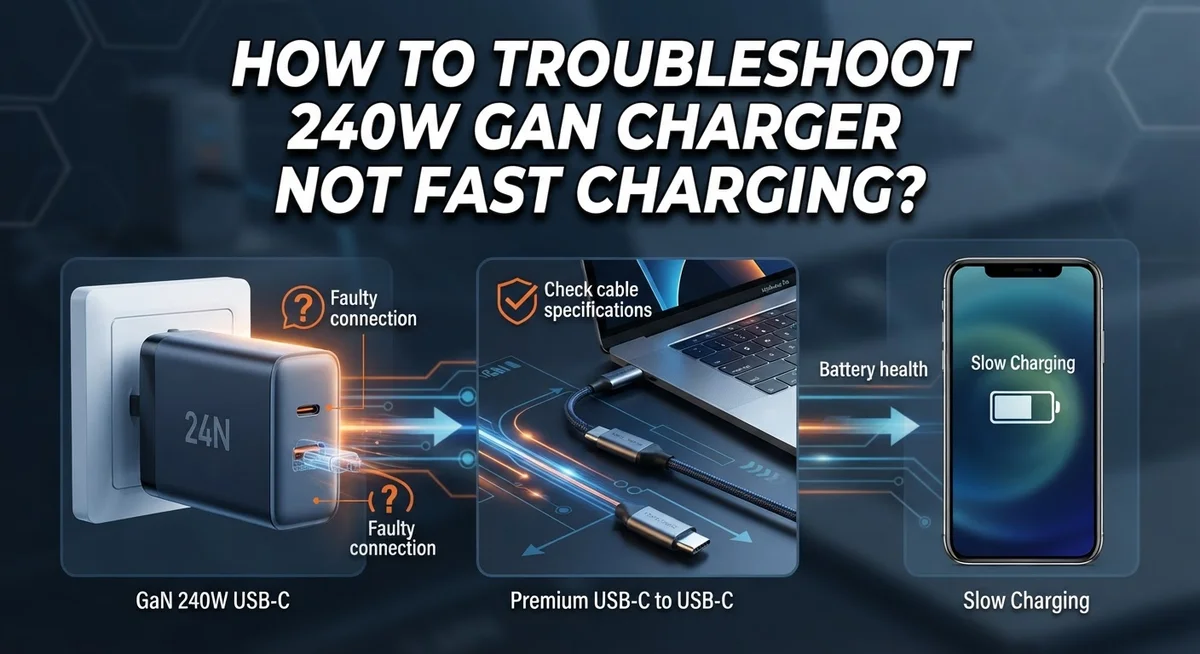
Fast charging is not just about raw wattage. Your 240W GaN charger needs to communicate properly with your device through a process called the USB Power Delivery handshake. Without this handshake, your charger sits idle at lower speeds even though it has the power to deliver more.
Cable quality is the #1 physical culprit. A cable rated for only 60W or 100W cannot safely carry 240W of power. Your device will sense this limitation and reduce charging speed automatically. The cable acts as a gatekeeper. If it cannot handle the wattage, your charger cannot deliver it.
Port cleanliness matters more than you think. Dust, lint, or debris inside your USB-C port blocks the pins that communicate charging information. Your device may not recognize the charger as capable of fast charging and defaults to standard speed instead.
Software settings can disable fast charging without you knowing. Many devices include a battery protection mode or a setting that limits charging speed. This feature exists to extend battery lifespan, but it also prevents fast charging from working.
Thermal throttling is another silent speed killer. When your charger, cable, or device gets too hot, the system automatically reduces charging power to protect components. Heavy use while charging, warm environments, or a charger with poor ventilation can trigger this protection.
Device compatibility also plays a role. Not every device supports 240W charging. Your phone or tablet may max out at 65W or 100W. The charger cannot exceed what your device is designed to accept, regardless of its rating.
How Fast Charging Protocols Actually Work (PPS and USB-PD Explained)
Fast charging is not just about plugging in a high wattage adapter. Your charger, cable, and device must communicate through specific protocols to deliver maximum speed. Understanding how these protocols work helps you diagnose why your 240W GaN charger is underperforming.
USB Power Delivery (USB-PD) is the communication standard that allows devices and chargers to negotiate power levels. When you connect your charger, the device sends a signal asking what power levels are available. The charger responds with its capabilities. They then agree on a safe voltage and current combination.
PPS (Programmable Power Supply) takes this a step further. Instead of fixed voltage steps, PPS allows continuous voltage adjustment. This means your device can request exactly the power it needs at any given moment, optimizing charging speed and battery health simultaneously.
Here is how the handshake actually works. Your device checks the charger’s capabilities through the USB-C connector pins. It looks for voltage options like 5V, 9V, 15V, or 20V. With PPS, it can request anything in between. Once both sides agree, power flows at that negotiated level.
The critical point is this: wattage alone means nothing without proper protocol support. A 240W charger cannot deliver 240W unless your device supports it and your cable can handle it. If any part of this chain fails, the negotiation breaks down and charging reverts to slower speeds.
Your cable acts as the physical bridge for this communication. If the cable lacks proper USB-PD certification or has damaged pins, the handshake fails. Your device then defaults to basic charging, ignoring the charger’s full potential.
Step 1: Check Your Device’s Fast Charging Settings
Your device has built in fast charging controls that you may not realize exist. These settings can accidentally get turned off, which stops your charger from working at full speed even though it is powerful enough.
Start by opening your device Settings and finding the Battery section. Look for options like “Fast Charging,” “Adaptive Charging,” or “Charging Mode.” Some devices call this “Optimized Charging” or “Smart Charging.” Make sure this setting is turned ON.
Next, check if your device has a Battery Protection or Battery Health mode active. These modes intentionally slow down charging to extend battery lifespan. If you see this enabled, you can toggle it off temporarily to test if fast charging works properly.
Some devices show charging speed information on the lock screen or in the battery menu. Look for text that says “Fast Charging” or a charging speed percentage. If you only see “Charging” without the “Fast” label, your settings may be limiting speed.
Important note: Battery protection modes are not bad. They help your battery last longer. However, they do reduce charging speed on purpose.
Also check if your device is in Low Power Mode or Battery Saver mode. These modes restrict fast charging automatically. Turn off these modes to restore normal charging speeds.
After adjusting these settings, plug in your charger and watch for changes. The lock screen should now display “Fast Charging” if the setting was the problem. This simple step solves the issue for many users because the feature was simply disabled without their knowledge.
Step 2: Inspect and Clean the USB-C Port
Your USB-C port is a common culprit when fast charging stops working. Dust, lint, and debris collect inside over time and block the charging pins from making proper contact. This interrupts the communication between your charger and device.
Start by powering off your device completely. This keeps you safe while you inspect the port. Use a flashlight to look deep into the USB-C opening. Tilt your device at different angles to spot any visible particles inside.
Never use metal objects to clean the port. Metal can scratch the pins or cause a short circuit. Instead, grab a wooden toothpick or a plastic cleaning tool designed for electronics ports. Gently insert it into the port and move it around slowly. Use light pressure only. You want to dislodge debris, not damage anything.
A can of compressed air also works well. Hold the device upright and spray short bursts into the port. The air pressure pushes out loose particles without touching the delicate pins inside.
After cleaning, look at the USB-C connector on your charger cable too. Wipe it gently with a dry, lint-free cloth. Sometimes the issue is dirt on the cable end, not inside your device port.
Once you have cleaned both surfaces, reconnect your charger and power on your device. Watch the charging speed to see if it improves. Many people find that fast charging resumes immediately after a simple port cleaning.
If fast charging still does not work, the problem likely lies elsewhere. Move on to testing a different cable next. A damaged cable often causes charging speed problems that cleaning alone cannot fix.
Step 3: Test and Replace Your Charging Cable
Your charging cable is often the hidden reason why fast charging fails. Even a 240W charger cannot deliver speed if your cable cannot handle the power or if it has internal damage.
Start by checking your cable’s rating. Look at the packaging or the text printed on the cable itself. Your cable must support at least 240W or match your charger’s wattage. A cable rated for 60W will bottleneck a 240W charger. The cable rating is just as important as the charger itself.
Next, inspect the cable for visible damage. Bend the cable gently along its entire length and look for cracks in the outer covering. Check both ends of the cable where stress occurs most often. If you see exposed wires, fraying, or discoloration, the cable is damaged and needs replacement.
Examine the USB-C connector closely. Look for bent pins, corrosion, or debris inside the connector. Gently clean the connector with a dry, lint-free cloth. Do not use water or liquids.
Here is the most effective test: try a different charging cable. Borrow a cable you know works well with another compatible device. Plug it into your 240W charger and connect it to your device. If fast charging suddenly works, your original cable was the problem.
Also test your original cable with a different charger if you have access to one. This tells you whether the cable itself is faulty or if it simply does not support 240W power delivery.
Many people skip this step and assume the charger or device is broken. Cable issues account for a huge portion of fast charging problems. Replace or repair your cable if testing reveals damage or incompatibility.
Step 4: Examine the Charger Adapter for Physical Damage
Your charger adapter itself can develop problems that prevent fast charging from working. Physical damage is often overlooked, but it’s a real culprit.
Start by examining the entire adapter carefully. Look for scorch marks, burn spots, or discoloration on the plastic casing. These signs indicate internal damage or electrical stress. Check the prongs or pins on the plug end. Bent, corroded, or loose pins prevent proper electrical contact with your outlet.
Next, inspect where the cable connects to the adapter. This junction point experiences constant stress from bending and movement. Look for cracks, loose connections, or exposed wiring. A damaged connection here blocks the power delivery handshake that enables fast charging.
Test how the adapter fits into your wall outlet. A loose fit means inconsistent power delivery. The outlet should grip the prongs firmly without wobbling. Try plugging the adapter into a different outlet to rule out outlet problems.
Pay attention to heat. If the adapter gets excessively hot during charging, internal components may be failing. Moderate warmth is normal, but burning heat is not.
Check the adapter’s cable for damage where it meets the connector. Kinks, cuts, or fraying near connection points reduce power flow significantly. Even small damage can throttle charging speed below fast charging thresholds.
If you notice any of these issues, the adapter likely needs replacement. A damaged adapter cannot deliver the stable power that fast charging protocols require. The 240W rating means nothing if internal damage disrupts the electrical pathway.
Document any physical damage with photos. This information helps when troubleshooting with your device manufacturer or support team.
Step 5: Rule Out Thermal Throttling and Software Issues
Thermal throttling happens when your device gets too hot and automatically reduces charging speed to protect the battery. This is a safety feature, not a malfunction. If your 240W GaN charger isn’t delivering fast charging speeds, heat buildup could be the culprit.
Check your device temperature first. Feel the back of your phone or tablet during charging. If it’s hot to the touch, thermal protection is likely active. This slows down charging intentionally. Reduce heat by removing any protective case during charging sessions. Cases trap warmth around the device.
Stop using your device while it charges. Gaming, streaming, or heavy apps generate internal heat. Running background processes also contributes to temperature rise. Close unnecessary applications and let your device rest during the charging process.
Move your charger away from direct sunlight or heat sources. Charging near a window, heater, or in a warm car speeds up thermal throttling. Find a cool, shaded location for your charging setup.
Software issues can also limit charging speed. Check if your device’s operating system needs an update. Go to Settings and look for Software Update or System Update options. Outdated software sometimes contains bugs that interfere with the charging protocol. Installing the latest version often fixes speed problems.
Restart your device completely. Power it down fully, wait 30 seconds, then turn it back on. This clears temporary software glitches that may prevent proper communication between your charger and device.
If your device feels normal temperature and software is current, but fast charging still doesn’t work, the problem exists elsewhere. Move forward with testing your charger on another compatible device to isolate the issue.
Common Mistakes That Prevent Fast Charging
Many people make simple mistakes that block fast charging from working properly. Understanding these errors helps you fix the problem quickly.
The biggest mistake is assuming wattage alone guarantees speed. A 240W charger does not automatically deliver 240W to your device. Your phone or tablet must support that power level through USB Power Delivery handshakes. If your device maxes out at 65W, the charger cannot exceed that limit. Check your device’s specifications to learn its actual maximum charging speed.
Another common error is using the wrong cable. People often grab any USB-C cable without checking its power rating. A cable rated for 60W cannot safely deliver 240W of power. This causes the charger and device to communicate at lower speeds for safety. Always verify your cable matches or exceeds your charger’s wattage rating.
Many users ignore thermal throttling during heavy use. When your device gets hot from gaming or video calls while charging, it automatically slows down charging speed. This is intentional protection, not a malfunction. Stop using your device while it charges to maintain optimal temperatures.
Testing with alternative cables and chargers is critical, yet people skip this step. You might blame the charger when the cable is actually faulty. Borrow a different cable from a friend and test it. If fast charging works with the new cable, your original cable needs replacement.
Finally, outdated software can limit charging speeds. Your device’s operating system controls how it communicates with the charger. Check Settings and install any available software updates. A simple restart also clears communication glitches between your device and charger.
Final Thoughts
A 240W GaN charger not fast charging is almost always fixable once you work through each possible cause systematically.
The process starts with the simplest checks first. Enable fast charging in your device settings before anything else. Then inspect your USB-C port for debris and clean it carefully if needed.
Your cable is a critical factor that many people overlook. A cable rated below your charger’s output will bottleneck the entire charging process. Always verify your cable can handle the wattage you expect.
Physical damage to your adapter matters too. Bent pins, scorch marks, or a loose fit in the wall outlet can all interrupt the PPS/USB-PD handshake that fast charging depends on. This handshake is what actually triggers high-speed power delivery.
Remember that wattage alone does not guarantee fast charging speed. Your device, cable, and charger must all communicate correctly to deliver maximum power. One weak link breaks the entire chain.
Thermal protection is also a real factor. Your device will automatically slow down charging when it gets too hot. Keep your device cool and avoid using it heavily during charging sessions.
Software updates are easy to forget but genuinely important. An outdated operating system can limit how your device responds to fast charging protocols.
If you have tested every step and fast charging still does not work, the issue likely points to a damaged charging port or a faulty adapter that needs professional attention.
Work through each step patiently and methodically. Most fast charging problems have a straightforward solution that does not require replacing your entire charging setup.
Frequently Asked Questions
Why is my 240W GaN charger delivering slower speeds than expected?
A high wattage rating does not guarantee fast charging. Your device and charger must complete a successful handshake using USB Power Delivery (USB-PD) or PPS protocols. If this communication fails, your device charges at standard speeds instead. The charger’s job is to offer power. Your device decides how much to accept.
Cable quality matters more than most people realize. A damaged or low-rated cable breaks this handshake. Even if your charger is 240W, a worn cable limits the connection to basic charging speeds.
Does the cable type affect charging speed?
Yes, absolutely. Your cable must be rated for the wattage your charger delivers. A standard USB-C cable may only handle 60W, even if you plug it into a 240W charger. The cable acts as a gatekeeper. It determines the maximum power that flows through.
Look for visible damage: fraying, bent connectors, or discoloration. Replace any cable showing wear. Try a different cable on your charger to test if speed improves. This simple swap reveals whether your original cable is the culprit.
Can my device’s temperature reduce charging speed?
Your device protects itself automatically. When internal temperature rises too high, your device throttles charging to prevent battery damage. This is thermal throttling, and it is a safety feature, not a failure.
Stop using your device while charging. Move your charger away from direct sunlight. Remove any case that traps heat around the charging port. Give your device 15 minutes to cool down, then try charging again.
Should I update my software if fast charging stops working?
Software updates often include charging optimizations. Check your Settings menu for available updates. Restart your device completely after updating. Outdated software can limit charging speeds without any obvious reason.

Hi, I’m Siya — the founder and writer behind Craftifyy.com. I’m a tech enthusiast who loves reviewing gadgets, comparing products, and helping people make smarter buying decisions. Got a question? Feel free to reach out!