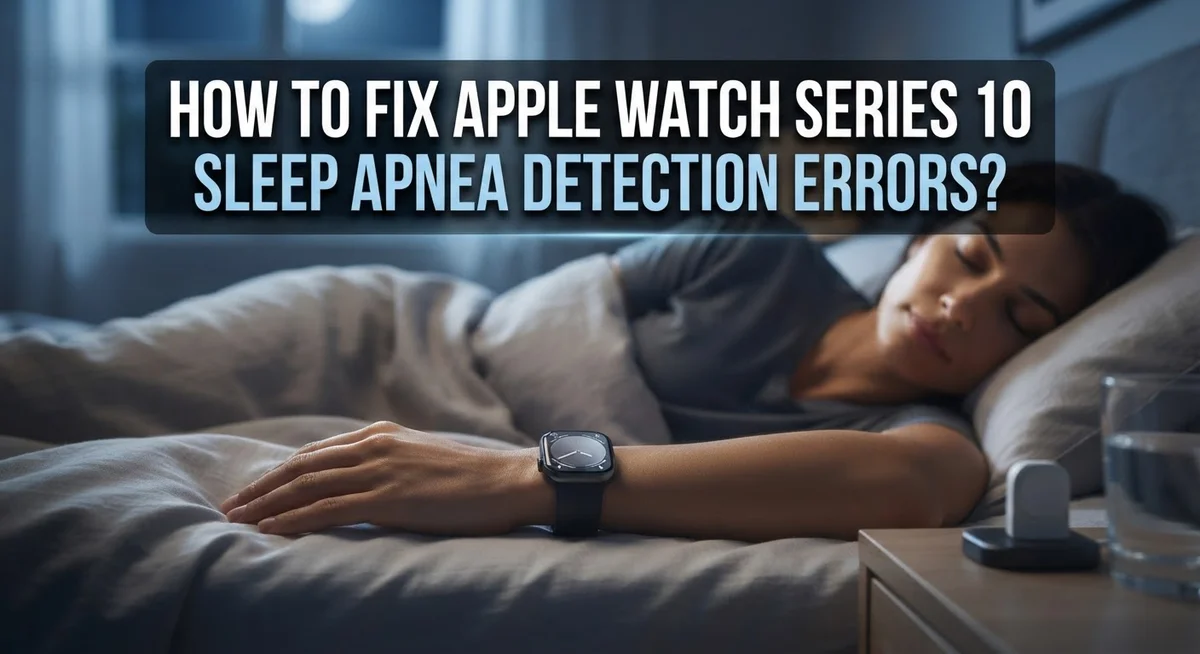
How To Fix Apple Watch Series 10 Sleep Apnea Detection Errors?
Your Apple Watch Series 10 promises to spot sleep apnea signs while you rest. But sometimes it just does not work right.
Maybe the feature is missing from your Health app. Maybe you set it up but never get notifications. Or maybe you get alerts that seem off.
These sleep apnea detection errors can feel frustrating. You bought the watch to track your health. You want it to work properly, not leave you guessing.
The good news? Most detection errors have simple fixes. Many issues come down to setup steps or software updates you might have missed.
This guide walks you through the exact steps to get sleep apnea detection working again. We cover the setup process from scratch. We show you how to manage your notifications. We list the most common problems people face and how to solve each one.
In a Nutshell
- Set up sleep apnea notifications through the Health app on your iPhone, not on the watch itself. Go to Search, tap Respiratory, then select Sleep Apnea Notifications.
- Restart both devices if the feature does not show up. This simple step fixes most detection errors right away.
- Check your software versions. Your iPhone and Apple Watch Series 10 both need compatible iOS and watchOS updates for this feature to work.
- Confirm the feature is available in your region. Sleep apnea detection is not active everywhere yet.
- Sync your devices properly. Your iPhone and watch must stay connected and updated together for accurate results.
- Avoid common mistakes like skipping the Health app setup or assuming the feature works automatically without configuration.
How Sleep Apnea Detection Works on Apple Watch Series 10
Your Apple Watch Series 10 uses motion sensors and respiratory pattern analysis to detect sleep apnea signs. The watch monitors your breathing patterns while you sleep and identifies unusual disturbances that may signal a sleep apnea event.
The detection system works by tracking micro movements in your wrist during the night. These movements reveal your breathing rhythm and help the watch spot irregular patterns. When your breathing becomes irregular or stops briefly, the sensors pick up these changes and flag them for review.
The watch does not diagnose sleep apnea. Instead, it alerts you to potential signs worth discussing with your doctor. Think of it as a helpful screening tool that runs automatically while you sleep.
The feature relies on continuous data collection throughout your sleep cycle. Your watch needs to stay on your wrist and maintain a snug fit for accurate readings. Loose wearing or removing the watch during sleep prevents proper detection.
Data flows from your watch to your iPhone through the Health app. The app stores all readings and generates reports over time. This connection is essential because your watch cannot work alone for this feature.
The detection system learns your baseline breathing patterns. It takes several nights of data before the watch can accurately spot abnormal changes. This is why you may not see results immediately after setup.
Background syncing keeps your devices connected. Your iPhone and watch must sync regularly so breathing data transfers properly. Without active syncing, detection stops working and errors appear.
The feature requires both devices to stay updated. Outdated software on either device can cause the detection system to malfunction. Regular updates ensure the sensors and algorithms work together smoothly.
Understanding how this feature operates helps you troubleshoot problems more effectively. When you know what should happen, you can spot what went wrong.
Setting Up Sleep Apnea Notifications Correctly
Sleep apnea notifications work best when you set them up correctly from the start. The process happens entirely through your iPhone’s Health app, not on your watch itself. This is the first step most people miss.
Open the Health app on your iPhone and tap the Search tab at the bottom. Look for “Respiratory” in the search results. Once you find it, select Sleep Apnea Notifications and tap Set Up. The app will guide you through a few simple screens to enable the feature.
You will see options to turn notifications on or off during this setup. Choose what works for your schedule. Some people want alerts right away. Others prefer to check their data in the morning. Both approaches work fine.
After you complete the initial setup, you can manage your notifications anytime. Go back to the Health app, find Health Checklist, and locate Sleep Apnea Notifications. You can toggle the feature on or off from this screen whenever you need to.
Make sure both your iPhone and Apple Watch Series 10 stay synced during this entire process. They need to communicate with each other for notifications to arrive properly. Keep them close together and ensure they are both connected to WiFi or Bluetooth.
Check that your devices have the latest software updates before setting up notifications. Open Settings on your iPhone to check for iOS updates. On your watch, go to Settings and look for watchOS updates. Outdated software can prevent the feature from appearing in your Health app.
Once notifications are active, your watch will monitor your breathing patterns throughout the night. When it detects potential signs of sleep apnea, it sends you a notification. You can then review the details in your Health app and share this information with your doctor.
Checking Device Compatibility and Software Requirements
Before you troubleshoot sleep apnea detection errors, you need to verify that your devices meet all the basic requirements. This step prevents you from spending time on fixes that won’t work if your setup isn’t compatible.
Check your Apple Watch model first. Only Apple Watch Series 10 supports sleep apnea detection. If you own an older model, the feature simply won’t appear in your settings. Confirm you have Series 10 by going to Settings on your watch, then About.
Verify your iPhone compatibility next. Your iPhone must run a recent version of iOS to work with this feature. Open Settings on your iPhone, tap General, then About to see your current iOS version. Apple regularly updates which iOS versions support sleep apnea detection, so an outdated phone can cause errors.
Check your watchOS version too. Your Apple Watch Series 10 needs a matching watchOS update. Go to Settings on your watch, select General, then About to view your watchOS version. Both devices must have compatible software versions installed simultaneously.
Confirm regional availability. Sleep apnea detection is not available in every country yet. If you travel frequently or recently moved, the feature might not work in your location. Check Apple’s official support page for your region to see if sleep apnea notifications are active where you live.
Ensure Bluetooth stays enabled. Your iPhone and Apple Watch Series 10 communicate through Bluetooth. Go to Settings on your iPhone and confirm Bluetooth is turned on. Disable and re enable Bluetooth if you experience connection issues.
Test your internet connection. The Health app needs internet access to sync data between devices. Connect your iPhone to WiFi or mobile data, then check if the sleep apnea feature appears.
These compatibility checks take just a few minutes and solve most detection errors before they start.
Step-by-Step Fixes for Common Detection Errors
Start by restarting both your Apple Watch Series 10 and your iPhone. This simple action fixes most detection problems. Hold the side button on your watch until the power slider appears. Slide to power off, wait 10 seconds, then turn it back on. Do the same with your iPhone.
Next, open the Health app on your iPhone and navigate to the Search tab. Look for “Respiratory” in the menu options. Tap on it to find Sleep Apnea Notifications settings. If you don’t see this option, your devices may not be properly synced yet.
Check that both devices have the latest software versions installed. Go to Settings on your iPhone and select General, then Software Update. On your Apple Watch, open Settings, tap General, then Software Update. Wait for any updates to complete fully before moving forward.
Verify your Bluetooth connection between devices. Open Settings on your iPhone, tap Bluetooth, and confirm your Apple Watch Series 10 appears as connected. If it doesn’t show up, forget the device and pair it again from scratch.
Return to the Health app and tap Health Checklist. Find Sleep Apnea Notifications in the list. Make sure the toggle switch is turned on. Sometimes notifications get disabled accidentally during updates.
If the feature still doesn’t appear, check your region. Sleep apnea detection isn’t available everywhere yet. Visit Apple’s support website to confirm availability in your location.
Restart the setup process completely if errors persist. Go back to Search in the Health app, select Respiratory, then choose Sleep Apnea Notifications. Follow each step carefully and enable notifications when prompted.
If problems continue after these steps, your watch may need a factory reset or professional service.
Troubleshooting When the Feature Doesn’t Appear or Sync
When the sleep apnea detection feature doesn’t appear on your Apple Watch Series 10 or fails to sync with your iPhone, a few simple steps can resolve the issue.
First, check if the feature actually shows up in your Health app. Open the Health app on your iPhone and tap the Search tab. Look for “Sleep Apnea Notifications” in the respiratory section. If you don’t see this option, the feature may not be enabled yet or your devices need updates.
Next, force restart both devices separately. Hold the side button on your Apple Watch until the power slider appears, then slide to power off. Wait 10 seconds and turn it back on. Do the same with your iPhone by holding the volume and side buttons together.
After restarting, verify your Bluetooth connection is active. Go to Settings on your iPhone and confirm Bluetooth is turned on. Your watch and phone must stay paired and connected for syncing to work properly.
If the feature still doesn’t appear, check your software versions again. Go to Settings on your Apple Watch and look for General, then About to see your watchOS version. On your iPhone, check Settings, General, About for your iOS version. Both should be fully updated.
Make sure your region supports this feature. Sleep apnea detection is not available worldwide yet. Check Apple’s official support page to confirm availability in your location.
If none of these steps work, try removing and re-adding the feature. Go to the Health app, tap Health Checklist, find Sleep Apnea Notifications, and remove it. Wait a few minutes, then set it up again from scratch by following the initial setup process.
When problems persist after all these attempts, your devices may need professional service to resolve deeper software or hardware issues.
Mistakes That Cause Sleep Apnea Detection to Fail
Sleep apnea detection can fail for several reasons. Understanding these mistakes helps you fix problems faster and get accurate readings.
Not using the Health app on your iPhone is the most common error. Many people assume the feature works automatically on their watch. The truth is different. You must open the Health app on your iPhone first. Then navigate to Search and find Respiratory settings. Without this setup step, your watch cannot detect sleep apnea patterns. The feature simply won’t activate.
Skipping the initial configuration process causes detection failures too. After finding the sleep apnea option in your Health app, you need to tap Set Up and follow all prompts. Some users skip these steps thinking they can enable it later. This assumption leads to errors. The watch needs this proper setup to understand your baseline breathing patterns.
Ignoring software updates prevents detection from working correctly. Your iPhone and Apple Watch Series 10 must run current software versions. Older software contains bugs that interfere with detection accuracy. Check both devices regularly for available updates. Install them promptly.
Forgetting to enable notifications is another mistake people make. Even if sleep apnea detection is active, you won’t receive alerts unless notifications are turned on. Open your Health app and go to Health Checklist. Find Sleep Apnea Notifications and toggle them on.
Assuming Bluetooth stays connected is risky too. Your devices communicate through Bluetooth constantly. If this connection drops, detection stops working. Check your Bluetooth settings on both devices. Keep them close to each other during sleep.
Not restarting devices when problems appear extends frustration. A simple restart solves many detection issues. Turn off your watch and iPhone completely. Wait 30 seconds. Turn both back on. This action refreshes software and reconnects systems properly.
These mistakes are easy to fix once you know what causes them.
Tips for Ensuring Accurate and Consistent Tracking
Accurate sleep apnea detection depends on how well you prepare your Apple Watch Series 10. Proper setup from the start prevents most tracking errors.
Your watch needs to sit snugly on your wrist during sleep. A loose fit causes motion sensors to miss breathing pattern changes. Make sure the band is secure but still comfortable enough for all night wear.
Keep your devices updated regularly. Check your iPhone and Apple Watch for new software versions at least monthly. Open the Settings app on your watch and go to General, then Software Update. On your iPhone, visit Settings, then General, then Software Update. Updates fix bugs that interfere with detection accuracy.
Enable background app refresh on your iPhone. This lets the Health app collect data even when you’re not actively using it. Go to Settings on your iPhone, tap General, then Background App Refresh. Make sure the Health app is toggled on.
Maintain a consistent sleep schedule. Your body needs regular sleep patterns for the watch to gather reliable data. Try going to bed and waking up around the same time each day, even on weekends.
Check your notifications settings monthly. Open the Health app on your iPhone and navigate to Health Checklist, then Sleep Apnea Notifications. Make sure notifications remain enabled unless you deliberately turned them off.
Keep your iPhone and Apple Watch close together at night. Bluetooth range matters for data syncing. If your phone is in another room, detection data may not transfer properly to your Health app.
Restart both devices once a month. This clears temporary glitches that slow down detection. Hold the power button on your watch until the shutdown slider appears, then slide to power off. Wait 10 seconds before restarting.
Clean your watch sensors regularly. Dirt and sweat buildup interferes with motion tracking. Gently wipe the back of your watch with a soft, dry cloth before bed.
Final Thoughts
Your Apple Watch Series 10 can help spot signs of sleep apnea. But it only works well when set up correctly.
Small errors often cause big frustrations. Most fixes are simple once you know where to look.
Start with the basics. Check your Health app setup first. This solves most detection problems right away.
Keep your iPhone and Apple Watch updated. Software mismatches are a leading cause of errors.
Restart both devices when something feels off. This clears temporary glitches quickly.
Bluetooth connection matters too. Your watch and phone need to stay linked throughout the night.
Region availability also plays a role. Not every country supports this feature yet.
Double check your settings if notifications stop appearing. Sometimes toggles switch off during updates.
Sleep apnea detection is not a diagnostic tool. It only flags patterns worth discussing with a doctor.
Think of it as an early warning system. It notices changes you might miss on your own.
Consistency helps accuracy. Wear your watch snugly and keep your sleep schedule steady.
Most users find that a few small habits fix recurring issues. Regular restarts and updates prevent most problems.
If errors continue after trying every fix, contact Apple Support. Sometimes deeper software issues need extra help.
Patience makes a difference. Sleep tracking features improve with each software update.
Apple continues refining this technology. Future updates may reduce errors even further.
For now, following setup steps carefully gives you the best results. Small adjustments often solve big issues.
Stay proactive with updates and checks. Your Apple Watch Series 10 works best when both devices sync properly.
Sleep apnea detection is a helpful addition to your health tools. With proper care, it can work reliably every night.
Frequently Asked Questions
Why isn’t my Apple Watch Series 10 detecting sleep apnea?
The most common reason is incomplete setup in your Health app. You must configure the feature on your iPhone first, not just your watch. Open the Health app, go to Search, find Respiratory, then select Sleep Apnea Notifications and complete the setup process.
Your devices also need current software. Check if your iPhone and Apple Watch have the latest updates installed. Outdated versions often block this feature from working properly.
Can I use sleep apnea detection in any country?
No. This feature is only available in specific regions. Apple limits availability based on local regulations and healthcare standards. Check Apple’s official support page to see if your country supports this feature.
If you travel, the feature may stop working when you cross into unsupported regions. This is normal and not a device error.
What should I do if notifications suddenly stopped?
First, restart both your iPhone and Apple Watch. This fixes most notification issues quickly. After restarting, check your Health app settings to confirm Sleep Apnea Notifications are still enabled.
Next, verify your Bluetooth connection is active and stable. Your devices need to stay connected for notifications to arrive. Keep your iPhone and watch within normal range at night.
Does sleep apnea detection work without an iPhone?
No. You absolutely need both an iPhone and Apple Watch Series 10 together. The iPhone runs the Health app where all setup happens. Your watch collects the breathing data, but the iPhone processes and displays results.
This is why setup through the Health app on your iPhone is mandatory, not optional.
How often should I check my sleep apnea settings?
Check your settings once a month. Open your Health app and navigate to Health Checklist, then review Sleep Apnea Notifications. This catches any accidental toggles or changes you might have missed.
Regular monthly checks help you spot problems early before they affect your tracking.

Hi, I’m Siya — the founder and writer behind Craftifyy.com. I’m a tech enthusiast who loves reviewing gadgets, comparing products, and helping people make smarter buying decisions. Got a question? Feel free to reach out!