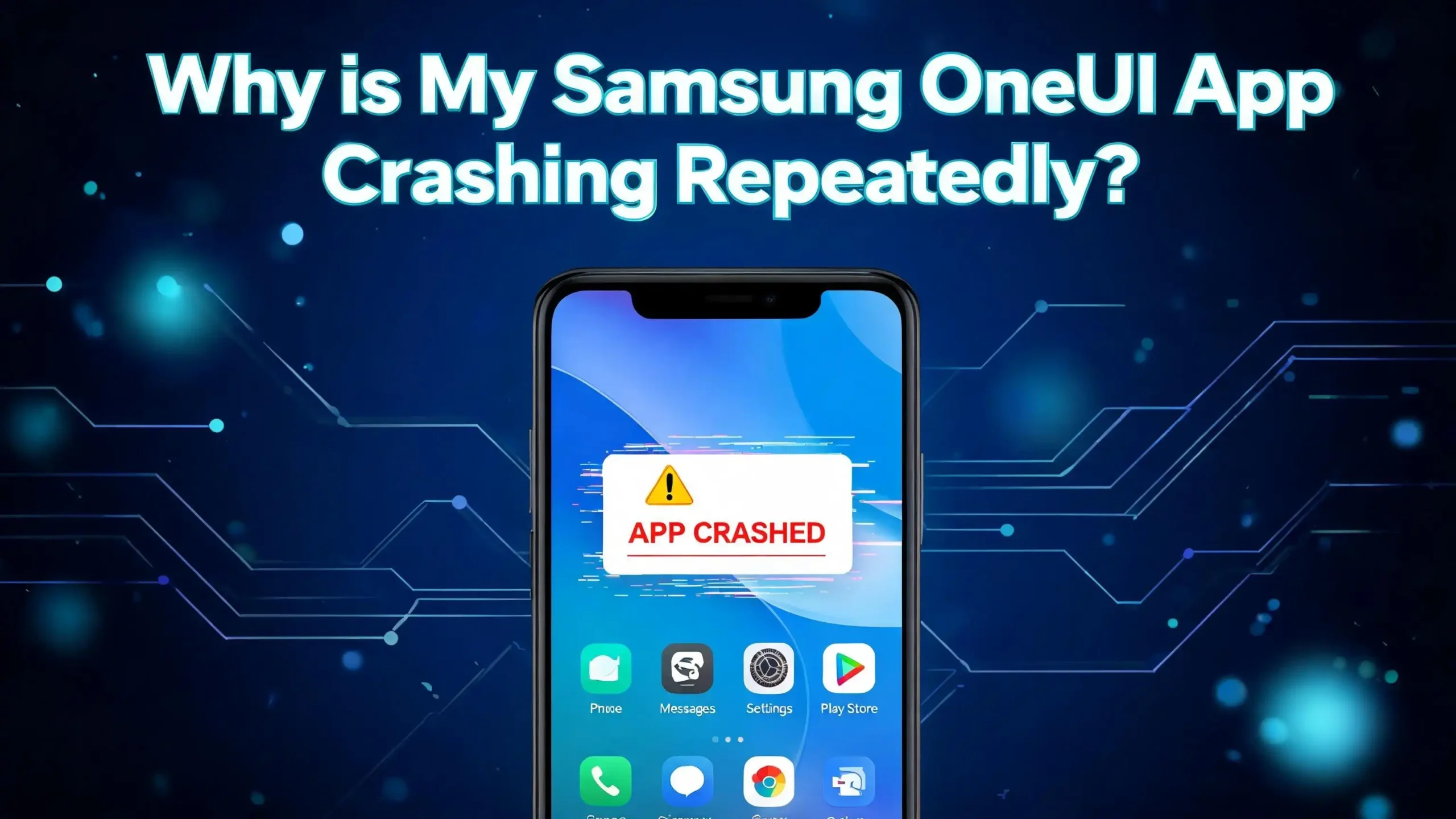
Why Is My Samsung OneUI App Crashing Repeatedly?
You tap on your favorite app, and it instantly closes. You try again, and the same thing happens. That frustrating “App keeps stopping” pop up on your Samsung phone feels like it shows up at the worst possible time. You are not alone.
Samsung OneUI app crashes are one of the most common complaints among Galaxy users across every model, from the Galaxy A series to the S24 Ultra and beyond. The causes range from outdated software and corrupted cache files to low storage and buggy system updates. The good news? Most of these crashes can be fixed in minutes without a trip to the service center.
This guide will walk you through 14 clear, actionable solutions to stop your Samsung OneUI apps from crashing. Each fix builds on the last, starting with the simplest steps and working up to more advanced options.
Let’s get your phone running smoothly again.
Key Takeaways
- Clearing an app’s cache and data is the fastest and most effective first step to fix a crashing Samsung app. This removes temporary files that may have become corrupted and gives the app a clean start.
- An outdated app or system software is one of the most frequent causes of repeated crashes. Always check for pending updates in both the Google Play Store and Samsung’s Settings under Software Update.
- Low internal storage forces your phone to struggle with basic operations, and apps crash as a result. Samsung recommends keeping at least 10% to 15% of your total storage free for smooth performance.
- Android System WebView, a behind the scenes component that many apps rely on, has caused widespread crash events on Samsung phones in the past. Updating or reinstalling its updates through the Play Store can resolve crashes across multiple apps at once.
- Booting into Safe Mode helps you determine whether a third party app is the root cause. If crashes stop in Safe Mode, a recently installed app is almost certainly the problem.
- A factory reset is the last resort but also the most thorough fix. Back up your data first, and only use this option after every other solution on this list has failed to resolve the issue.
What Causes Samsung OneUI Apps to Crash?
Samsung OneUI apps crash for several specific reasons. The most common cause is corrupted cache data. Every app stores temporary files to load faster, and these files can become damaged after updates or prolonged use.
Another frequent cause is software incompatibility. After a major OneUI update, some apps may not yet support the new version. This is especially true for third party apps that developers have not optimized for the latest Android release.
Insufficient RAM also plays a role. If your phone runs too many apps at the same time, the system forces some apps to close. Older Samsung devices with 4 GB of RAM or less are more likely to experience this.
Low storage space creates problems too. Your phone needs free internal memory to manage app processes. Samsung support documentation confirms that a full or near full storage can directly lead to app malfunctions and crashes.
Finally, bugs in system components like Android System WebView or Google Play Services can trigger crashes across multiple apps simultaneously. These components run in the background and support core app functions. A single faulty update to one of these services can break dozens of apps on your device.
Force Stop the Crashing App
The simplest fix is often the most overlooked. Force stopping an app shuts it down completely, including any background processes that might be stuck in an error loop.
Open Settings on your Samsung phone. Tap Apps and find the app that keeps crashing. Tap on it, then tap Force Stop. Confirm your choice when prompted.
This action kills every running instance of that app. It does not delete your data or settings. Think of it as a hard restart for that specific app rather than your whole phone.
After you force stop the app, wait a few seconds before opening it again. This brief pause allows the system to fully release the app’s resources. In many cases, a simple force stop resolves temporary glitches that cause repeated crashes.
If the app crashes again immediately after you reopen it, the problem is deeper than a stuck process. Move on to the next fix. But always start here because this step takes less than 30 seconds and solves the issue more often than most people expect.
Clear the App Cache and Data
Cached data is one of the biggest culprits behind app crashes on Samsung phones. The cache stores temporary files, login tokens, and partial downloads. Over time, these files can become corrupted or outdated, especially after a software update.
Go to Settings, then tap Apps. Select the app that keeps crashing. Tap Storage, and you will see two options: Clear Cache and Clear Data.
Start with Clear Cache first. This removes temporary files without deleting your personal data, saved preferences, or login information. Open the app again and check if the crash has stopped.
If the app still crashes, go back and tap Clear Data. This option erases all stored information for that app, including your account details and saved settings. You will need to log in again and reconfigure the app from scratch.
Samsung’s official support page lists this step as one of the top recommended fixes. Clearing data gives the app a completely fresh state, identical to what it looked like the day you first installed it. This resolves the vast majority of crash issues caused by data corruption.
Update the Crashing App
Developers release app updates to fix bugs, patch security issues, and improve compatibility with new software versions. Running an outdated app on a newer version of OneUI is a recipe for crashes.
Open the Google Play Store on your phone. Tap your profile icon in the top right corner, then tap Manage apps and device. Under the Updates Available section, look for the app that has been crashing.
If an update is available, tap Update. If you want to prevent this problem in the future, enable auto updates for all your apps. You can do this from the same screen by going into Settings within the Play Store.
Some Samsung specific apps receive updates through the Galaxy Store instead of the Play Store. Open the Galaxy Store, tap the menu icon, then tap Updates. Download and install any pending updates there as well.
App developers frequently release emergency patches after a major Android or OneUI update causes compatibility issues. Checking for updates should be a reflex action every time an app starts misbehaving. This quick check can save you from spending time on more advanced troubleshooting steps.
Update Your Samsung Phone Software
Your phone’s operating system needs to stay current. Samsung releases OneUI updates that include bug fixes, performance improvements, and security patches. Skipping these updates can leave your phone vulnerable to known software issues that cause app crashes.
Open Settings and scroll down to Software Update. Tap Download and Install. Your phone will check Samsung’s servers for available updates.
If an update is available, download it over a stable Wi-Fi connection. Make sure your battery is above 50% before you begin the installation. The process usually takes 10 to 20 minutes, and your phone will restart automatically.
Major OneUI version upgrades, such as the jump from OneUI 6 to OneUI 7, sometimes introduce temporary instability. Samsung typically releases follow up patches within a few weeks to address reported issues. If your crashes started right after a big update, check for a newer patch that may already contain the fix.
Google Play System updates are another piece of the puzzle. Go to Settings, then About Phone, then Software Information, and tap Google Play System Update. Install any available updates here as well. These updates affect core system components that many apps depend on to function properly.
Fix Android System WebView Issues
Android System WebView is a system component that allows apps to display web content. Many Samsung apps and third party apps rely on it. When WebView has a bug or a failed update, it can cause widespread crashes across your phone.
This issue gained global attention when a faulty WebView update caused apps to crash on millions of Android devices. Samsung and Google both confirmed the problem and released fixes.
To check your WebView version, open the Google Play Store and search for Android System WebView. If an update is available, install it immediately.
If the latest update seems to be the cause of your crashes, you can roll back WebView to its factory version. Go to Settings, tap Apps, tap the three dot menu, and select Show System Apps. Find Android System WebView, tap it, and then tap Uninstall Updates. This reverts WebView to the version that originally shipped with your phone.
After rolling back, restart your phone and test your apps. Once Google releases a stable fix, you can update WebView again through the Play Store. This single fix has resolved crashing issues for millions of users worldwide, making it one of the most important steps on this list.
Free Up Internal Storage Space
Your Samsung phone needs breathing room to operate. When your internal storage fills up, the system cannot manage app processes efficiently. Apps crash, the phone slows down, and even basic functions like taking photos can fail.
Check your current storage by going to Settings and tapping Device Care or Battery and Device Care. Then tap Storage. You will see a breakdown of what is using your space.
Delete unnecessary files first. Old photos, downloaded videos, and large message attachments are common space hogs. Move important media to cloud storage services or to an SD card if your Samsung model supports one.
Next, uninstall apps you no longer use. Go to Settings, tap Apps, then sort the list by size. You may be surprised to find apps using several gigabytes of storage that you forgot you had installed.
Samsung’s Device Care tool also has a built in cleanup feature. It identifies junk files, duplicate images, and temporary data that can be safely removed. Aim to keep at least 10% to 15% of your total storage free at all times. This ensures the system has enough room to handle background tasks, swap files, and temporary app data without running into problems.
Restart Your Samsung Phone
A restart clears your phone’s temporary memory and stops all running processes. This is different from simply locking your screen or closing an app. A full restart reinitializes the operating system and gives every app a clean start.
Swipe down from the top right of your screen to open the Quick Settings panel. Tap the Power icon, then tap Restart. Your phone will shut down and boot back up within about a minute.
On Samsung phones with a dedicated power button, you can also press and hold the power button until the power menu appears, then tap Restart.
If your phone is completely frozen and will not respond to screen taps, try a forced restart. Press and hold both the Volume Down button and the Side button at the same time for about 10 seconds. Your phone will vibrate and restart.
Restarting your phone once a week is a good habit even when everything seems fine. It prevents the slow buildup of temporary files and stuck processes that eventually lead to performance issues and app crashes. Many Samsung users report that a simple restart fixes crashes they assumed were caused by a more serious problem.
Boot Into Safe Mode to Identify Problem Apps
Safe Mode is a powerful diagnostic tool built into every Samsung phone. It temporarily disables all third party apps and runs only the software that came preinstalled on your device. This helps you determine whether a downloaded app is causing the crashes.
To enter Safe Mode, open the power menu by pressing and holding the Side button or tapping the Power icon in Quick Settings. Then press and hold the Power Off option until a Safe Mode prompt appears. Tap Safe Mode to confirm.
Your phone will restart with “Safe Mode” displayed in the bottom left corner of the screen. Now use your phone normally. Open the apps that were crashing and see if they work.
If the crashes stop in Safe Mode, a third party app is the cause. Exit Safe Mode by restarting your phone normally. Then uninstall recently downloaded apps one at a time, testing after each removal, until you find the culprit.
If the crashes continue in Safe Mode, the issue is with the system software itself rather than a third party app. In this case, you may need to wipe the cache partition or perform a factory reset.
Safe Mode does not delete any of your data. It simply prevents third party apps from running. This makes it a completely safe diagnostic step that every user should try before taking more drastic action.
Wipe the Cache Partition
The cache partition stores temporary system files that help your phone boot faster and load apps more quickly. After a major OneUI update, these cached files can become outdated or corrupted, which leads to app crashes and general instability.
Wiping the cache partition does not delete your personal data, photos, messages, or apps. It only removes temporary system files, which your phone will rebuild automatically the next time it boots up.
To wipe the cache partition, first turn off your phone completely. Then press and hold the Volume Up button and the Side button at the same time. Release both buttons when the Samsung logo appears. Your phone will boot into Recovery Mode.
Use the Volume buttons to scroll through the menu and highlight Wipe Cache Partition. Press the Side button to select it. Confirm your choice, then select Reboot System Now.
Your phone will restart with a fresh set of system cache files. This step is especially important after major software updates like moving from OneUI 6 to OneUI 7 or OneUI 7 to OneUI 8. Many users on Samsung community forums report that wiping the cache partition resolved persistent crash issues that no other fix could address.
Note that some newer OneUI 8 builds may have modified or removed this option. If you do not see it in your recovery menu, skip to the next solution.
Check App Permissions
Modern Android versions can automatically remove permissions from apps you have not used recently. When an app tries to access a feature like the camera, microphone, or storage without the right permissions, it may crash instead of showing a permission request.
Open Settings and tap Apps. Select the app that keeps crashing, then tap Permissions. Review the list and make sure the app has access to everything it needs.
For example, a messaging app needs permission to access Storage, Camera, Microphone, and Contacts. A navigation app needs Location access. If any of these permissions are set to “Don’t Allow,” the app may crash when it tries to use that feature.
Tap on each permission and set it to Allow Only While Using the App or Allow All the Time, depending on the app’s needs and your comfort level.
Also check if Battery Optimization is interfering with the app. Go to Settings, tap Battery and Device Care, then Battery. Find the app and make sure it is not set to “Restricted.” Samsung’s aggressive battery management can force apps to close in the background, which some apps interpret as a crash.
This permission and battery check takes only a few minutes and resolves a surprising number of crash issues that users initially blame on bugs.
Uninstall and Reinstall the App
Sometimes an app’s installation files become corrupted. This can happen during a download interruption, a failed update, or after a system software change. Reinstalling the app replaces all its files with fresh copies and often resolves persistent crashes.
Find the app on your home screen or app drawer. Press and hold the app icon until a menu appears. Tap Uninstall, then confirm.
Wait at least 30 seconds before reinstalling. Open the Google Play Store or Galaxy Store, search for the app, and tap Install. Let the download complete fully before opening the app.
For preinstalled Samsung apps that cannot be uninstalled, you can uninstall updates instead. Go to Settings, tap Apps, select the Samsung app, tap the three dot menu in the top right corner, and choose Uninstall Updates. This reverts the app to its original factory version. You can then update it again through the Galaxy Store.
Reinstalling is more thorough than just clearing data because it replaces the app’s entire codebase. If a crash is caused by a corrupt APK file or a broken update package, this is the only fix short of a factory reset that will resolve it.
Use Samsung Device Care to Optimize Performance
Samsung includes a built in optimization tool called Device Care that scans your phone for common performance problems. It checks memory usage, storage, battery health, and app security all in one place.
Open Settings and tap Battery and Device Care. Tap Optimize Now if the option appears. This will close unnecessary background apps, clear temporary files, and scan for potential issues.
You can also tap into each category individually for more control. The Memory section shows which apps are using the most RAM. The Storage section highlights files you can delete. The App Protection section scans for malware or unstable apps.
Running Device Care once a week keeps your phone in good shape and can prevent crashes before they start. Samsung designed this tool to handle the kind of background maintenance that users often forget to do manually.
The tool also identifies apps that drain excessive battery or consume unusually large amounts of memory. These problem apps are often the same ones that cause crashes. If Device Care flags an app, consider whether you truly need it or whether a lighter alternative exists.
Perform a Factory Reset as a Last Resort
If every other solution has failed, a factory reset will restore your Samsung phone to its original state. This erases all data, apps, settings, and accounts from your device. It is the nuclear option, but it is also the most effective way to resolve deep software corruption.
Back up your data first. Use Samsung Cloud, Google Drive, or Samsung Smart Switch to save your photos, contacts, messages, and app data. Write down your Samsung account credentials and Google account credentials because you will need them during the setup process.
To perform the reset, go to Settings, then General Management, then Reset. Tap Factory Data Reset, review the information on screen, and tap Reset. Enter your lock screen PIN or password to confirm.
Your phone will erase everything and restart. The process takes 10 to 30 minutes. Once it boots up, you will go through the initial setup just like you did when the phone was new.
Do not immediately reinstall all your old apps. Use the phone for a day or two with only essential apps to confirm it is stable. Then add apps back gradually. If crashes return after installing a specific app, you have found the problem.
A factory reset resolves virtually all software related crash issues. If crashes persist even after a reset, the problem may be hardware related, and you should contact Samsung Support or visit an authorized service center.
When to Contact Samsung Support
Some crash issues cannot be fixed with the troubleshooting steps above. If your phone continues to crash after a factory reset, the problem may involve defective hardware, a failing storage chip, or overheating components.
Contact Samsung Support if your phone shows any of these signs along with app crashes: random reboots, screen flickering, overheating during normal use, or unresponsive touch input. These symptoms suggest a hardware fault that software fixes cannot address.
You can reach Samsung Support through the Samsung Members app, which comes preinstalled on every Galaxy device. Open the app, go to the Support tab, and choose Get Help. You can chat with an agent, call support, or schedule a repair.
Samsung also operates walk in service centers in many cities where technicians can diagnose your phone on the spot. If your device is still under warranty or covered by Samsung Care Plus, repairs may be covered at no cost.
Do not ignore persistent crashes after a factory reset. Continuing to use a phone with underlying hardware issues can lead to data loss or complete device failure. Getting a professional diagnosis is the smart move when all software solutions have been exhausted.
Frequently Asked Questions
Why do my Samsung apps crash after a OneUI update?
Major OneUI updates can cause app crashes because the updated system software may conflict with older app versions. Developers need time to release patches that are compatible with the new system. Updating all your apps through the Play Store and Galaxy Store after a OneUI update usually resolves these issues. Wiping the cache partition also helps clear outdated system files that conflict with the new software.
Can low RAM cause apps to crash on Samsung phones?
Yes. When your phone runs out of available RAM, the system forcefully closes apps to free up memory. This can feel like a crash. Samsung phones with 4 GB of RAM or less are more affected, especially when running multiple apps at the same time. Closing unused background apps and restarting your phone regularly can help manage RAM more effectively.
Is Android System WebView responsible for app crashes?
Android System WebView has caused major crash events on Samsung and other Android devices in the past. This system component lets apps display web based content, and a faulty update can break many apps at once. Updating WebView through the Google Play Store or rolling back its updates in Settings usually fixes the problem quickly.
Will clearing app data delete my photos or files?
Clearing data for a specific app only removes data stored by that app. It does not touch your photos, videos, or files stored elsewhere on your phone. However, if the app itself stores files internally, those files will be deleted. Always back up important information before clearing app data.
How often should I restart my Samsung phone to prevent crashes?
Restarting your Samsung phone once a week is a good practice. A restart clears temporary memory, stops stuck background processes, and gives the system a fresh start. Samsung even offers an Auto Restart feature in Settings under General Management that can restart your phone at a scheduled time each week.
Does a factory reset fix all app crashing problems?
A factory reset resolves nearly all software related crash issues by restoring your phone to its original state. However, it will not fix crashes caused by hardware problems such as a failing processor or damaged memory. If crashes continue after a factory reset, contact Samsung Support for a hardware diagnosis.

Hi, I’m Siya — the founder and writer behind Craftifyy.com. I’m a tech enthusiast who loves reviewing gadgets, comparing products, and helping people make smarter buying decisions. Got a question? Feel free to reach out!