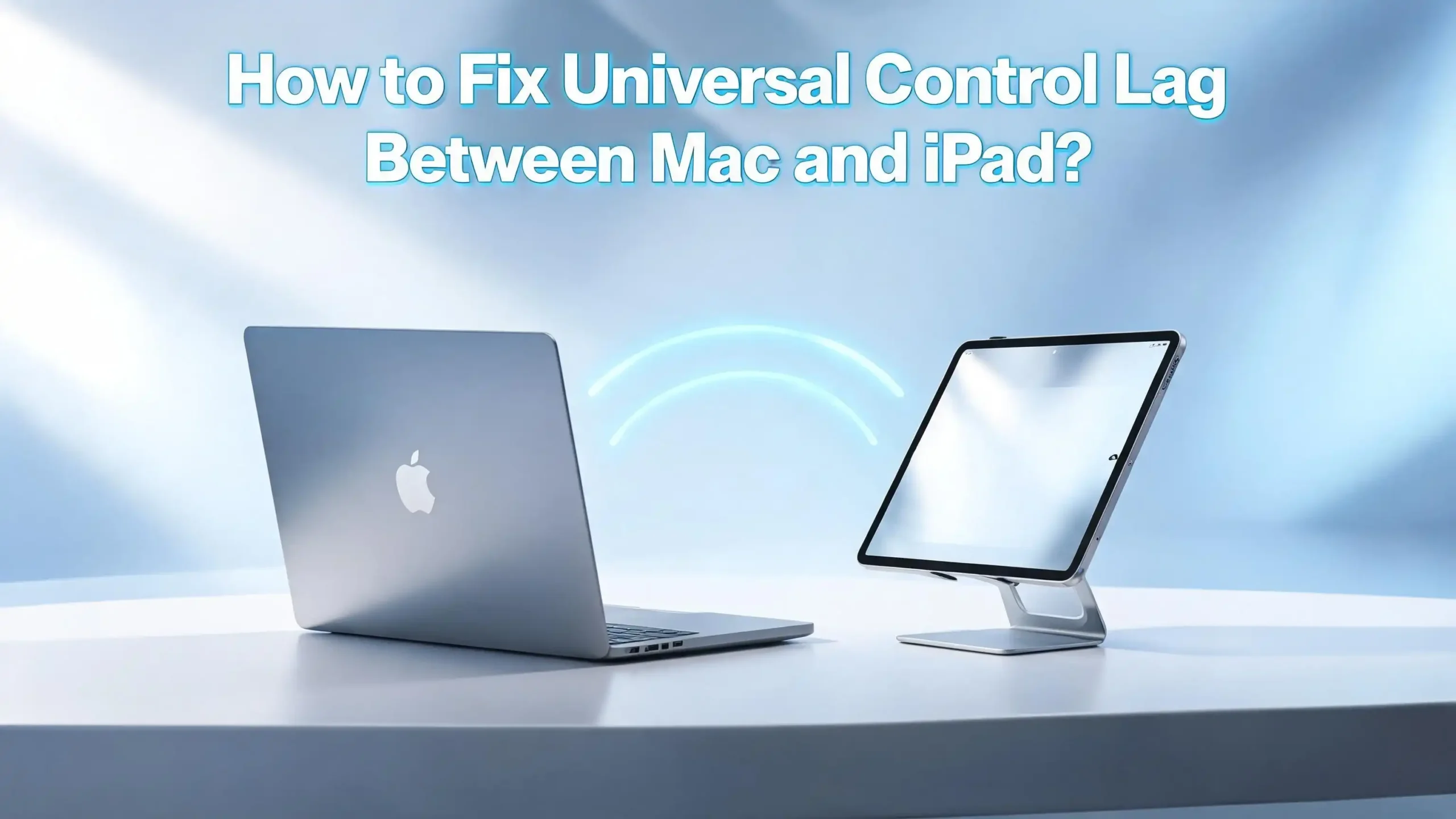
How to Fix Universal Control Lag Between Mac and iPad?
If you have ever tried using Universal Control between your Mac and iPad only to find the cursor stuttering, freezing, or responding a full second late, you already know how frustrating that experience can be. Universal Control is one of Apple’s most impressive features.
It lets you use a single keyboard, mouse, or trackpad across your Mac and iPad without any complicated setup. But when lag creeps in, the whole magic falls apart, and what should feel seamless starts feeling broken.
The good news is that Universal Control lag is almost always fixable. This guide covers every possible cause and every tested solution, walking you through each fix step by step so you can get back to a smooth, fluid experience fast.
In a Nutshell
- Universal Control lag is usually caused by software, network, or settings issues, not hardware failure. Most users fix the problem within minutes by adjusting a few settings on their Mac or iPad.
- Both devices must meet specific requirements: macOS Monterey 12.4 or later on Mac, iPadOS 15.4 or later on iPad, and both must be signed into the same Apple ID with two-factor authentication enabled.
- Your network setup is one of the biggest sources of lag. Both devices must connect to the same Wi-Fi network, and Bluetooth must be active on both devices simultaneously. If either condition fails, lag and disconnections follow.
- Software conflicts like VPNs, firewalls, and outdated operating systems are very common hidden causes of Universal Control lag that most users overlook. Disabling a VPN or temporarily turning off the firewall often resolves the issue instantly.
- Restarting devices, toggling settings off and on, and updating software are not just generic advice. They actively clear corrupted connection states and refresh the underlying Bluetooth and Wi-Fi radio connections that Universal Control depends on.
- If basic fixes do not work, deeper resets like resetting network settings, clearing system preference files, or resetting NVRAM on Intel Macs can eliminate persistent lag that survives ordinary troubleshooting.
What Is Universal Control and Why Does Lag Happen?
Universal Control is a Continuity feature from Apple that allows one keyboard, mouse, or trackpad to control multiple Macs and iPads placed side by side. You simply push your cursor past the edge of your Mac screen, and it glides onto the iPad screen as if the two displays were connected. It works over a combination of Bluetooth and Wi-Fi, and Apple’s Bonjour protocol handles device discovery automatically.
The reason lag happens is tied directly to how Universal Control communicates between devices. It relies on low-latency Bluetooth signaling for input transmission and Wi-Fi for heavier data like drag-and-drop transfers.
When either of these connections experiences interference, congestion, or misconfiguration, input delay follows. Background system processes, outdated software, VPNs rerouting traffic, and even physical distance between devices all contribute to degraded performance. Understanding this helps you target the right fix instead of guessing.
Universal Control also depends on Handoff, a feature in Apple’s Continuity framework. If Handoff is off or misconfigured on either device, Universal Control struggles to maintain a stable connection, which users experience as intermittent lag or full disconnections. Most lag complaints trace back to one of these root causes, and the fixes below address each one in a logical order.
Check Device Compatibility and Software Versions First
Before diving into complex troubleshooting, you need to confirm that both devices actually support Universal Control and run the required software. Many users spend hours troubleshooting only to discover their device is simply not compatible.
Universal Control requires macOS Monterey 12.4 or later on the Mac side. On the iPad side, it requires iPadOS 15.4 or later. Apple has also published a specific list of compatible hardware. For Macs, compatible models include iMac and iMac Pro introduced in 2017 or later (plus the iMac Retina 5K, 27-inch, Late 2015), and all other Mac models introduced in 2016 or later, with the exception of the MacBook Air (13-inch, 2017). For iPads, compatible devices include all iPad Pro models, iPad 6th generation or later, iPad Air 3rd generation or later, and iPad mini 5th generation or later.
To check your Mac software version:
- Click the Apple menu in the top left corner.
- Select “About This Mac.”
- Check the macOS version displayed.
To check your iPad software version:
- Open the Settings app.
- Tap “General.”
- Tap “About” and check the iPadOS version.
To update your Mac:
- Click the Apple menu and open “System Settings.”
- Click “General” and then “Software Update.”
- Install any available updates.
To update your iPad:
- Open Settings and tap “General.”
- Tap “Software Update” and install any pending updates.
Running outdated software is one of the most common and easily overlooked causes of Universal Control lag. Even a minor version behind can introduce bugs and connection instability. Always update both devices to the latest available OS before trying any other fix.
Confirm Both Devices Use the Same Apple ID
This is a requirement that many users miss, especially those who own multiple Apple devices or use their Mac for work and their iPad personally. Universal Control will not work properly, and may lag or drop constantly, if the two devices are signed into different Apple IDs.
Both devices must be signed into the same Apple Account (Apple ID), and two-factor authentication must be enabled on that account. Without two-factor authentication, Universal Control cannot establish the secure, verified connection it needs to function smoothly.
To check the Apple ID on your Mac:
- Click the Apple menu and open “System Settings.”
- Click your name at the top of the sidebar.
- Confirm the Apple ID email address shown.
To check the Apple ID on your iPad:
- Open the Settings app.
- Tap your name at the very top of the Settings menu.
- Confirm the Apple ID email address matches your Mac.
If the accounts differ, you need to sign out of one device and sign back in with the correct Apple ID. After signing in with the same account on both devices, restart both devices and re-enable Universal Control. Users who fixed this mismatch often report that lag disappears entirely because the devices can now properly authenticate and communicate with each other without repeated re-verification attempts, which was causing the delays.
Enable Universal Control Properly on Both Devices
Sometimes the lag or failure comes simply from Universal Control not being fully enabled on one or both devices. There are separate settings on Mac and iPad, and both must be active.
To enable Universal Control on Mac:
- Click the Apple menu and go to “System Settings.”
- Click “Displays.”
- Click the “Advanced” button at the bottom of the window.
- Turn on “Allow your pointer and keyboard to move between any nearby Mac or iPad.”
- Make sure “Push through the edge of a display to connect a nearby Mac or iPad” is also turned on.
- Enable “Automatically reconnect to any nearby Mac or iPad.”
To enable Universal Control on iPad:
- Open the Settings app.
- Tap “General.”
- Tap “AirPlay & Continuity” (on newer iPadOS versions, this may say “AirPlay & Handoff”).
- Turn on “Cursor and Keyboard (Beta)” or simply “Cursor and Keyboard.”
Toggling these settings off and back on is also a reliable way to reset a laggy Universal Control session. If you are currently experiencing lag, turn off Universal Control on both devices, wait 30 seconds, and turn it back on. This refreshes the connection and often clears temporary input delay caused by a corrupted session state.
Turn On Handoff on Both Devices
Handoff is the backbone of Universal Control’s device communication. Without Handoff active, Universal Control either refuses to connect or connects unreliably, causing persistent lag and random disconnections.
Many users find that Handoff was the culprit all along, because it can silently turn itself off after an OS update.
To enable Handoff on Mac:
- Click the Apple menu and open “System Settings.”
- Click “General.”
- Click “AirDrop & Handoff.”
- Toggle on “Allow Handoff between this Mac and your iCloud devices.”
To enable Handoff on iPad:
- Open the Settings app.
- Tap “General.”
- Tap “AirPlay & Continuity” or “AirPlay & Handoff.”
- Toggle “Handoff” to the on position.
After enabling Handoff on both devices, give them a minute to recognize each other on the network. You should notice the connection become more stable. If Handoff was previously off, re-enabling it is one of the fastest ways to eliminate lag because it restores the real-time signaling channel that Universal Control uses to pass cursor position and keystroke data between devices. Once Handoff is running, the input latency typically drops to near zero under good network conditions.
Make Sure Both Devices Are on the Same Wi-Fi Network
This step sounds obvious, but it is one of the most frequent causes of Universal Control lag. If your Mac is connected to a 5 GHz band and your iPad is on the 2.4 GHz band of the same router (common with dual-band routers that broadcast under the same network name), Universal Control may experience elevated latency because the devices are technically on different sub-networks.
Universal Control also completely stops working if one device is connected to a different Wi-Fi network entirely, such as a guest network or a secondary router.
To check and match Wi-Fi networks on Mac:
- Click the Wi-Fi icon in the menu bar or open “System Settings” and click “Wi-Fi.”
- Note the exact network name your Mac is connected to.
To check and match Wi-Fi networks on iPad:
- Open Settings and tap “Wi-Fi.”
- Check the network name with the checkmark next to it.
- If the names differ, tap the correct network and connect.
If your router broadcasts separate 2.4 GHz and 5 GHz network names, connect both devices to the same band. The 5 GHz band generally offers lower latency and is the better choice for Universal Control performance. Also make sure neither device is using a mobile hotspot, as iPad cellular hotspot sharing and Mac internet connection sharing both interfere with Universal Control and are not supported.
Check Bluetooth Settings on Both Devices
Universal Control uses Bluetooth alongside Wi-Fi for its core input transmission. Bluetooth carries the low-latency cursor and keyboard signals, while Wi-Fi handles heavier content like drag-and-drop files. If Bluetooth is disabled or experiencing interference, cursor lag is the direct result.
To check Bluetooth on Mac:
- Click the Apple menu and open “System Settings.”
- Click “Bluetooth.”
- Make sure Bluetooth is turned on.
- If it shows as on, try toggling it off for 10 seconds, then back on.
To check Bluetooth on iPad:
- Open Settings and tap “Bluetooth.”
- Confirm the toggle is green and Bluetooth is active.
- Toggle it off and on if it was already enabled.
Bluetooth interference from other nearby devices is a real source of Universal Control lag. Wireless headphones, other keyboards and mice, smart home devices, and even microwaves operating on the 2.4 GHz band can all degrade Bluetooth signal quality. Try moving your Mac and iPad closer together, ideally within 1 meter (3 feet). Apple recommends devices be within 10 meters (30 feet) maximum, but closer is always better for performance. Remove or power off other Bluetooth devices near your workspace during initial troubleshooting to identify whether interference is the issue.
Disable VPN and Check Firewall Settings
VPNs are one of the most underrated causes of Universal Control lag and connection failures. When a VPN is active on your Mac, it reroutes network traffic through a tunnel that can change your device’s subnet or hostname. Universal Control needs both devices on the same local network subnet to communicate directly. A VPN that reroutes Mac traffic off the local subnet effectively makes the Mac invisible to the iPad for Universal Control purposes, leading to failed connections or extreme lag as the system repeatedly tries and fails to establish a direct link.
To temporarily disable a VPN on Mac:
- Click the Apple menu and open “System Settings.”
- Click “VPN” in the sidebar.
- Toggle your VPN connection off.
- Test Universal Control performance immediately.
The Mac firewall is another known blocker of Universal Control. If the firewall is set to block all incoming connections, or if it has a specific rule blocking Universal Control, the feature will lag or fail entirely.
To check Firewall settings on Mac:
- Click the Apple menu and open “System Settings.”
- Click “Network” in the sidebar.
- Click “Firewall.”
- Try toggling the Firewall off temporarily to test.
- If Universal Control improves, turn the Firewall back on and check for specific block rules.
According to multiple Apple community reports, some users needed to fully turn off the firewall, not just add an exception, to restore Universal Control. Once the feature connects properly, turning the firewall back on often does not re-introduce the problem.
Restart Both Devices and Toggle Universal Control Off and On
Restarting is a classic fix for a reason. A fresh restart clears temporary memory states, flushes DNS caches, and resets Bluetooth and Wi-Fi radio connections that may have become corrupted after hours of use or after a software update.
To restart your Mac:
- Click the Apple menu.
- Select “Restart.”
- Wait for the Mac to fully boot back up before proceeding.
To restart your iPad:
- Press and hold the side button and either volume button simultaneously.
- Slide the power-off slider.
- Wait 30 seconds, then press the side button to power back on.
After restarting both devices, re-enable Universal Control on both. Push your Mac cursor past the edge of the screen toward the iPad to re-establish the connection. Many users who experienced persistent lag found that a simple restart of both devices solved the problem immediately, particularly if the lag started after a software update or after the devices had been running for several days without a reboot.
You can also try toggling Universal Control itself off and on without a full restart. Go to Displays settings on your Mac, click Advanced, turn off Universal Control, wait 15 seconds, and turn it back on. Do the same on your iPad in the AirPlay & Continuity settings.
Adjust Display Arrangement Settings on Mac
An often-overlooked source of lag and confusion with Universal Control is incorrect display arrangement. If your Mac does not know where your iPad physically sits relative to your Mac screen, the cursor may behave unexpectedly or struggle to transition between devices smoothly.
A misconfigured display arrangement causes the system to waste processing cycles trying to reconcile cursor position, which users perceive as lag or sluggish movement near the screen edges.
To arrange displays correctly on Mac:
- Click the Apple menu and open “System Settings.”
- Click “Displays.”
- Click the “Arrange” button (on macOS Ventura or later).
- You will see visual representations of your devices on screen.
- Drag the iPad icon to match where it physically sits relative to your Mac, whether to the left, right, or below.
Setting the display arrangement to match your real-world device positions eliminates the cursor hesitation that happens when the system misidentifies which direction the cursor should travel to reach the iPad. If your iPad is to the right of your Mac but the arrangement shows it on the left, the cursor will hit the wrong edge and create a confusing, laggy response. Correcting the arrangement resolves this entirely.
Prevent Your Mac from Going to Sleep During Use
When your Mac enters sleep mode or activates a screen saver, Universal Control disconnects from the iPad automatically. If your Mac screen dims or sleeps while you are actively using Universal Control, the reconnection process causes several seconds of lag as the devices re-establish their connection. In some cases, the connection never fully recovers without manual intervention.
To prevent sleep from disrupting Universal Control:
- Click the Apple menu and open “System Settings.”
- Click “Lock Screen” in the sidebar.
- Set “Turn display off on battery when inactive” to a longer time, such as 10 or 15 minutes, or adjust for “when plugged in” separately.
- Consider setting the display to never turn off while you are in an active Universal Control session.
You can also prevent sleep through Energy Saver settings. On Mac laptops, go to “System Settings” > “Battery” > “Options” and enable “Prevent automatic sleeping on power adapter when the display is off” if relevant to your workflow. Keeping both devices awake and unlocked is a fundamental requirement for lag-free Universal Control performance. Apple’s own documentation confirms that devices must be awake and unlocked for Universal Control to maintain its connection.
Reset Network Settings to Clear Persistent Lag
If you have tried all the above steps and Universal Control lag persists, the problem may lie in deeper network configuration issues. Resetting network settings on both devices clears any lingering misconfiguration that prevents stable Bluetooth and Wi-Fi communication.
To reset network settings on Mac (using Terminal):
- Open the Terminal application from Applications > Utilities.
- Type the following command and press Enter:
sudo dscacheutil -flushcache; sudo killall -HUP mDNSResponder- Enter your administrator password when prompted.
- This resets the DNS cache and restarts the mDNS responder, which is the service Universal Control uses for device discovery.
Flushing the mDNS responder is particularly effective when Universal Control can find the iPad but lags significantly, because mDNS is responsible for local device communication and a stale cache can cause delays in recognizing device positions and input events.
To reset network settings on iPad:
- Open the Settings app.
- Tap “General.”
- Scroll down and tap “Transfer or Reset iPad.”
- Tap “Reset.”
- Tap “Reset Network Settings.”
- Confirm the reset and wait for the iPad to restart.
Note that resetting iPad network settings removes all saved Wi-Fi passwords, so you will need to reconnect to your network. After both devices reconnect to the same Wi-Fi and Bluetooth is re-enabled, test Universal Control again.
Reset NVRAM on Intel Macs for Deeper Hardware-Level Fixes
For users running Intel-based Macs (not Apple Silicon), resetting the NVRAM (Non-Volatile Random-Access Memory) is a powerful step that clears hardware settings stored at a low level, including display configurations and connectivity preferences that can cause persistent lag.
NVRAM stores certain Mac settings that persist across restarts, and corrupted NVRAM data can interfere with Bluetooth and display functions that Universal Control depends on.
To reset NVRAM on an Intel Mac:
- Shut down your Mac completely.
- Press the power button to start your Mac.
- Immediately press and hold these four keys together: Option, Command, P, and R.
- Hold the keys for about 20 seconds.
- Release the keys and allow your Mac to continue starting normally.
On Apple Silicon Macs (M1, M2, M3, M4, and newer), NVRAM resets automatically during startup, so this step is not required. However, you can still perform an SMC-equivalent reset by shutting down the Mac, waiting 30 seconds, and restarting it.
After an NVRAM reset, your display resolution, startup disk, and time zone settings may reset to defaults, so you may need to reconfigure those. However, if corrupted hardware settings were causing Universal Control lag, you should notice a significant improvement in responsiveness after completing this step.
Sign Out of iCloud and Sign Back In
For cases where Universal Control lag is stubborn and refuses to respond to any other fix, signing out of iCloud on both devices and signing back in can resolve deep authentication issues that silently degrade performance.
Universal Control depends on iCloud infrastructure to verify device ownership and establish the trust relationship between your Mac and iPad. If this trust relationship is corrupted or stale, the devices may repeatedly try to re-authenticate in the background, which users experience as input lag and random delays.
To sign out of iCloud on Mac:
- Click the Apple menu and open “System Settings.”
- Click your name at the top of the sidebar.
- Scroll down and click “Sign Out.”
- Follow the on-screen prompts to sign out.
To sign out of iCloud on iPad:
- Open Settings and tap your name at the top.
- Scroll down and tap “Sign Out.”
- Follow the prompts to complete sign out.
After signing out of both devices, restart each device. Then sign back into iCloud on both with the same Apple ID. Re-enable Handoff and Universal Control on each device. Most users who reach this step and complete it successfully report that Universal Control performance returns to normal with smooth, near-instant cursor movement across both screens. This fix is particularly effective after a major iOS or macOS update that may have disrupted the device trust relationship.
Frequently Asked Questions
Why is my Universal Control cursor so laggy on the iPad?
The most common reasons for cursor lag on iPad are Bluetooth interference, both devices not being on the same Wi-Fi network band, an active VPN on your Mac, or outdated software on either device. Start by updating both devices, confirming they are on the same Wi-Fi network, checking that Bluetooth is enabled, and disabling any VPN. In most cases, one of these steps resolves the cursor lag immediately.
Does Universal Control work over Wi-Fi only or does it need Bluetooth too?
Universal Control uses both Bluetooth and Wi-Fi simultaneously. Bluetooth handles the low-latency transmission of cursor movements and keystrokes, while Wi-Fi handles heavier tasks like file drag-and-drop. Both must be enabled on both devices for Universal Control to work correctly. Disabling either one will cause lag or complete connection failure.
How far apart can my Mac and iPad be for Universal Control to work properly?
Apple’s official requirement is that devices must be within 10 meters (30 feet) of each other. However, for the best performance and lowest lag, keeping devices within 1 meter (3 feet) of each other is ideal. The farther apart your devices are, the weaker the Bluetooth signal, which directly increases input latency.
Why does Universal Control lag only happen sometimes and not all the time?
Intermittent lag usually points to network congestion, Bluetooth interference from other devices, or your Mac briefly going to sleep and reconnecting. Check if the lag spikes happen when other Bluetooth devices are active nearby, when your Wi-Fi router is under heavy load, or when your Mac screen dims. Adjusting your Mac’s sleep settings and reducing Bluetooth device clutter nearby often eliminates intermittent lag.
Can a VPN really cause Universal Control lag on my Mac?
Yes, a VPN can directly cause Universal Control lag or even complete disconnection. When a VPN is active, it can reroute your Mac’s network traffic to a different subnet or change the device’s local hostname. Universal Control uses Apple’s Bonjour protocol for direct local network communication, and a VPN that disrupts local subnet visibility will prevent the devices from communicating directly. Disabling the VPN is the fastest way to test this.
What should I do if Universal Control still lags after trying all the fixes?
If every fix in this guide has failed to resolve the lag, the next steps are to sign out of iCloud on both devices and sign back in, reset network settings on both devices, or reset NVRAM on Intel Macs. You should also check Apple’s system status page to rule out any active iCloud service issues. As a last resort, you can reinstall macOS on your Mac while keeping your data, which clears any deep system file corruption.
Does Universal Control work with all iPad models?
No, Universal Control has specific hardware requirements. Compatible iPads include all iPad Pro models, iPad 6th generation or later, iPad Air 3rd generation or later, and iPad mini 5th generation or later. Older iPad models are not supported regardless of their software version. You can verify your iPad model in Settings > General > About to confirm compatibility.

Hi, I’m Siya — the founder and writer behind Craftifyy.com. I’m a tech enthusiast who loves reviewing gadgets, comparing products, and helping people make smarter buying decisions. Got a question? Feel free to reach out!