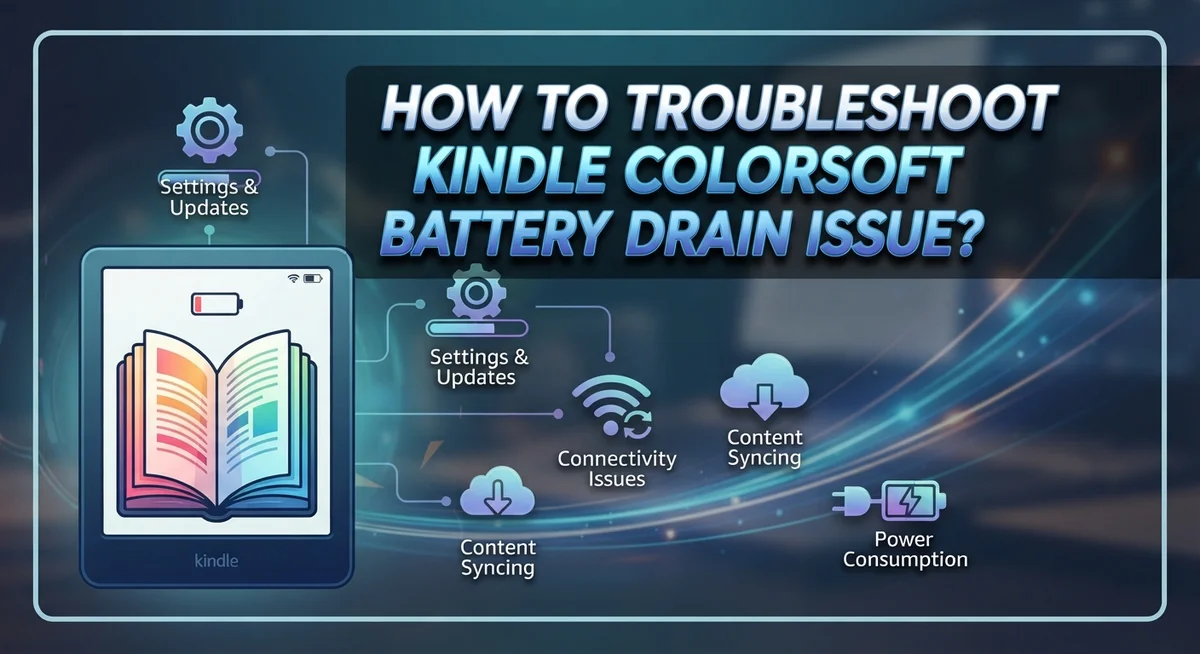
How To Troubleshoot Kindle Colorsoft Battery Drain Issue?
You just got your Kindle Colorsoft, and the battery is draining faster than expected. That can be frustrating, especially when you were looking forward to long, uninterrupted reading sessions.
The good news is that most battery drain issues are fixable. In many cases, the problem is not a hardware defect at all. It is often caused by background processes, software settings, or simple usage habits.
The Kindle Colorsoft uses color display technology, which naturally consumes more power than older e-ink models. This is completely normal. However, abnormal drain goes beyond that, and it has clear causes you can address.
This article walks you through practical troubleshooting steps to identify and fix the battery drain issue on your Kindle Colorsoft. You will learn why fast drain happens on the first day, how to adjust your settings, and what mistakes to avoid.
In a Nutshell
- The Kindle Colorsoft uses color display technology, which naturally draws more power than standard e-ink screens. Some faster drain is expected.
- First-day battery drain is usually normal. The device runs a background indexing process when you first set it up. This slows down after a short time.
- A simple reboot can fix many software-related drain issues. This resets background processes that may be running unnecessarily.
- Wireless connectivity is one of the biggest battery drains. Turning off Wi-Fi when you are not actively downloading content makes a big difference.
- Screen brightness and warm light settings directly affect battery life. Lowering these settings is one of the easiest wins you can make right away.
- Always rule out software issues before assuming hardware failure. Check for system updates, use a compatible charging cable, and perform a soft reset if the drain is rapid.
Why Your Kindle Colorsoft Battery Drains Faster Than Expected
Your Kindle Colorsoft battery drains faster than expected for several specific reasons. Understanding these causes helps you fix the problem quickly.
The color display technology is the primary culprit. Color e-ink screens require more power than standard black and white displays. This is why your Colorsoft drains faster than older Kindle models. The colored pixels need constant power to maintain their appearance, even when you are not reading.
Background indexing happens during your first few days of use. When you set up your device, it organizes all your books and content in the background. This process runs continuously and uses significant battery power. Most users see normal battery life after this indexing completes, usually within 24 to 48 hours.
Wireless connectivity drains your battery rapidly. Your device searches for Wi-Fi signals even when you are not downloading books. This constant searching consumes power throughout the day and night.
Screen brightness and warm light settings also impact battery drain. Higher brightness levels require more power from the display. The warm light feature, which reduces blue light, adds another layer of power consumption.
Software glitches can cause unexpected battery drain. Outdated firmware or corrupted processes running in the background may drain power faster than normal. A simple restart often fixes these issues.
Incompatible charging cables can also affect battery performance. Using the wrong cable prevents your device from charging properly, which creates the appearance of faster drain.
The key takeaway is this: most battery drain issues stem from normal device behavior or simple settings adjustments. Hardware failure is rarely the cause. Your battery drain is likely fixable with the troubleshooting steps covered in this guide.
Is Fast Battery Drain on Day One Normal?
Yes, fast battery drain on your first day is completely normal. Your Kindle Colorsoft runs a background indexing process when you first set it up. This process catalogs all your books and content so the device can search and organize them quickly later.
This indexing typically happens during the first 24 to 48 hours of ownership. Your battery will drain noticeably faster than usual during this time. The good news is that this behavior stops once the indexing completes.
You might also notice your device feels warm during this period. This is another sign that background processes are running. Don’t worry—this is expected and not a hardware problem.
The Colorsoft’s color display technology also uses more power than standard e-ink screens. This means faster battery drain compared to older Kindle models is normal across all usage situations, not just on day one.
To confirm this is normal behavior, fully charge your device and let it sit idle for 24 hours. If the battery drain slows down after the second or third day, the indexing process has finished.
If your battery continues draining rapidly after three days of ownership, then you should start troubleshooting. Try restarting your device first. This simple step fixes many software glitches that cause unexpected drain.
Check whether your wireless connection is turned on. Leaving Wi-Fi enabled constantly drains your battery much faster. Turn off Wi-Fi when you’re not downloading books or syncing content.
Lower your screen brightness and warm light settings. These adjustments make a real difference in battery performance. Start by reducing brightness to 40 percent and see how this affects your battery life over several hours of reading.
How To Reboot and Soft Reset Your Kindle Colorsoft
A soft reset clears temporary files and stops background processes that drain your battery. This simple action fixes many battery problems without erasing your books or settings.
Start by fully charging your device. Connect it to a power source using the correct USB cable. Wait until the battery indicator shows 100 percent before proceeding.
To perform a soft reset, hold the power button for 7 to 10 seconds. Your screen will go black. Release the button and wait 30 seconds. The device will restart automatically. You will see the Kindle logo appear on your screen.
After the restart completes, check your battery percentage. Leave the device idle for several hours without using it. Monitor whether the battery drains at a normal rate now.
If fast draining continues, perform a hard reboot next. This process is slightly different. Press and hold the power button for 20 to 30 seconds until you see a restart message on screen. The device will power down completely and turn back on.
Avoid using your device immediately after rebooting. Let it sit for at least 15 minutes. This gives the system time to stabilize and finish loading background processes properly.
Check your wireless settings after the reboot completes. Make sure Wi-Fi is off if you are not actively downloading books. Background syncing can restart automatically after a reboot, so verify this manually.
Test your battery performance over the next 24 hours. Most users notice improvement after a soft reset. If battery drain persists after both reboot attempts, move on to checking for software updates or adjusting your display settings further.
How To Adjust Screen Brightness and Light Settings to Save Battery
Your Kindle Colorsoft’s screen brightness and light settings have a direct impact on battery life. The color display technology requires more power than standard e-ink screens, so adjusting these settings is one of the most effective ways to reduce battery drain.
Start by lowering your screen brightness to a comfortable reading level. Your device likely defaults to maximum brightness, which drains the battery faster than necessary. Open your settings menu and find the brightness control. Reduce it gradually until you find a level that works for your eyes without straining them.
The warm light feature also consumes additional power. This setting adds an amber tint to reduce eye strain during evening reading sessions. If you primarily read during the day, consider disabling warm light entirely. You can turn it on only when needed rather than keeping it active constantly.
Create a reading schedule for your warm light usage. Enable it only during evening hours when you typically read before bed. This simple habit can extend your battery life significantly over several days of use.
Pay attention to your environment as well. Reading in bright sunlight means you’ll need higher brightness settings to see the text clearly. Move to a shaded area or adjust your reading time to reduce brightness needs.
Your device offers preset brightness options in many reading apps. Experiment with different levels to find your sweet spot between visibility and battery conservation. Remember that small adjustments add up over time. A device set to 40 percent brightness will last considerably longer than one set to 80 percent brightness.
Check your settings weekly to ensure your preferences haven’t reverted to default values after software updates.
How To Manage Wireless and Internet Connectivity to Reduce Drain
Wireless connectivity is one of the biggest battery drainers on your Kindle Colorsoft. Your device constantly searches for and maintains internet signals, which requires significant power. The good news is that managing these connections is simple and effective.
Start by turning off wireless when you’re not actively using it. You don’t need internet connection to read books you’ve already downloaded. Open your settings menu and toggle off Wi-Fi or cellular connectivity. This single step can extend your battery life by several days.
Check your wireless settings regularly. Some devices automatically reconnect to networks in the background, even when you think they’re off. Go into your connectivity settings and review which networks your device remembers. Remove networks you no longer use to prevent automatic reconnection attempts.
Consider your usage patterns. If you download books during specific times, turn on wireless only for those moments. Download your content, then immediately disable connectivity again. This approach keeps your device in low power mode most of the time.
Monitor signal strength in your reading location. Weak signals force your device to work harder to maintain connection. If you’re in an area with poor coverage, turning off wireless saves more battery than leaving it searching for signals.
Update your network settings after system updates. Sometimes software changes reset your wireless preferences to default values. Check these settings weekly to ensure they match what you want.
Airplane mode is another useful tool. This setting disables all wireless functions at once. Use airplane mode when you’re reading for extended periods and don’t need any connectivity.
These wireless management steps work best when combined with other battery saving techniques. Together, they keep your Colorsoft running efficiently for weeks between charges.
How To Check for Software Updates and Fix Glitches
Your Kindle Colorsoft may drain faster if it’s running outdated software. Software updates fix bugs that cause battery problems. You should check for updates regularly to keep your device running smoothly.
Start by connecting your device to a stable Wi Fi network. Open your settings menu and look for the option labeled “Device Options” or “Settings.” Scroll down until you find “Update Your Kindle” or a similar option. Your device will automatically search for available updates if a connection exists.
If an update is available, your screen will display a notification. Tap the option to download and install the update immediately. Your device may restart during this process, which is completely normal. Keep your Kindle connected to power while the update installs.
Software glitches often cause unexpected battery drain even without new updates. A simple reboot can fix many glitches without erasing your content. Hold your power button for 7 to 10 seconds until the screen goes black. Wait for your device to restart completely before using it again.
After updating or rebooting, monitor your battery level for the next few hours. Take note of how quickly the percentage drops during normal reading. If drain continues at an abnormal rate, the problem may involve other settings.
Check your wireless connection next. Outdated software sometimes causes connectivity issues that drain power. Your device may constantly search for signals even when you’re not using it. Turning off wireless when idle prevents this unnecessary power consumption.
Update your network settings after installing system updates. Sometimes new software requires fresh connection configurations. Restart your device one more time after making these changes. This final reboot ensures all updates and settings work together properly.
Common Mistakes That Worsen Kindle Colorsoft Battery Drain
Many users accidentally make choices that drain their Kindle Colorsoft battery faster. Understanding these mistakes helps you keep your device running longer.
Using incompatible charging cables is a common error. Your Kindle needs the correct USB cable to charge properly. Wrong cables charge slowly or damage the battery over time. Always use the cable that came with your device or one specifically designed for Kindle models.
Leaving wireless enabled constantly wastes significant battery power. Many people forget to turn off their connection when reading offline. Your device searches for networks even when you’re not downloading books. Disable wireless as soon as you finish your reading session.
Ignoring background indexing as normal causes unnecessary worry. When you first use your Colorsoft, the device indexes your library and content. This process runs in the background and drains battery faster than usual. This is completely normal and stops after a few hours.
Assuming hardware failure too quickly leads people to unnecessary troubleshooting. Fast battery drain on day one doesn’t mean your device is broken. Most issues come from software glitches, not broken hardware.
Keeping brightness at maximum levels drains your battery rapidly. The color display technology already uses more power than basic e ink screens. High brightness settings make this worse. Lower your screen brightness to a comfortable reading level.
Skipping software updates allows glitches to persist. Outdated software often causes unexpected battery drain. Check for updates regularly through your wireless settings.
Combining multiple power drains creates the worst battery problems. Don’t use maximum brightness, keep wireless on, enable warm light, and leave background apps running simultaneously. Address one issue at a time for best results.
How To Properly Charge Your Kindle Colorsoft for Best Battery Health
Charging your Kindle Colorsoft correctly helps maintain healthy battery performance over time. Start by using the official USB cable that came with your device or a compatible replacement. Incompatible cables can deliver incorrect power levels and damage your battery’s long term capacity.
Charge your device when the battery reaches 20 percent remaining. Avoid letting it drain completely to zero, as this stresses the battery cells. Similarly, you don’t need to wait until it’s completely dead before plugging in.
Charge in a cool environment whenever possible. Heat damages lithium ion batteries and reduces their lifespan. Keep your Colorsoft away from direct sunlight and warm locations while charging. Room temperature charging is ideal for battery health.
Leave your device plugged in until it reaches 100 percent. Partial charges work fine for daily use, but complete charging cycles once weekly help maintain overall battery capacity. Don’t unplug it prematurely.
Turn off wireless connectivity before charging. This reduces power draw and lets your battery charge faster. You can disable Wi Fi in your settings menu in seconds.
Monitor your charging time. A full charge typically takes 2 to 3 hours from empty. If charging takes significantly longer, your battery may need attention or your cable might be faulty.
Avoid using your Colorsoft while it’s charging. Reading or browsing while plugged in generates heat and slows charging speed. Let the device rest undisturbed during this time.
Check your battery level regularly after charging. If your Colorsoft drains unusually fast despite proper charging habits, a software glitch or hardware issue may exist. Perform a soft reset to rule out software problems first.
Final Thoughts
Fixing the Kindle Colorsoft battery drain issue is very manageable once you understand what causes it.
The color display technology naturally uses more power than standard e-ink screens. This is simply how the hardware works, not a defect.
Fast battery drain on your first day is almost always normal. Background indexing runs automatically when you first set up the device. This process slows down on its own after a short time.
Start your troubleshooting with the simplest steps first. Reboot your device, check for software updates, and lower your screen brightness. These three actions alone fix most battery drain problems.
Managing your wireless connection makes a big difference too. Turn off Wi-Fi and Bluetooth when you are not actively downloading books. This single habit can noticeably extend your battery life.
Always use a compatible charging cable and charge your device properly. Charge in a cool environment and avoid using the device while it charges. Small habits like these protect your battery over the long term.
If your battery still drains unusually fast after trying everything, perform a soft reset. This clears temporary software glitches that standard reboots sometimes miss.
Do not jump straight to assuming hardware failure. Most battery drain problems have simple software or settings-related causes. Work through each step before drawing any conclusions.
Combining multiple fixes together gives you the best results. Lowering brightness, disabling wireless, and keeping software updated all work better as a group than individually.
With the right approach, your Kindle Colorsoft battery performance can improve significantly. Patience and consistent habits are your most useful tools here.
Frequently Asked Questions
Why does my Kindle Colorsoft drain battery faster than other Kindle models?
The color display technology requires more power than standard e-ink screens. Color pixels need additional energy to refresh and display vibrant images. This is a normal characteristic of color e-readers, not a defect. Your battery will drain faster, but this doesn’t mean something is wrong with your device.
Is fast battery drain on the first day normal?
Yes, it’s completely normal. Your device runs a background indexing process when you first set it up. This process organizes your library and prepares your content for quick access. It consumes significant battery power but only happens once. After this initial setup completes, your battery performance will improve noticeably.
How long should the battery last on my Colorsoft?
Battery life varies based on your usage habits. Reading time, screen brightness, and wireless connectivity all affect longevity. Most users get several weeks of battery life with moderate use. Heavy readers with wireless disabled may see even longer performance. Light users might experience shorter battery life if they leave features enabled constantly.
What’s the quickest way to stop excessive battery drain?
Start by turning off wireless connectivity when you’re not actively downloading books. Lower your screen brightness to a comfortable reading level. Restart your device to clear any software glitches. Check that you’re using a compatible charging cable. These simple steps solve most battery drain problems without needing advanced troubleshooting.
When should I consider a soft reset for battery issues?
Perform a soft reset if your battery drains rapidly even after trying basic fixes. A soft reset clears temporary glitches without deleting your books or settings. Do this only after confirming that wireless is off, brightness is reasonable, and you’ve restarted normally. This step usually resolves stubborn battery problems caused by software confusion.

Hi, I’m Siya — the founder and writer behind Craftifyy.com. I’m a tech enthusiast who loves reviewing gadgets, comparing products, and helping people make smarter buying decisions. Got a question? Feel free to reach out!