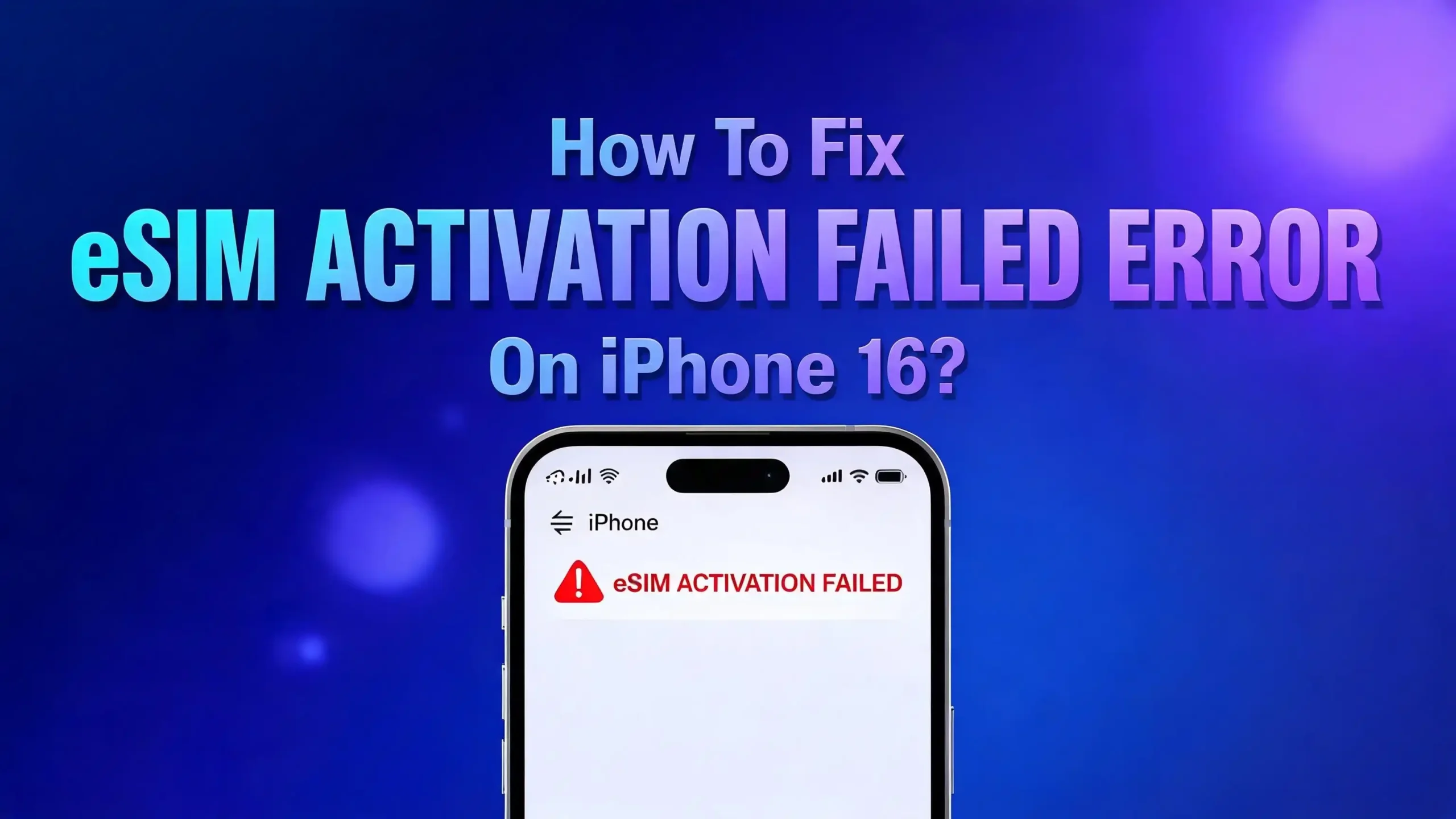
How To Fix eSIM Activation Failed Error On iPhone 16?
So you just got your shiny new iPhone 16, and you are ready to set it up. But then it happens. The dreaded “eSIM Activation Failed” error pops up on your screen. You stare at it, try again, and get the same result. Frustrating, right?
You are not alone. Thousands of iPhone 16 users have reported this exact problem since the device launched. Apple moved to an eSIM only design starting with the iPhone 14 series in the US, and the iPhone 16 continues this trend. That means if your eSIM does not activate, you literally cannot make calls, send texts, or use cellular data.
The good news is that this error is almost always fixable. This guide walks you through every proven solution from the simplest quick fixes to more advanced troubleshooting methods.
By the time you finish reading, you will know exactly what causes this error and how to resolve it fast. Let us dive in and get your iPhone 16 connected.
Key Takeaways
- The eSIM Activation Failed error on iPhone 16 is common and usually results from carrier server issues, poor internet connections, or outdated software. It does not mean your phone is defective.
- A stable Wi-Fi connection is essential during eSIM activation. Cellular data alone is often not reliable enough to complete the process, and switching to a strong Wi-Fi network resolves the issue for many users.
- Restarting your iPhone 16 is the simplest and most effective first step. A basic restart clears temporary system glitches that block eSIM activation, and it works more often than you might expect.
- Your carrier plays a major role in eSIM activation. You may need to contact your carrier directly to verify your account status, request a new QR code, or have them push the eSIM profile to your device again.
- Updating to the latest version of iOS can fix known eSIM bugs. Apple frequently releases patches that address activation issues, so running outdated software may be the root cause of your problem.
- As a last resort, a network settings reset or factory reset can resolve deeper conflicts. These steps erase saved Wi-Fi passwords and network configurations, but they often clear stubborn eSIM errors that nothing else fixes.
What Does the eSIM Activation Failed Error Mean on iPhone 16?
The eSIM Activation Failed error appears when your iPhone 16 cannot complete the process of downloading and installing a carrier profile. This profile is a small digital file that tells your phone which carrier to connect to, what plan you are on, and how to access the cellular network.
Unlike a physical SIM card that stores this data on a chip, an eSIM stores everything digitally on a built in component inside your iPhone. The activation process requires your phone to communicate with your carrier’s servers over the internet. If anything interrupts that communication, the activation fails.
You might see slightly different error messages depending on the situation. Some users report seeing “Unable to Activate eSIM” while others see “eSIM Activation Error” or “An error occurred while activating your eSIM.” All of these point to the same core problem.
The error can appear during initial setup of a new iPhone 16, when transferring an eSIM from an older device, or when adding a new eSIM plan. It can also show up after a software update or a factory reset. Understanding when and where the error appears helps you pinpoint the cause faster.
Common Causes Behind the eSIM Activation Error
Several factors can trigger this error, and knowing the cause helps you pick the right fix. The most frequent culprit is a poor or unstable internet connection. Since eSIM activation depends on downloading data from carrier servers, a weak Wi-Fi signal or congested network can interrupt the process.
Carrier server outages are another common cause. If your carrier’s activation servers are down or overloaded, your iPhone cannot retrieve the eSIM profile. This happens often during new iPhone launch periods when millions of people activate devices at the same time.
Sometimes the issue is on your account side. An unpaid bill, an inactive account, or an incorrect plan type can all prevent eSIM activation. Your carrier needs to have eSIM provisioning enabled for your specific account and phone number.
Software bugs in iOS can also cause problems. Apple has acknowledged eSIM related bugs in several iOS releases and has issued patches to fix them. Running an older version of iOS 18 might expose you to known issues that newer updates have already resolved.
Finally, incorrect date and time settings on your iPhone can cause activation to fail. The activation process uses security certificates that are time sensitive. If your phone’s clock is wrong, the certificates will not validate.
Restart Your iPhone 16
This sounds almost too simple, but a restart fixes the eSIM Activation Failed error for a surprising number of users. When your iPhone runs for a while, temporary files and background processes can create conflicts. A fresh restart clears these temporary glitches and gives the eSIM activation process a clean slate.
To restart your iPhone 16, press and hold the side button and either volume button at the same time. The power off slider will appear on your screen. Drag the slider to turn off your phone. Wait at least 30 seconds before pressing the side button again to turn it back on.
After the restart, go to Settings > Cellular > Add eSIM and try the activation process again. Many users report that the activation completes successfully on the second attempt after a restart.
If a regular restart does not work, try a force restart instead. Press and quickly release the volume up button, press and quickly release the volume down button, then press and hold the side button until the Apple logo appears. This performs a deeper system refresh that can resolve more stubborn issues.
Check Your Internet Connection
A solid internet connection is absolutely critical for eSIM activation. Your iPhone 16 needs to download data from your carrier’s servers, and any interruption can cause the process to fail. This is one of the most overlooked causes of the error.
Use Wi-Fi instead of cellular data for eSIM activation. If you are setting up a brand new iPhone 16, you will not have cellular access yet anyway. Connect to a reliable Wi-Fi network with strong signal strength before starting the activation.
Test your Wi-Fi connection by opening Safari and loading a website. If pages load slowly or not at all, the problem is your internet connection. Try moving closer to your router, restarting your router, or connecting to a different Wi-Fi network entirely.
Avoid public Wi-Fi networks like those in coffee shops, airports, or hotels. These networks often have firewalls or restrictions that can block the data exchange required for eSIM activation. A home network or a trusted private network is your best option.
If you have no access to Wi-Fi, you can try using a personal hotspot from another phone. Just make sure that hotspot connection is strong and stable before you begin the eSIM setup process on your iPhone 16.
Update Your iPhone to the Latest iOS Version
Apple regularly releases iOS updates that fix bugs, including ones related to eSIM activation. If your iPhone 16 is running an older version of iOS, updating it may resolve the error immediately.
Go to Settings > General > Software Update to check for available updates. If an update is available, download and install it. Make sure your iPhone has at least 50% battery life or is connected to a charger during the update.
Apple released several patches throughout the iOS 18 cycle that specifically addressed eSIM connectivity and activation issues. Users who were stuck on earlier builds found that updating to the latest version fixed their problems without any other changes.
If you cannot update over Wi-Fi because the download keeps failing, connect your iPhone to a computer and use Finder on Mac or iTunes on Windows to update. This method uses your computer’s internet connection and is often more reliable for large downloads.
After the update completes, your iPhone will restart automatically. Try the eSIM activation again once your phone is back on. The updated software may include the exact fix your device needs.
Remove and Re-Add the eSIM
Sometimes the eSIM profile gets stuck in a partially installed state. Removing it completely and starting the activation from scratch can clear this issue.
Go to Settings > Cellular and tap on the eSIM plan that failed to activate. Scroll down and tap “Remove eSIM” or “Delete eSIM.” Confirm the removal when prompted. This does not cancel your plan with your carrier. It only removes the digital profile from your device.
After removing the eSIM, restart your iPhone 16 using the method described earlier. Once the phone is back on, go to Settings > Cellular > Add eSIM to begin the process again.
You may need to scan a new QR code from your carrier or use the carrier’s app to initiate the eSIM transfer. If you originally activated using a QR code, check if it is still valid. Some QR codes expire after one use or after a set time period. Contact your carrier for a fresh code if needed.
This clean removal and reinstallation process works because it forces your iPhone to start the entire activation handshake from the beginning. Any corrupted data from the previous attempt gets cleared out completely.
Verify Your Carrier Account Status
Your carrier must have your account properly configured for eSIM activation to work. Even small account issues can block the entire process, and your iPhone will simply show an activation error without explaining why.
Log in to your carrier’s app or website and check your account status. Make sure your account is active, your bill is current, and there are no holds or restrictions on your line. Some carriers require you to specifically enable eSIM support on your account before it will work.
Check that your phone number and device IMEI match what your carrier has on file. You can find your iPhone 16’s IMEI by going to Settings > General > About. If you recently switched phones, your carrier may still have your old device’s IMEI linked to your account.
Call your carrier’s customer support line if you cannot resolve the issue online. Ask them to verify that your account is provisioned for eSIM and that there are no blocks preventing activation. Some carriers, like T-Mobile, AT&T, and Verizon, have dedicated eSIM support teams that can push the eSIM profile directly to your device.
It also helps to ask your carrier if there are any known outages or server issues on their end. During peak activation periods, carrier servers can become overwhelmed and cause widespread failures.
Reset Network Settings
Resetting network settings is a powerful troubleshooting step that resolves many eSIM activation issues. This process clears all saved Wi-Fi networks, Bluetooth connections, VPN configurations, and cellular settings from your iPhone 16.
Go to Settings > General > Transfer or Reset iPhone > Reset > Reset Network Settings. You will need to enter your passcode to confirm. Your iPhone will restart after the reset completes.
This step works because it removes any conflicting network configurations that might be interfering with the eSIM activation process. Old VPN profiles, custom APN settings, or corrupted Wi-Fi data can all create hidden conflicts.
After the reset, you will need to reconnect to your Wi-Fi network by entering the password again. Once you are connected, go back to Settings > Cellular > Add eSIM and attempt the activation. Many users who tried everything else found success only after performing this reset.
Keep in mind that this reset does not delete your personal data, photos, apps, or messages. It only affects network related settings. It is a safe step that you can perform without worrying about losing anything important on your device.
Check the Date and Time Settings
Incorrect date and time settings can quietly sabotage your eSIM activation. The activation process relies on digital security certificates that are only valid during specific time windows. If your iPhone’s clock is wrong, the certificates will not match and the activation will fail.
Go to Settings > General > Date & Time and make sure the “Set Automatically” toggle is turned on. This allows your iPhone to pull the correct time from Apple’s servers based on your time zone.
If the toggle is already on but the time still looks wrong, turn it off, wait a few seconds, and turn it back on. This forces your iPhone to refresh its time data. You can also manually set the correct time zone if automatic detection is not working properly.
This fix is especially relevant if you recently traveled to a different time zone or if you manually changed the date and time for any reason. Even being off by a few hours can cause certificate validation failures during eSIM activation.
After confirming the correct date and time, try the eSIM activation again. This simple setting adjustment has resolved the issue for users who spent hours trying other solutions without success.
Use Your Carrier’s App for Activation
Many carriers offer their own apps that can handle eSIM activation more smoothly than the standard iPhone setup process. These apps communicate directly with the carrier’s servers and can bypass some of the issues that cause the built in activation method to fail.
Download your carrier’s official app from the App Store if you do not already have it. For US carriers, this includes the T-Mobile app, My Verizon, myAT&T, or similar apps for other providers. Log in with your carrier account credentials.
Look for an option like “Activate eSIM,” “Transfer eSIM,” or “Set Up Device” within the app. The app will guide you through the process step by step. It often provides more detailed error messages if something goes wrong, which makes troubleshooting easier.
Some carriers also support eSIM Carrier Activation, which happens automatically in the background. If your carrier supports this feature, the eSIM should activate itself shortly after you connect to Wi-Fi during the initial iPhone setup. If it did not work automatically, using the carrier app manually often resolves the issue.
The advantage of using the carrier app is that it can refresh your eSIM profile on the server side before pushing it to your device. This eliminates issues caused by expired or corrupted profiles that the standard QR code method cannot fix.
Contact Apple Support
If you have tried all the solutions above and the eSIM Activation Failed error persists, the issue might be hardware related. While rare, some iPhone 16 units have had defective eSIM components that prevent activation no matter what software fixes you apply.
Apple Support can run remote diagnostics on your iPhone 16 to check if the eSIM hardware is functioning properly. You can reach them through the Apple Support app, by calling 1-800-APL-CARE, or by visiting an Apple Store with a Genius Bar appointment.
Before contacting Apple, gather some information to speed up the process. Know your iPhone’s serial number and IMEI (found in Settings > General > About), your carrier name, and a description of the error message you are seeing. Also note which troubleshooting steps you have already tried.
If Apple determines that your eSIM hardware is faulty, they will offer a repair or replacement depending on your warranty status. iPhones within their one year limited warranty or covered by AppleCare+ are eligible for free service.
You can also use the Apple Support website to schedule a callback or chat session. Online support agents can walk you through advanced troubleshooting steps that are not publicly documented and may resolve your issue without a store visit.
Factory Reset as a Last Resort
A factory reset erases everything on your iPhone 16 and returns it to its original out of the box state. This is the nuclear option, and you should only try it after exhausting all other solutions. However, it is remarkably effective at fixing persistent eSIM issues.
Back up your iPhone first using iCloud or a computer. Go to Settings > [Your Name] > iCloud > iCloud Backup and tap “Back Up Now.” Alternatively, connect your iPhone to a Mac or PC and back up through Finder or iTunes. Do not skip this step.
Once your backup is complete, go to Settings > General > Transfer or Reset iPhone > Erase All Content and Settings. Enter your passcode and Apple ID password when prompted. Your iPhone will erase itself and restart with the initial setup screen.
During the fresh setup process, you will reach the cellular setup step where you can try eSIM activation again. Starting from a clean slate eliminates any software conflicts, corrupted files, or misconfigured settings that were blocking activation.
After activation succeeds, you can restore your backup to get all your apps, photos, and data back. The eSIM configuration will remain intact through the restore process. This method has the highest success rate among all software based solutions.
Tips to Prevent eSIM Activation Issues in the Future
Prevention is always better than troubleshooting. A few simple habits can help you avoid eSIM activation errors on your iPhone 16 going forward.
Keep your iOS updated at all times. Enable automatic updates by going to Settings > General > Software Update > Automatic Updates. This ensures your iPhone always has the latest bug fixes and security patches that affect eSIM functionality.
Before starting any eSIM activation or transfer, make sure you are on a fast and stable Wi-Fi network. Avoid starting the process when you are on the go or in an area with weak signal. A few minutes of preparation can save you hours of troubleshooting.
Save your carrier’s eSIM QR code or activation details in a safe place. If you ever need to remove and re-add your eSIM, having this information readily available makes the process much smoother. Take a screenshot or save the email from your carrier.
Check your carrier account regularly to ensure everything is in good standing. An expired payment method or a plan change can sometimes disrupt eSIM functionality without any warning on your phone.
Finally, avoid installing beta versions of iOS unless you are prepared to deal with potential eSIM bugs. Beta software is not fully tested and can introduce new issues that affect cellular connectivity and eSIM activation.
Frequently Asked Questions
Why does my iPhone 16 say eSIM Activation Failed?
This error appears when your iPhone 16 cannot download or install the carrier profile from the server. The most common causes include a weak internet connection, carrier server outages, account issues on your carrier’s end, or outdated iOS software. A restart combined with a strong Wi-Fi connection fixes the issue for most users.
Can I use a physical SIM card instead of eSIM on iPhone 16?
The iPhone 16 models sold in the United States do not have a physical SIM card tray. They rely entirely on eSIM technology. However, iPhone 16 models sold in many other countries still include a SIM card tray that accepts a nano SIM alongside eSIM support.
How long does eSIM activation take on iPhone 16?
Under normal conditions, eSIM activation takes between 2 to 10 minutes. If your carrier’s servers are busy, it could take up to 24 hours. If activation has not completed after 24 hours, contact your carrier’s support team for assistance.
Will resetting network settings delete my data?
No. Resetting network settings only removes saved Wi-Fi passwords, Bluetooth pairings, VPN configurations, and cellular settings. Your photos, apps, messages, and personal data remain untouched. You will simply need to re-enter your Wi-Fi passwords afterward.
Can I have two eSIMs active on my iPhone 16 at the same time?
Yes. The iPhone 16 supports Dual eSIM functionality, which means you can have two active eSIM plans at the same time. This is useful for people who want separate lines for personal and work use or for those who travel and use local data plans.
What should I do if my carrier says the eSIM was already activated?
Ask your carrier to release or deregister the eSIM profile from the previous device or previous activation attempt. Once they clear the old profile from their system, you can activate it fresh on your iPhone 16. This situation commonly occurs when transferring an eSIM from one phone to another.

Hi, I’m Siya — the founder and writer behind Craftifyy.com. I’m a tech enthusiast who loves reviewing gadgets, comparing products, and helping people make smarter buying decisions. Got a question? Feel free to reach out!