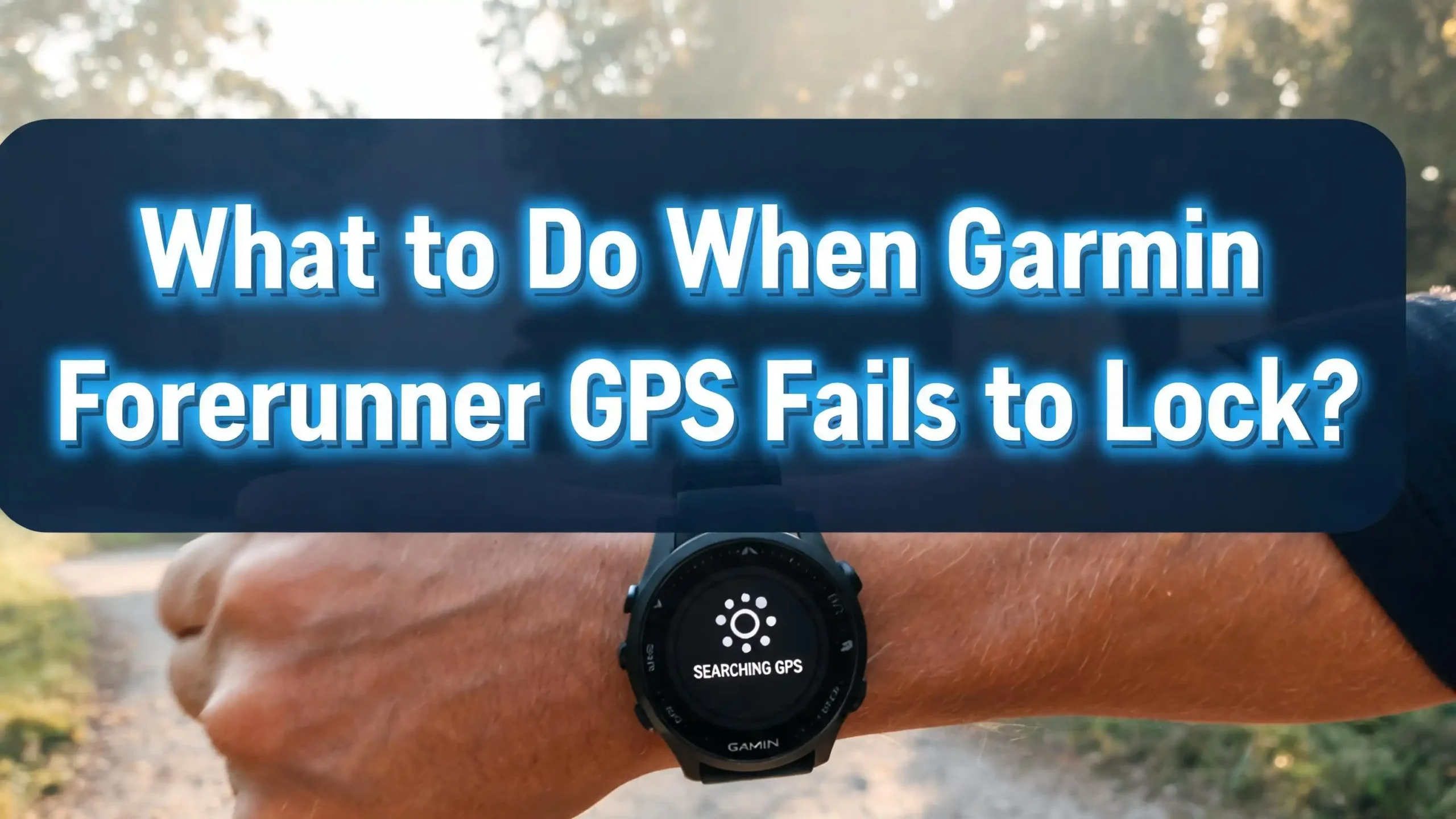
What to Do When Garmin Forerunner GPS Fails to Lock?
You lace up your shoes, strap on your Garmin Forerunner, and step outside ready to run. But your watch just sits there, spinning, searching for a signal that never comes. Your Garmin Forerunner GPS fails to lock, and your workout is stuck at “Waiting for GPS.” This is one of the most common and frustrating issues Garmin users face.
The good news? This problem almost always has a fix. GPS lock failures happen because of outdated satellite data files, poor environmental conditions, software bugs, or incorrect settings. In most cases, you can solve the problem yourself in a few minutes without any special tools.
This guide walks you through every practical solution. You will learn why your watch struggles to find satellites, how to update the critical files your watch needs, and what to do if nothing else works. Each step is clear, direct, and tested by real Garmin users.
Key Takeaways
- Sync your Garmin Forerunner with Garmin Connect or Garmin Express before every run. This updates the satellite pre-cache file (called CPE or EPO) that your watch uses to find GPS satellites quickly. An expired or missing file is the most common reason for slow or failed GPS locks.
- Stand in an open area with a clear view of the sky. Tall buildings, dense tree cover, and overhead structures block GPS signals. Move away from obstructions and stay still for 30 to 60 seconds while the watch searches.
- Restart your watch if the GPS search stalls. A simple power cycle clears temporary software glitches. Hold the power button for 20 to 30 seconds, then turn the watch back on.
- Check and update your satellite system settings. Switching from GPS Only to GPS + GLONASS, GPS + Galileo, or All Systems can help your watch lock faster in difficult conditions. Newer models also support Multi-Band mode for the best accuracy.
- Update your watch firmware through Garmin Express. Software bugs can cause GPS failures. Installing the latest firmware ensures your watch has the most recent fixes from Garmin.
- Factory reset is the last resort but it works. If no other fix solves the problem, a factory reset clears corrupted files and restores your watch to working order. Your activity history stays safe on Garmin Connect.
Why Your Garmin Forerunner GPS Fails to Lock
Your Garmin Forerunner uses satellite signals to calculate your exact position. The watch must receive signals from at least four GPS satellites to determine location accurately. Several factors can prevent this from happening.
The most frequent cause is an expired or corrupted CPE file. CPE stands for Connected Predictive Ephemeris. This file acts like a cheat sheet that tells your watch where GPS satellites are located in the sky. With a current CPE file, your watch can lock onto satellites in 1 to 3 seconds. Without it, the watch must search the entire sky, and this process can take 5 to 15 minutes or fail entirely.
Environmental factors also play a role. Tall buildings reflect and block satellite signals. Dense forests absorb signals. Even your body position can interfere if the watch antenna faces the wrong direction. Weather like rain or snow does not affect GPS signals, but physical obstructions between the watch and the sky do.
Outdated firmware is another common cause. Garmin releases software updates that fix GPS bugs and improve satellite acquisition. Running an old software version can mean your watch has a known GPS defect that Garmin already patched. In January 2025, a corrupted CPE file from Garmin’s servers caused watches across multiple product lines to crash whenever GPS was activated.
How the CPE and EPO Files Affect GPS Lock Speed
The CPE file (also called EPO on some older models) is the single most important factor in GPS lock speed. Understanding this file helps you prevent future GPS problems.
Your watch downloads a new CPE file every few days through Garmin Connect on your phone or Garmin Express on your computer. This file contains predicted satellite orbit data. It tells the watch exactly where each satellite should be in the sky at any given time. The file stays valid for roughly 3 to 14 days before it expires.
Once the CPE file expires, your watch must perform a “cold start” GPS search. This means the watch listens for raw broadcast data from satellites overhead, one at a time. Each satellite transmits its orbital data in five packets, repeating every 30 seconds. If the watch misses a single packet due to signal interference, it must wait another 30 seconds to try again. This explains why a stale CPE file can cause minutes of waiting.
You can check your CPE status on most Forerunner models. Go to Settings, then About, and scroll down to the CPE or EPO entry. It will show “Current,” “Expired,” or “Missing.” If the status is anything other than “Current,” syncing your watch immediately should fix the problem. This single check saves most Garmin users from long GPS wait times.
Sync Your Watch With Garmin Connect or Garmin Express
The fastest and easiest fix for GPS lock failures is syncing your watch. This step updates the CPE file and ensures your watch has fresh satellite data.
To sync with Garmin Connect on your phone, open the Garmin Connect app and make sure Bluetooth is enabled on both your phone and watch. Tap “More” at the bottom of the screen, then select “Garmin Devices.” Tap your watch and let the sync complete. You should see the sync indicator spinning for a few seconds. Once done, the CPE file on your watch updates automatically.
To sync with Garmin Express on a computer, connect your watch to the computer using the included USB charging cable. Open Garmin Express and click “Sync.” The program checks for software updates and refreshes the satellite data files. Many experienced users report that syncing through Garmin Express is more reliable than phone sync for fixing persistent GPS issues.
Make this a habit. Sync your watch at least every few days, and always sync right before a long run or race. Users who sync daily almost never experience GPS lock delays. The entire process takes less than 30 seconds and can save you from standing on the sidewalk watching your watch spin.
One important note: some users have reported that the Garmin Connect phone app occasionally fails to push the CPE file. If you suspect this, delete the Garmin Connect app from your phone, reinstall it, and then sync again. This forces a fresh connection and a new CPE file transfer.
Restart Your Garmin Forerunner
A simple restart solves many temporary GPS glitches. This step clears the watch memory and forces it to refresh its internal processes.
To restart your Forerunner, hold the power button (usually the top left button) for about 20 to 30 seconds. The screen will go dark. Wait a few seconds, then press the power button again to turn the watch back on. This is called a “hard power cycle” and is different from just putting the watch to sleep.
After restarting, give the watch a moment to boot up fully. Then open the activity screen (like Run) and wait for the GPS to search. In many cases, the watch will find satellites within 30 to 60 seconds after a fresh restart. The restart forces the GPS chipset to reinitialize, which clears any stuck processes.
Some users have found that the GPS search gets stuck in a loop if Bluetooth is active at the same time. After restarting, you can try turning off Bluetooth temporarily from the watch controls menu. Then go into the activity screen and let the watch find GPS on its own. This removes any interference from the phone connection during satellite acquisition. Once GPS locks, you can re-enable Bluetooth.
If a simple restart does not work, try restarting the watch while it is connected to a computer via USB. This combination forces a deeper reset of the internal file system and has resolved stubborn issues for many users.
Move to an Open Area With Clear Sky Visibility
GPS signals travel from satellites orbiting about 12,500 miles above Earth. These signals are weak and cannot pass through solid objects. Your physical location matters more than most people realize.
Stand in an open area with a clear, unobstructed view of the sky in all directions. Avoid standing near tall buildings, under patio roofs, beneath dense tree canopy, or inside parking garages. Even a narrow city street between tall buildings can cause signal bounce and delay GPS lock.
Once you are in the open, hold your arm up slightly and stay still. Movement during the initial search phase can make it harder for the watch to lock. Give the watch at least 60 to 90 seconds while standing still. Normal cloud cover does not affect GPS signals, so do not wait for a clear day.
A practical tip many runners use is to start the GPS search from a window sill or balcony while getting dressed. Place the watch on a flat surface near an open window or outside on a railing. Let it search while you finish your warm up routine. By the time you step outside, the watch will already have a lock. This trick works especially well for watches that take more than a minute to connect.
If you recently traveled more than 100 miles from your last GPS use, the watch may need extra time. The CPE data is partially location based, and a large change in position means the watch needs to recalculate which satellites are overhead.
Update Your Forerunner Firmware
Outdated firmware can contain GPS bugs that Garmin has already fixed. Keeping your watch software current is an important part of maintaining fast GPS lock.
To check for updates using Garmin Express, connect your watch to your computer with a USB cable. Open Garmin Express, and it will automatically check for available updates. If an update is available, click “Install” and wait for the process to finish. Do not disconnect the watch until the update is complete.
To check for updates using Garmin Connect, open the app on your phone and sync your watch. If an update is available, you will see a notification in the app. Follow the prompts to install it wirelessly. Note that firmware updates through the phone can be slower than through Garmin Express.
Firmware updates have resolved major GPS issues in the past. In early 2025, a GPS chipset bug caused widespread crashes across Forerunner 165, 255, 265, 955, and 965 models. Garmin issued a fix through firmware and CPE file updates. Users who updated quickly were back to normal GPS performance within minutes.
Always check the release notes for your specific model on the Garmin support website. This tells you exactly what each update fixes. If the notes mention GPS or satellite improvements, that update is worth installing immediately.
Change Your Satellite System Settings
Your Garmin Forerunner can access multiple satellite systems beyond GPS. Changing this setting can dramatically improve lock speed and accuracy in difficult environments.
GPS Only is the most basic mode. It uses only the United States GPS system and offers the longest battery life. However, it can struggle in urban areas and dense forests where fewer satellites are visible overhead.
GPS + GLONASS adds Russian satellites to the mix. Research shows this combination can acquire signals up to 20% faster than GPS alone. This is a strong default choice for everyday running. GPS + Galileo adds European satellites and works especially well in Europe.
Newer Forerunner models like the 255, 265, 955, and 965 support All Systems mode. This uses GPS, GLONASS, Galileo, BeiDou, NavIC, and QZSS simultaneously. It gives the watch the largest number of visible satellites to choose from. Some models also offer Multi-Band, which tracks multiple signal frequencies from each satellite to reduce interference.
To change your satellite settings, hold the Menu button on your watch. Go to Settings, then Activities & Apps. Select the specific activity (like Run). Go to Run Settings, then scroll to Satellites or GPS. Choose the mode you want.
For daily training, All Systems or SatIQ (Auto Select) provides the best balance. For races or urban runs, Multi-Band + All Systems delivers maximum accuracy. Be aware that more satellite systems will reduce battery life.
Check for a Corrupted GPE.bin File
Sometimes the CPE file itself becomes corrupted. This goes beyond a simple expiration issue. A corrupted file can cause your watch to crash, reboot, or fail to lock GPS entirely.
Symptoms of a corrupted file include the watch rebooting every time you open a GPS sport, the GPS search bar getting stuck near 90% without completing, or the watch entering a continuous restart loop. If your watch crashes specifically when you try to start a GPS activity, this is likely the cause.
You can fix this by manually deleting the corrupted file. Connect your watch to a computer via USB. Navigate to the watch file system and open the /Garmin/RemoteSW folder. Look for a file called GPE.bin. Delete this file. Then disconnect the watch and sync it with Garmin Connect or Garmin Express. The watch will download a fresh, clean copy of the file.
On a PC, the watch should appear as a removable drive, and you can access the files directly through File Explorer. On a Mac, you may need a tool like Android File Transfer or OpenMTP because macOS does not natively support MTP devices.
After deleting the file, restart the watch and sync it right away. The watch will download a new CPE file automatically. This fix has saved users from performing a full factory reset and is worth trying before any drastic measures.
Disable Bluetooth Before Starting GPS Search
An interesting finding from the Garmin user community is that Bluetooth connections can sometimes interfere with GPS acquisition. This happens because the watch prioritizes location data from your phone instead of finding satellites on its own.
Some Forerunner models request assisted GPS data from Garmin Connect on the connected phone. If the phone app cannot provide this data quickly, the watch may perform worse than if it searched independently. The result is a GPS bar that fills to about 90% and then stalls.
To test this, turn off Bluetooth from the watch controls menu before opening the activity screen. On most Forerunner models, you can access the controls menu by holding a specific button or swiping. Toggle Bluetooth off, then start your activity and wait for GPS to lock. Many users report that the watch finds satellites faster with Bluetooth disabled during the initial search.
Once GPS has locked and the indicator turns green, you can turn Bluetooth back on. The phone connection will restore, and your activity data will still sync after your workout.
This is not a permanent solution but a useful test. If turning off Bluetooth consistently fixes your GPS lock problem, you likely have an issue with the Garmin Connect app on your phone. Reinstalling the app or clearing its cache can resolve the underlying cause.
Allow Extra Time After Travel or Extended Inactivity
Your Garmin Forerunner needs more time to find GPS in certain situations. Understanding these scenarios prevents unnecessary frustration.
If you have traveled more than 100 miles since the last GPS lock, the watch’s satellite predictions become less accurate. The CPE file provides satellite positions based on your last known location. A major location change means the watch must spend more time scanning for visible satellites in your new area.
If you have not used GPS or synced the watch in more than two weeks, the CPE file has almost certainly expired. The watch must perform a full cold start search, which can take 5 to 15 minutes even in ideal conditions. Syncing the watch before your first activity after a break solves this instantly.
If you recently performed a factory reset, all cached satellite data is erased. The first GPS lock after a reset will take longer than usual. Stand in an open area and give the watch up to 5 minutes. After the first successful lock, subsequent locks will be fast again.
Runners who travel for races should sync their watch the morning of the event. This downloads the latest CPE file and accounts for the new location. Arriving at the starting area early and letting the watch search while you warm up is also a smart practice.
Perform a Factory Reset as a Last Resort
If nothing else works, a factory reset removes all corrupted files and settings. This step is the nuclear option, but it is effective.
Before you reset, understand what you will lose. Your settings, custom data fields, watch faces, and local activity data will be erased. However, all previously synced activities remain safe on Garmin Connect. Some newer Forerunner models can restore your settings from a backup after the reset.
To perform a factory reset, go to Settings, then System, then Reset. Choose Delete Data and Reset Settings. The watch will restart and present the initial setup screen. If your watch is stuck in a boot loop and you cannot access the menu, you can force a reset by powering off and holding specific button combinations during startup. Check Garmin’s support page for the exact button sequence for your model.
After the reset, pair the watch with Garmin Connect and sync immediately. This pushes a fresh CPE file and the latest firmware to the watch. Your first GPS lock after a reset may take a few minutes, but all subsequent locks should be fast.
A factory reset also clears any corrupted system files that may have been causing problems beyond GPS. Users who tried every other fix report that this step consistently restores their watch to full functionality.
Use the GNSS View App to Check Satellite Coverage
Sometimes the GPS issue is not your watch but the satellite coverage in your area. A free tool can help you determine if your location has enough visible satellites.
The GNSS View app (or similar satellite tracking apps available for smartphones) shows you which satellites are currently overhead at your exact position. It displays GPS, GLONASS, Galileo, and other constellations in real time. This helps you understand whether the problem is with your watch or with satellite availability.
Open the app before heading out for a run. If the app shows fewer than six visible satellites, you may need to move to a better location. Urban areas with tall buildings often have limited satellite visibility at certain times of day.
This information is also useful for choosing the right satellite setting on your watch. If the app shows strong Galileo coverage but weak GPS coverage, switching your watch to GPS + Galileo may produce a faster lock than GPS alone.
Understanding satellite availability builds realistic expectations. Some locations, like narrow city streets or deep valleys, will always require more time for GPS lock. Knowing this in advance helps you plan your warm up routine around the GPS search.
When to Contact Garmin Support or Consider Hardware Issues
If you have tried every fix on this list and your Forerunner still cannot lock GPS, the problem may be hardware related. GPS antenna failures do happen, especially on older watches or devices that have been dropped, submerged in water beyond their rating, or exposed to extreme conditions.
Signs of a hardware problem include the watch never finding any satellites regardless of location, consistent GPS drift even with a full lock, or the GPS search showing zero satellite signals at all times. If you are in an open field on a clear day with a current CPE file and the watch still cannot lock after 15 minutes, hardware failure is a real possibility.
Contact Garmin Support through their website or phone line. Explain the troubleshooting steps you have already completed. Garmin may run remote diagnostics or issue a replacement if the watch is under warranty. Keep your purchase receipt and warranty information accessible.
Out of warranty watches with confirmed GPS hardware failures may not be worth repairing. In that case, Garmin sometimes offers a discount on a replacement device. Third party repair services exist but are rarely cost effective for GPS antenna replacement.
Prevent Future GPS Lock Failures
Prevention saves time and frustration. A few simple habits will keep your Garmin Forerunner locking GPS quickly every time you head out.
Sync your watch daily. Even a quick sync through the Garmin Connect app on your phone keeps the CPE file current. Make it part of your routine, like charging your phone. Open the app, let it sync for a few seconds, and you are set.
Accept firmware updates promptly. Do not delay software updates. These updates often contain GPS performance improvements and bug fixes. Set aside a few minutes each month to check for and install any available updates through Garmin Express.
Avoid starting GPS in obstructed areas. Begin your GPS search outdoors, away from buildings. If you start an activity from inside your house, the watch may struggle to find satellites until you step outside, and it may record inaccurate data for the first portion of your route.
Restart your watch once a week. A weekly power cycle keeps the internal systems fresh and prevents minor software glitches from building up. This takes 30 seconds and can prevent many issues.
By following these habits, you will almost never encounter GPS lock failures. Most Garmin Forerunner GPS problems come from skipped syncs and expired satellite data files. Stay current, and your watch will reward you with a fast, reliable lock every time.
Frequently Asked Questions
Why does my Garmin Forerunner take so long to find GPS?
The most common reason is an expired CPE (Connected Predictive Ephemeris) file. This file helps your watch locate satellites quickly. It expires after 3 to 14 days without a sync. Sync your watch with Garmin Connect or Garmin Express, and the GPS search time will drop from minutes to a few seconds. Environmental factors like tall buildings and tree cover also slow down the search.
How do I check the CPE or EPO status on my Garmin watch?
Go to Settings, then About on your watch. Scroll down until you see the CPE or EPO entry. The status will show as “Current,” “Expired,” or “Missing.” If it is not current, connect your watch to Garmin Connect on your phone or Garmin Express on your computer and sync immediately.
Will a factory reset fix my Garmin GPS problem?
Yes, a factory reset often fixes persistent GPS issues because it removes all corrupted files from the watch. After the reset, sync with Garmin Connect to download a fresh CPE file and the latest firmware. Keep in mind that you will lose your custom settings, but your synced activity history remains safe on Garmin Connect.
Does changing the satellite system setting help with GPS lock?
Absolutely. Switching from GPS Only to GPS + GLONASS, GPS + Galileo, or All Systems gives your watch access to more satellites. More visible satellites mean a faster and more reliable lock. If your watch supports Multi-Band, using that setting in challenging environments provides the best accuracy.
Can bad weather prevent my Garmin from finding GPS?
No. Rain, clouds, and snow do not block GPS satellite signals. The signals pass through the atmosphere without issue. However, physical obstructions like buildings, dense forests, and covered areas do block signals. If you are struggling with GPS lock, move to an open area with a clear view of the sky rather than waiting for better weather.
How often should I sync my Garmin Forerunner?
Sync your watch at least every few days for the best GPS performance. Syncing daily is ideal. Each sync updates the satellite pre-cache file that your watch relies on for fast GPS acquisition. If you sync regularly, your watch should lock onto satellites in under 5 seconds in open conditions.

Hi, I’m Siya — the founder and writer behind Craftifyy.com. I’m a tech enthusiast who loves reviewing gadgets, comparing products, and helping people make smarter buying decisions. Got a question? Feel free to reach out!