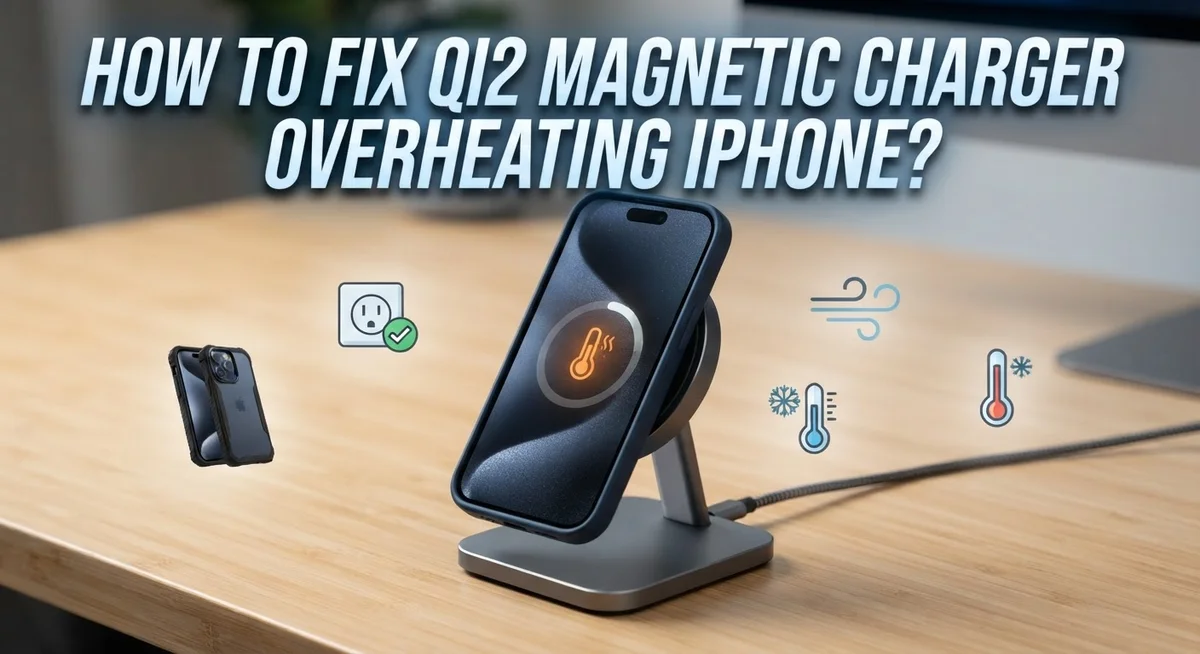
How To Fix Qi2 Magnetic Charger Overheating iPhone?
Your iPhone gets warm during wireless charging — that’s completely normal. But when it gets too hot to hold, or you see a temperature warning on screen, that’s a problem you need to fix fast.
Qi2 magnetic chargers are efficient, but overheating can still happen. A thick case, poor ventilation, or a long charging session can all push your iPhone past its safe temperature range.
The good news? Most overheating issues are easy to fix without any special tools or equipment.
In this guide, you’ll learn exactly why your Qi2 charger is causing your iPhone to overheat. You’ll also get clear, step-by-step fixes you can try right now.
In a Nutshell
- Qi2 charger overheating is usually caused by a thick or metal phone case blocking proper magnetic alignment between the charger and your iPhone.
- Poor ventilation and warm environments make the problem worse, especially during long charging sessions.
- The fastest fix is to unplug your iPhone immediately if it feels excessively hot, then let both the phone and charger cool down before trying again.
- Removing your case or switching to a thinner one often solves the problem right away, since better alignment means less wasted energy and less heat.
- Your iPhone may automatically stop charging at around 80% as a built-in thermal protection feature — this is normal behavior, not a malfunction.
- Charging in a cool, well-ventilated space and avoiding sessions longer than 10 hours will significantly reduce your overheating risk going forward.
Why Your Qi2 Magnetic Charger Is Overheating Your iPhone
Qi2 magnetic chargers work by aligning metal coils between your phone and the charging puck. When this alignment is poor, the charger works harder and generates excess heat. A thick or metal phone case is the most common culprit because it creates distance between the magnetic components, forcing inefficient energy transfer.
Your charging environment matters more than you might think. Warm rooms, direct sunlight, and enclosed spaces trap heat around your device. This prevents your iPhone from cooling naturally during the charging process. Even a well designed charger will overheat if the surrounding temperature is already high.
Extended charging sessions also play a role. Leaving your phone plugged in for 10 or more hours continuously stresses both the charger and battery. The longer electricity flows, the more heat builds up inside your device.
Incompatible charger and device combinations create another problem. Not all Qi2 chargers work equally well with every iPhone model. Some combinations have poor magnetic alignment even without a case, leading to wasted energy and unwanted heat.
Your iPhone has built in thermal protection. When your phone gets too hot, it automatically stops charging around 80% capacity. This is a safety feature, not a malfunction. If you see your phone stop charging mid session, excessive heat is the reason.
The good news? Most overheating causes are fixable. Case thickness, ventilation, and charging duration are all things you can control. Understanding why overheating happens helps you prevent it before your phone shuts down charging on its own.
How To Tell If Your iPhone Is Overheating While Charging
Your iPhone sends heat signals in different ways. Learning to spot these signs helps you catch overheating before it becomes a serious problem.
Feel the phone’s temperature directly. Place your finger on the back of your iPhone near the camera area. This spot gets hot first during wireless charging. If it feels too warm to touch comfortably for more than a few seconds, your phone is overheating.
Check the battery icon on your screen. When your iPhone gets too hot, it displays a thermal warning message. This alert tells you charging has slowed down or stopped completely. Your phone does this automatically to protect the battery.
Notice if charging stops unexpectedly. Your iPhone may halt charging sessions around 80 percent battery level. This happens when internal sensors detect excessive heat. The phone prioritizes safety over a full charge.
Watch for performance slowdowns. An overheating iPhone runs apps more slowly. Games lag. Apps close suddenly. Your phone becomes sluggish because it’s redirecting power to cool internal components.
Look for visual changes. The screen may dim automatically. Colors might look slightly different. These adjustments reduce heat generation.
Listen for unusual sounds. Your phone rarely makes noise, but an overheating charger puck might hum louder than normal. This indicates the charging coils are working harder than they should.
Pay attention to how long charging takes. Normal charging completes in 1 to 2 hours. If your phone charges extremely slowly or stops repeatedly, overheating is likely happening. Don’t ignore these signs. Unplug immediately and let both your phone and charger cool down in a well ventilated space for at least 30 minutes before trying again.
Immediate Steps To Take When Your Qi2 Charger Overheats
When your Qi2 charger starts overheating, act fast. Your first move is to unplug the charger immediately to stop the electricity flow. This prevents further heat buildup and protects both your iPhone and the charging equipment.
Next, remove your phone from the charger and set it aside in a cool spot. Let both the phone and charger cool down for at least 15 to 20 minutes before touching them again. Don’t try to use your iPhone during this cooling period.
While everything cools, identify what caused the problem. Check if you’re using a thick case or a metal case on your phone. These cases block the magnetic connection between your iPhone and the charger puck, which forces the charger to work harder and generate excess heat.
Remove your case completely and try charging again in a different location. Pick a cool, well-ventilated area away from direct sunlight or other heat sources. Avoid charging on soft surfaces like beds or couches, which trap heat around the charger.
Monitor the temperature as your phone charges. Feel the back of your phone near the camera area every few minutes. The charger should feel warm, not hot to the touch.
If your iPhone displays a thermal warning message on screen, unplug immediately. Your phone’s built in thermal protection is working correctly. Wait longer before attempting to charge again.
Check that your charger and iPhone model are compatible. Using a charger designed for a different device can cause overheating issues. Once you’ve completed these steps and confirmed everything is cool, you can safely resume charging with better conditions in place.
How Your Phone Case Is Contributing To The Overheating Problem
Your phone case plays a bigger role in overheating than you might realize. Thick cases trap heat around your iPhone’s charging area, preventing warm air from escaping naturally.
When you use a thick case with your Qi2 charger, the magnetic coils cannot align properly. Poor alignment means your charger works harder to transfer power. This extra effort generates more heat on both your phone and the charging puck.
Metal cases create an even worse situation. Metal interferes with magnetic signals between your phone and charger. Your device struggles to receive power efficiently, causing the charger to run hot for longer periods.
Remove your case entirely and test your charger in a cool location. If overheating stops, your case is the culprit. You have two options now: switch to a thinner case or charge without any case at all.
Some people leave their cases on during charging because they worry about drops. This is understandable, but overheating damages your battery faster than occasional falls. A protective case serves no purpose if your battery dies from heat damage.
Check your case thickness by comparing it to your finger width. If the case is thicker than a pencil, it will likely cause charging problems. Slim cases designed for wireless charging work much better with Qi2 technology.
Your case material matters too. Silicone and plastic cases allow heat to escape more easily than rubber or leather options. Switch to a thinner, more heat friendly material if you must keep your phone protected during charging sessions.
How To Optimize Your Charging Environment To Prevent Overheating
Your charging environment makes a huge difference in preventing overheating. Start by choosing a cool, well ventilated space for your Qi2 charger. Avoid placing your charger in direct sunlight, near heating vents, or on surfaces that trap heat like beds or couches.
Temperature control is critical. Charge your iPhone in rooms that stay between 60 and 75 degrees Fahrenheit. If your home gets warm during summer months, move your charger to the coolest room available. Basements and rooms with air conditioning work best.
Air circulation prevents heat buildup around your charger. Place your charging puck on a hard, flat surface like a nightstand or desk rather than enclosed spaces. Keep the area around your charger clear of blankets, pillows, and other objects that block airflow.
Avoid charging during peak heat times. If possible, charge your iPhone early morning or late evening when temperatures are cooler. This simple timing change reduces stress on both your phone and charger.
Keep your charger away from other heat generating devices. Don’t place it near lamps, computers, or kitchen appliances. These devices raise the surrounding temperature and make overheating more likely.
Monitor humidity levels too. Damp environments can interfere with charging efficiency and cause excessive heat. Use a dehumidifier if your charging space feels particularly humid.
Check your charger regularly for dust or debris. Clean the charging puck with a dry cloth every few weeks. Dust accumulation blocks airflow and traps heat against the charger.
Finally, limit charging sessions to reasonable timeframes. Avoid leaving your phone on the charger overnight or for extended periods. Unplug once your battery reaches full charge to prevent unnecessary heat generation.
How To Verify Charger And Device Compatibility
Before you start using your Qi2 charger, make sure it actually works with your iPhone model. This simple step prevents most overheating problems right from the start.
Check your iPhone model number first. Look in Settings, then General, then About. Write down the exact model name. Qi2 chargers work with iPhone 12 and newer models, but compatibility varies by charger brand and design.
Visit the charger manufacturer’s official website. Look for a compatibility list or specifications page. This tells you exactly which iPhones that charger supports. Don’t rely on package descriptions alone, as they sometimes contain errors.
Verify the charger’s wattage rating too. Most Qi2 chargers deliver between 10 and 15 watts of power. Your iPhone manual shows the recommended charging wattage. Mismatched wattage causes the charger to work harder, generating excess heat.
Check if your charger uses genuine Qi2 certification. Look for official certification logos on the product packaging or manufacturer website. Uncertified chargers often lack proper safety features and overheat easily.
Test the charger with your phone in a cool location first. Don’t assume it works properly just because it charges. Monitor the temperature during the first charging session. If the charger feels hot to the touch within 15 minutes, stop immediately.
Contact the charger manufacturer if you find incompatibility issues. They can confirm whether your specific iPhone model works with their charger. Some manufacturers offer replacement options for incompatible units.
Taking these verification steps upfront saves you from frustrating overheating problems later. Compatibility checking takes just five minutes and prevents damage to your phone and charger.
Common Mistakes That Cause Qi2 Charger Overheating
Many people make simple mistakes that lead to their Qi2 charger overheating. Understanding these errors helps you avoid them and keep your iPhone safe.
Using thick phone cases is the biggest culprit. When you add a bulky case, the magnetic coils lose proper alignment with your iPhone. This misalignment forces the charger to work harder and generate more heat. Metal cases make this problem even worse because they interfere with magnetic connection.
Another common mistake is charging in warm environments. If your room temperature exceeds 75 degrees Fahrenheit, your charger struggles to dissipate heat properly. Enclosed spaces without air circulation trap warmth around your device. Avoid charging near windows during sunny hours or close to other heat sources like radiators.
People often ignore early warning signs of overheating. Your charger may feel warm to the touch, but you keep using it anyway. This continues the damage cycle. You should unplug immediately when you notice excessive heat and let the charger cool down completely.
Leaving your iPhone charging for extended periods also causes problems. Sessions longer than 10 hours push your charger beyond safe limits. Your iPhone may even stop charging at 80% as a built-in thermal protection measure.
Using incompatible chargers ranks high on the mistake list too. Not all wireless chargers work optimally with every iPhone model. Mismatched combinations reduce charging efficiency and increase heat output.
Finally, neglecting your charger’s cleanliness creates issues. Dust and debris block proper cooling, trapping heat inside the device. Regular inspection prevents this problem.
These mistakes are easy to fix once you recognize them. Simply remove your case, charge in cool spaces, monitor your sessions, and verify compatibility before use.
How iPhone Thermal Protection Works During Wireless Charging
Your iPhone has built in thermal protection that activates during wireless charging. This system monitors your device’s internal temperature constantly. When heat reaches unsafe levels, your phone automatically stops accepting power to prevent damage.
The thermal management system works by detecting temperature changes inside your battery and processor. Your iPhone measures these temperatures in real time. If readings climb too high, the charging circuit disconnects from the power source. This happens automatically without any action from you.
You might notice your phone stops charging at 80% or higher battery levels. This is thermal protection working correctly. Your device prioritizes safety over speed. Continuing to charge when your iPhone reaches this point wastes energy and generates more heat.
Some warmth during wireless charging is completely normal. The magnetic connection creates resistance that produces heat. However, excessive heat that requires you to unplug and cool your phone is not normal. This signals a problem you need to fix.
Your iPhone’s thermal protection can reduce charging speed temporarily. You may see a notification saying your device needs to cool down. During this time, your phone may charge slowly or pause charging entirely. Remove the case and move to a cooler location to speed up recovery.
The thermal system protects your battery’s lifespan. Batteries degrade faster when exposed to high temperatures repeatedly. Your iPhone’s protection prevents long term damage from overheating. Understanding this system helps you recognize when something is wrong with your charger or charging environment.
Final Thoughts
Fixing a Qi2 magnetic charger overheating issue on your iPhone is simpler than most people think. The key is to act quickly and make small adjustments that have a big impact on heat management.
Start by unplugging your charger the moment you notice excessive heat. Never ignore heat warnings or continue charging through them. Let both your iPhone and the charger cool down completely before trying again.
Remove thick or metal cases before placing your iPhone on the Qi2 charger. Poor magnetic alignment is one of the most common reasons heat builds up during wireless charging.
Always charge in a cool, well-ventilated space. Warm rooms and enclosed surfaces trap heat and make the problem much worse very quickly.
Flip your iPhone upside-down on the charging puck if you notice heat building. This simple position change helps dissipate heat more effectively and keeps temperatures manageable during longer sessions.
Avoid leaving your iPhone on the charger for more than 10 hours at a stretch. Extended charging sessions increase the risk of overheating significantly, even with a perfectly compatible setup.
Some warmth during Qi2 charging is completely normal. The concern is excessive heat that forces you to unplug the charger to let it cool before resuming.
Your iPhone’s built-in thermal protection will slow or stop charging automatically to keep things safe. Trust that system and do not try to override it.
Always verify charger-device compatibility before regular use. A charger that works poorly with your specific iPhone model will generate more heat than one that is fully certified and compatible.
With these steps, you can keep your Qi2 charging experience safe, efficient, and consistent.
Frequently Asked Questions
Why does my Qi2 charger get hot when charging my iPhone?
Heat happens because magnetic coils create electrical resistance. Some warmth is normal during wireless charging. However, excessive heat means something needs fixing. Thick cases reduce magnetic alignment, forcing the charger to work harder. Poor ventilation traps heat around your device. Incompatible chargers also cause overheating issues.
Is it safe to keep charging if my phone feels warm?
Stop charging immediately if heat feels excessive. Your iPhone has built in thermal protection that activates automatically. The phone may stop charging at 80% battery to cool down. This is your device protecting itself, not a malfunction.
Let your charger cool before using it again. Continuing to charge through excessive heat damages your battery over time.
How do I stop my Qi2 charger from overheating?
Remove thick or metal cases first. These block proper magnetic connection and cause heat buildup. Charge in a cool, well-ventilated room away from direct sunlight. Flip your iPhone upside-down on the charging puck for better heat dissipation.
Never leave your phone charging for more than 10 hours. Unplug once your battery reaches full charge. Check that your charger matches your iPhone model for compatibility.
What should I do if overheating happens frequently?
Test your charger in a different room with better airflow. Remove your phone case completely to rule out case issues. Allow the charger to rest for 30 minutes before trying again.
If problems persist, your charger may be faulty. Verify the charger works with other compatible devices to confirm.

Hi, I’m Siya — the founder and writer behind Craftifyy.com. I’m a tech enthusiast who loves reviewing gadgets, comparing products, and helping people make smarter buying decisions. Got a question? Feel free to reach out!