How To Stop Cloud Synced Workspaces From Overwriting Local Drafts?
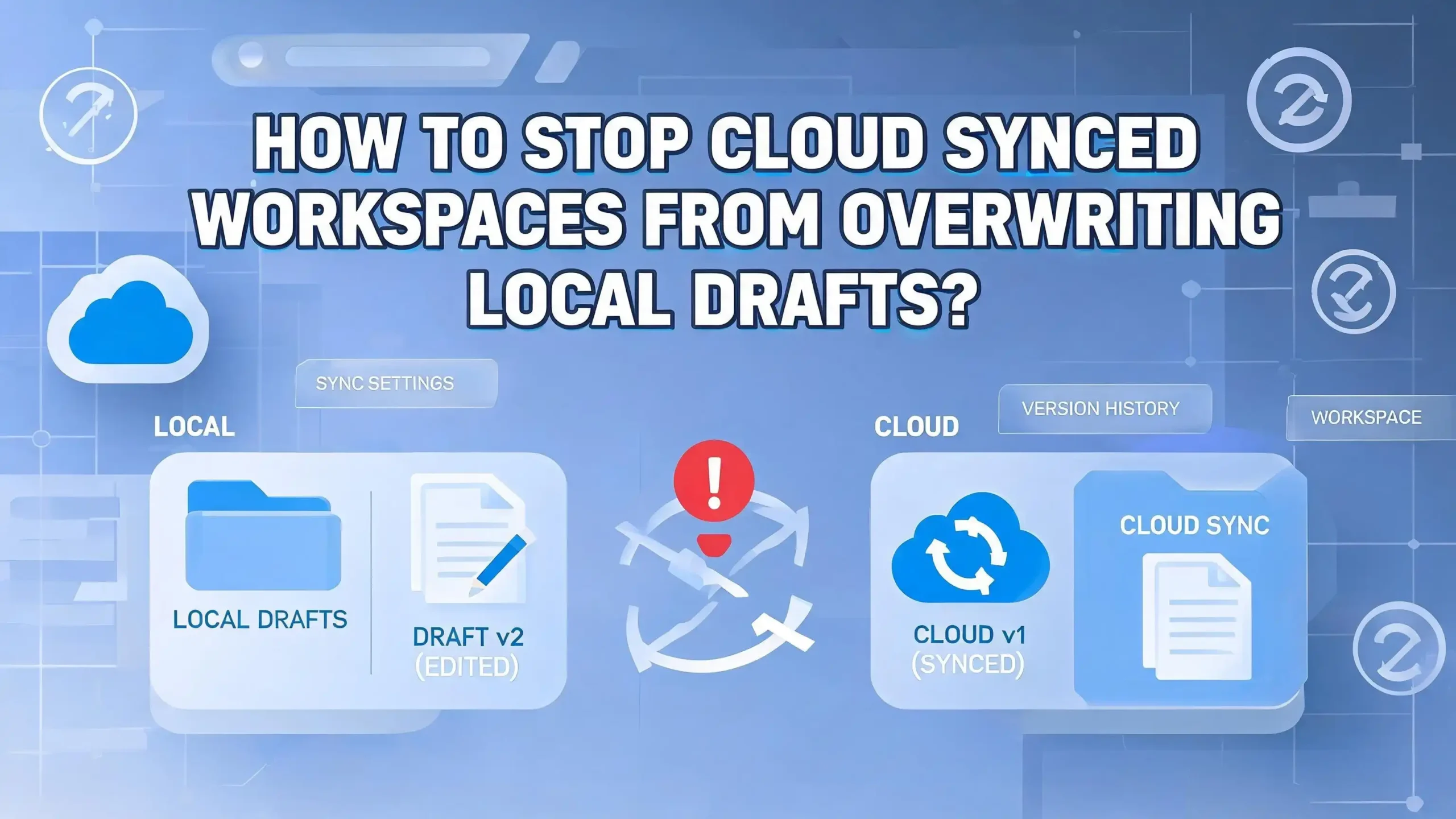
You just spent three hours fine tuning a document on your laptop. You saved it locally. You stepped away for coffee. When you came back, the cloud sync kicked in and replaced your latest version with an older copy from the server. All your recent changes vanished.
This happens more often than most people realize. Cloud sync tools like OneDrive, Google Drive, Dropbox, and iCloud are built to keep your files consistent across devices. But that same consistency engine can work against you. If the cloud version has a different timestamp or a sync conflict arises, your local draft can get overwritten without any warning.
The frustration is real. Writers, developers, designers, and project managers all face this problem. You trust the cloud to protect your work, but instead it erases the very progress you were trying to save. The good news? This problem is entirely preventable. You just need the right setup and a few smart habits.
This post will walk you through practical, step by step solutions to stop cloud synced workspaces from overwriting your local drafts. You will learn how sync conflicts happen, how to configure your tools correctly, and how to build a safety net that protects every version of your work.
In a Nutshell
- Cloud sync overwrites happen because sync engines prioritize the most recent server version over local changes, especially when files are edited offline or across multiple devices at the same time.
- Pausing sync before editing is one of the fastest ways to protect local drafts. Most cloud apps let you pause syncing with a single click, giving you full control over when changes upload.
- Version history is your safety net. Services like Google Drive, OneDrive, and Dropbox keep previous file versions for 30 to 100 days. Learn how to access and restore them before a crisis hits.
- Selective sync and folder exclusions let you keep certain folders completely offline. This means the cloud engine never touches those files until you decide to sync them manually.
- Local backups remain essential even with cloud storage. A simple copy of your working drafts to a separate local folder or external drive can save hours of lost work.
- Conflict resolution settings exist in most sync clients. Adjusting these settings to “keep both copies” instead of “auto merge” prevents silent overwrites and gives you the power to choose which version survives.
Why Cloud Sync Overwrites Your Local Drafts
Cloud sync tools work by comparing file versions between your device and the remote server. The engine checks timestamps, file sizes, and modification dates. It then decides which version is the “correct” one.
The problem starts when you edit a file locally while disconnected from the internet. The cloud server still holds the older version. When you reconnect, the sync engine sees two different versions. If the server copy has a newer timestamp from another device or a collaborative edit, the sync tool may choose the server version and overwrite your local draft.
This also happens when two devices edit the same file at the same time. The sync engine has to pick a winner. Some tools create a “conflicted copy,” but others silently replace the local file with the server version. The result is the same: your latest work disappears.
Another common trigger is sync direction confusion. Tools like rclone and other advanced sync utilities let you set sync direction manually. If you accidentally configure the sync to push the cloud version down to your device instead of uploading your local changes, everything gets overwritten.
How Sync Conflicts Actually Work
A sync conflict occurs when the same file gets modified in two or more locations before the changes can synchronize. The sync engine detects that both copies have changed since the last successful sync. It now faces a decision.
Most consumer cloud tools use a “last write wins” rule. This means whichever version was saved most recently becomes the primary copy. Your older local draft gets pushed aside. Some services rename the older copy with a label like “conflicted copy” or add a timestamp to the filename.
Google Drive handles conflicts through version history. It keeps older versions accessible, but it does not always alert you that a conflict occurred. OneDrive offers a conflict resolution popup, but only if you have the desktop app configured correctly. Dropbox creates a “conflicted copy” file in the same folder, which preserves both versions but can clutter your workspace.
Understanding this behavior is the first step to preventing overwrites. Once you know how your specific cloud tool handles conflicts, you can adjust your settings to protect local drafts. The key is to never assume the sync engine will choose your version.
Pause Cloud Sync Before Editing Local Files
The simplest and most effective way to prevent overwrites is to pause syncing before you start editing. Every major cloud sync client offers a pause feature. This stops all upload and download activity until you resume it.
In OneDrive, right click the cloud icon in your system tray and select “Pause syncing.” You can choose to pause for 2, 8, or 24 hours. In Google Drive, click the Drive icon in the system tray, click the gear icon, and select “Pause syncing.” In Dropbox, click the Dropbox icon, select your profile picture, and choose “Pause syncing.”
Once paused, you can freely edit your local files without any risk of the cloud overwriting your changes. When you finish editing, review your changes and then resume syncing. The sync engine will upload your latest local version to the cloud.
This method works best for focused work sessions. If you are writing a long document, coding a project, or designing a layout, pause sync at the start and resume when you are done. This single habit eliminates the most common overwrite scenario.
Use Version History To Recover Overwritten Files
Even with precautions, overwrites can still happen. Version history is your best recovery tool. Most cloud services store previous versions of every file for a set period.
Google Drive keeps version history for 30 days for most files. For Google Docs, Sheets, and Slides, version history is unlimited. To access it, right click the file, select “Manage versions,” and download or restore the version you need. You can also open a Google Doc and go to File, then Version history, then See version history.
OneDrive stores version history for files in your personal and business accounts. Right click the file in File Explorer, select “Version history,” and choose the version you want to restore. OneDrive keeps up to 500 versions of each file.
Dropbox retains file versions for 30 days on Basic and Plus plans, and 180 days on Professional and Business plans. Go to the Dropbox website, find the file, click the three dot menu, and select “Version history.”
Make it a habit to check version history immediately after you suspect an overwrite. The sooner you act, the easier the recovery. Waiting too long means older versions may expire and become unrecoverable.
Set Up Selective Sync To Protect Draft Folders
Selective sync lets you choose which folders sync between your device and the cloud. Any folder you exclude from selective sync stays only on the cloud server and does not download to your device. But the reverse approach is more useful here.
You can create a dedicated “Local Drafts” folder on your computer that sits outside your cloud sync folder entirely. Store all your work in progress files in this folder. The cloud sync engine will never touch files outside its designated sync directory.
Once your draft is finalized, manually move it into the cloud sync folder to upload it. This gives you full control over what gets synced and when. No automatic process can overwrite a file that the sync engine cannot access.
In Dropbox, selective sync is found under Preferences, then Sync, then Selective Sync. In OneDrive, go to Settings, then Account, then Choose Folders. In Google Drive, use the Drive for Desktop preferences to select which folders sync locally.
This approach requires a small change in your workflow, but it provides a strong layer of protection for important drafts.
Configure Conflict Resolution Settings
Most sync clients have conflict resolution settings that you can adjust. The default settings are often configured for convenience, not for safety. Changing them can prevent silent overwrites.
OneDrive offers two main conflict resolution options. You can access them through the OneDrive sync app settings. Option one lets you choose to merge changes or keep both copies when a conflict is detected. Option two always keeps both copies automatically. Select “Always keep both copies” to ensure you never lose a local draft.
Dropbox handles conflicts by creating a “conflicted copy” file alongside the original. This behavior is automatic and cannot be turned off. However, you can reduce the chance of conflicts by closing files before switching devices.
Google Drive resolves conflicts silently through version history. There is no user facing conflict resolution setting. Your best protection is to always check version history after syncing across devices.
For advanced sync tools, you can set conflict policies that prioritize local files over remote copies. This ensures your local edits always win in a conflict scenario. Prioritizing local copies is the safest setting for draft protection.
Keep Local Backups Of Important Drafts
Cloud storage is not a backup. It is a synchronization tool. If a file gets deleted or overwritten on one device, that change propagates to all connected devices. A true backup is a separate copy stored in a location the sync engine cannot reach.
Create a simple backup routine for your most important drafts. Copy your working files to an external drive, a USB stick, or a separate local folder every day. You can automate this with built in tools like File History on Windows or Time Machine on macOS.
File History on Windows creates automatic snapshots of files in your designated folders. You can restore any previous version from these snapshots. Enable it through Settings, then Update and Security, then Backup. Time Machine on macOS performs hourly backups to an external drive. Both tools work independently from cloud sync.
Even a manual copy paste to a “Backups” folder on your desktop is better than nothing. The five seconds it takes to duplicate a file can save you hours of lost work. Make this a non negotiable part of your workflow.
Use Offline Mode Strategically
Most cloud sync tools offer an offline mode or the ability to mark files as “available offline.” This downloads a local copy of the file that you can edit without an internet connection. But offline mode can also trigger conflicts when you reconnect.
The smart approach is to combine offline mode with paused syncing. Mark your draft as available offline, then pause the sync client. Edit freely. When you are done, review your changes and resume syncing. The sync engine will detect your local changes and upload them.
In Google Drive for Desktop, right click a file and select “Available offline.” In OneDrive, right click and select “Always keep on this device.” In Dropbox, right click and choose “Make available offline.”
The key is to only resume syncing when you are confident your local version is the one you want to keep. If you suspect someone else edited the cloud version while you were offline, check version history before resuming. This lets you merge changes manually instead of letting the sync engine decide.
Exclude Specific File Types From Syncing
Some cloud sync tools let you exclude specific file types or folders from syncing. This is especially useful for temporary files, autosave files, and other system generated files that can trigger false conflicts.
OneDrive does not offer native file type exclusion, but you can move files outside the OneDrive folder to prevent them from syncing. Dropbox allows you to set up ignore patterns using a .dropboxignore file, similar to how .gitignore works in software development. Google Drive does not support file type exclusion natively, but third party tools can help.
For developers and technical users, creating a .syncignore or .dropboxignore file in your project folder gives you precise control. You can exclude files like .tmp, .bak, .swp, and other extensions that cause sync noise.
This reduces unnecessary sync activity and lowers the risk of conflicts. Fewer files syncing means fewer opportunities for overwrites. Keep your sync folder lean and focused on finalized files.
Close Files Before Switching Devices
One of the most common causes of sync conflicts is leaving a file open on one device while opening it on another. The sync engine cannot update a file that is locked by an active application. When you close the file on the second device, both versions compete for sync priority.
Always close your files and let the sync complete before switching devices. Watch for the sync status icon in your system tray. A green checkmark in OneDrive, a green check in Dropbox, or a cloud icon without arrows in Google Drive all indicate that syncing is complete.
If you work on a desktop and a laptop, develop the habit of closing all documents and waiting for the sync indicator before shutting down. This simple habit prevents the vast majority of sync conflicts. It takes less than a minute and protects hours of work.
For team environments, communication also matters. If multiple people edit the same file, establish a system where only one person edits at a time. Use file locking features where available, or communicate through a messaging tool before making changes to shared documents.
Set Up Automated Local Snapshots
Automated snapshots create point in time copies of your files at regular intervals. Unlike cloud sync, these snapshots are stored locally and cannot be overwritten by the sync engine. They provide a reliable fallback if an overwrite occurs.
On Windows, enable File History to create automatic snapshots of your files every hour. Go to Settings, then Update and Security, then Backup, and add an external drive. File History saves versions of all files in your Libraries, Desktop, Contacts, and Favorites folders.
On macOS, Time Machine creates hourly backups for the past 24 hours, daily backups for the past month, and weekly backups for older data. Connect an external drive, open Time Machine preferences, and select the drive as your backup disk.
On Linux, tools like rsnapshot and timeshift create automated snapshots on a schedule. These tools are lightweight and run in the background without affecting performance.
Automated snapshots are your last line of defense. Even if the cloud sync engine overwrites your local file, the snapshot preserves the previous version. You can restore it in minutes.
Use Separate Workspaces For Drafts And Final Files
A clean folder structure is one of the most underrated ways to prevent sync overwrites. Keep your drafts and finalized files in separate locations. Use a local only folder for works in progress and a cloud synced folder for completed files.
Create a “Drafts” folder on your local drive outside the cloud sync directory. Work on all your documents, code, and designs in this folder. When a file is ready, copy or move it into the cloud sync folder. This ensures the sync engine only handles finished files.
You can also create a “Final” folder inside your cloud sync directory. This clear separation prevents accidental edits to synced files and keeps your workflow organized. It also reduces sync activity because the cloud engine only processes files when you deliberately place them in the synced folder.
For teams, establish naming conventions that signal file status. Use prefixes like “DRAFT” or “FINAL” in filenames. This makes it easy for everyone to identify which files are safe to sync and which are still in progress.
Leverage Real Time Collaboration Tools Instead
If you frequently edit shared files, consider using real time collaboration tools instead of traditional file sync. Tools like Google Docs, Microsoft 365 Online, and similar platforms handle simultaneous edits without creating sync conflicts.
These tools store the file in the cloud and let multiple users edit at the same time. Every change is saved automatically and tracked in version history. There is no local copy to overwrite because the file lives in the cloud and updates in real time.
This approach works best for documents, spreadsheets, and presentations. For files like code, design assets, and large media files, real time collaboration is less practical. In those cases, the other strategies in this post will serve you better.
Switching to browser based editing for collaborative documents eliminates the overwrite problem entirely. You still get version history, commenting, and change tracking. And you never have to worry about which copy is the “right” one.
Build A Pre Sync Checklist
Create a short checklist that you follow every time before you resume or initiate a sync. This adds a layer of human oversight to the automated sync process. It takes less than a minute and prevents costly mistakes.
Your checklist should include these steps. First, confirm that all files are saved and closed. Second, verify that your local draft is the version you want to keep. Third, check the sync status to see if any pending changes exist on the server. Fourth, review the sync direction if you use advanced tools. Fifth, resume syncing and monitor the process.
A checklist turns an automated, invisible process into a deliberate action. This is especially important after working offline for extended periods or after editing files on multiple devices. The few seconds spent on verification can prevent the frustration of losing your work to an accidental overwrite.
Write this checklist on a sticky note and place it near your monitor. Over time, these steps will become automatic habits.
What To Do If Your Draft Has Already Been Overwritten
If an overwrite has already happened, do not panic. You have several recovery options. Act quickly because some recovery windows are time limited.
Step one: Check the cloud service version history. Google Drive, OneDrive, and Dropbox all keep previous versions. Find the version with your local changes and restore it. Step two: Check your operating system’s file recovery tools. Windows File History and macOS Time Machine may have a recent snapshot of the overwritten file.
Step three: Check the recycle bin or trash folder. Some sync tools move overwritten files to the trash instead of permanently deleting them. Step four: Look for conflicted copy files. Dropbox and some OneDrive configurations create separate files with conflict labels.
Step five: If none of these options work, try file recovery software. Tools like Recuva on Windows or Disk Drill on macOS can sometimes recover recently overwritten files from your hard drive. Success rates decrease over time, so run recovery software as soon as possible.
The best prevention is preparation, but knowing your recovery options gives you confidence and peace of mind.
Frequently Asked Questions
Why does my cloud sync keep overwriting my local files?
Cloud sync engines compare timestamps and file metadata to determine which version is current. If the server copy has a more recent modification date, the sync tool downloads it and replaces your local copy. This commonly happens when you edit offline, work across multiple devices, or when a collaborator makes changes to the cloud copy while you work on a local version. Adjusting conflict resolution settings and pausing sync before editing are the best ways to prevent this.
Can I turn off cloud sync for specific folders only?
Yes. Most cloud sync tools offer selective sync or folder exclusion. In Dropbox, you can uncheck folders in the Selective Sync settings. In OneDrive, you can choose which folders to sync through the Account settings. In Google Drive for Desktop, you can select specific folders for syncing. Any folder you exclude stays on the cloud server but does not sync to your local device.
How do I recover a file that was overwritten by cloud sync?
Check your cloud service’s version history first. Google Drive keeps versions for 30 days, OneDrive stores up to 500 versions, and Dropbox retains versions for 30 to 180 days depending on your plan. You can also check Windows File History or macOS Time Machine for local snapshots. If those options fail, look for conflicted copy files in your sync folder or try file recovery software.
Is cloud storage the same as a backup?
No. Cloud storage synchronizes files across devices, which means deletions and overwrites also sync. A true backup is a separate, independent copy that does not change when the original file changes. Use local backup tools like File History or Time Machine alongside your cloud storage for full protection.
What is the best way to prevent sync conflicts in a team?
Use real time collaboration tools like Google Docs or Microsoft 365 Online for shared documents. For files that require traditional editing, establish clear rules about who edits which files and when. Close files completely before switching devices. Enable conflict resolution settings that keep both copies. Communicate with teammates before making changes to shared files.
Does pausing cloud sync risk losing my data?
No. Pausing sync simply stops the upload and download process temporarily. Your local files remain on your device and your cloud files remain on the server. Nothing gets deleted. When you resume syncing, the engine processes any changes that occurred during the pause. Just make sure to resume syncing before shutting down your device to ensure your latest changes upload.

Hi, I’m Siya — the founder and writer behind Craftifyy.com. I’m a tech enthusiast who loves reviewing gadgets, comparing products, and helping people make smarter buying decisions. Got a question? Feel free to reach out!