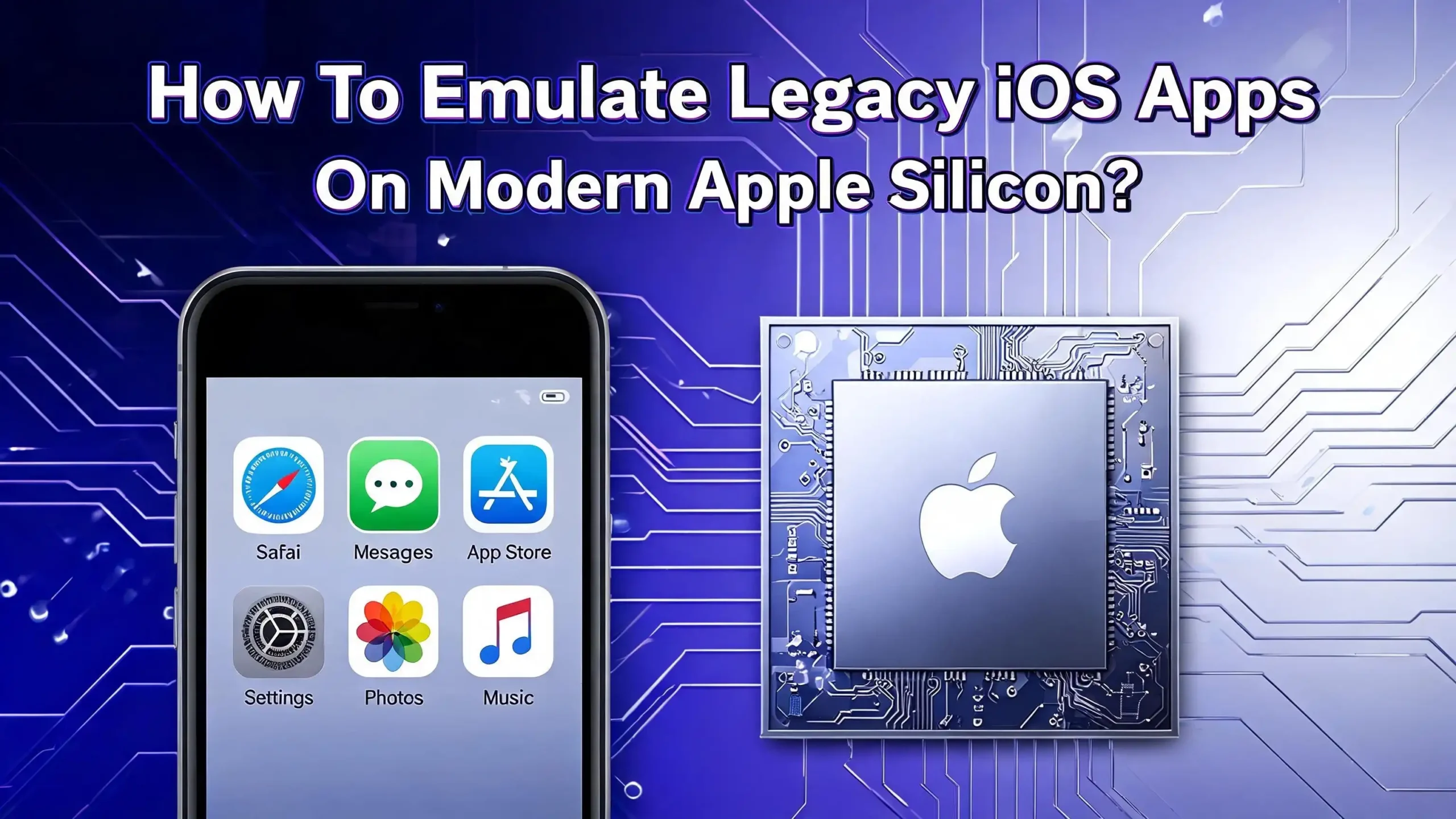
How To Run Legacy iOS and iPad Apps on Your Apple Silicon Mac?
Have you ever tried to open an old iOS app on your modern Mac only to hit a dead end? Maybe it was a classic game you loved years ago. Or a productivity tool that vanished from the App Store. You are not alone. Apple Silicon Macs share the same ARM architecture as iPhones and iPads.
This means your M1, M2, M3, or M4 Mac can technically run iOS and iPadOS apps. But Apple and developers often block this path. They remove old apps from the store. They disable the Mac compatibility toggle. The result is frustration.
Here is the good news. You can still emulate and run legacy iOS apps on modern Apple Silicon. This guide breaks down every method that works in 2026. You will learn the official route, the sideloading tricks, the simulator approach, and even when a real device is your only option.
Key Takeaways
- Apple Silicon Macs share the same ARM chip design as iPhones and iPads. This makes native execution of iOS apps possible without traditional emulation overhead. Your Mac understands iOS code at the hardware level.
- The official Mac App Store method works only when developers opt in. Many legacy apps are delisted or have developers who disabled Mac compatibility. You will often need alternative routes.
- PlayCover is the strongest free tool for running iOS apps natively on Apple Silicon. It wraps iPad apps so they run in a windowed environment with keyboard and mouse mapping. It works even when developers blocked Mac distribution.
- Sideloadly lets you install IPA files directly on your Mac. It is ideal for apps where you have the encrypted IPA from a backup and need a lightweight installation process.
- Xcode Simulator is the best option for developers and testers with access to app source code. It runs any iOS version you download but cannot run retail App Store IPA files meant for real devices.
- No method works for 32 bit iOS apps on modern Apple Silicon. The architecture simply does not support 32 bit ARM instructions. Your only path for those is an old physical iOS device.
Why Legacy iOS Apps Break on Modern Apple Silicon
Apple made a bold move in 2020. They switched Macs from Intel chips to their own Apple Silicon. The M1 chip shared the exact same ARM64 instruction set used by iPhones and iPads. This meant Macs could run iOS apps natively. For the first time, you could download iPhone apps from the Mac App Store and launch them like any Mac program. It felt like magic.
Then the magic faded. Many developers pulled their iOS apps from Mac availability. Some apps were never updated for newer screen sizes. Others were delisted entirely from the App Store. The core problem is developer opt in.
Apple lets every developer toggle a switch in App Store Connect that says “Make this app available on Apple Silicon Macs.” When developers turn it off, the app vanishes from your Mac App Store search results even if you already bought it on iPhone. You are locked out through no fault of your own.
There is another layer to the problem. iOS apps compiled for the simulator use a different binary format than retail iOS apps. A simulator build targets x86_64 or ARM64 for macOS. A retail IPA targets ARM64 for iOS. You cannot simply drag a retail IPA onto the Xcode Simulator and expect it to work. The simulator runs macOS processes that mimic iOS behavior. It cannot execute iOS only binaries designed for the device processor.
Finally, there is the 32 bit cutoff. Apple dropped 32 bit app support in iOS 11 back in 2017. Any app not updated to 64 bit simply stopped launching. Apple Silicon Macs have zero support for 32 bit ARM instructions. If your legacy app predates 2017 and never received a 64 bit update, there is no emulation path forward. You will need a physical older iPhone or iPad running iOS 10 or earlier.
The Official Way: Find and Install iPhone and iPad Apps from the Mac App Store
Let us start with the simplest route. Open the Mac App Store on your Apple Silicon Mac. Type the name of the iOS app you want. Look at the search results tabs near the top. You will see “Mac Apps” as the default tab. Next to it, click “iPhone & iPad Apps.” This tab shows every iOS app that the developer has allowed on Mac.
If your app appears here, you are in luck. Click the download icon or the price button. The app installs just like any Mac application. It lands in your Applications folder. Launch it and you are done.
Apps installed this way run natively on Apple Silicon. They share memory, CPU cycles, and GPU acceleration without an emulation layer. Performance is excellent. You can use your trackpad to simulate touch gestures. Hold the Option key to enable touch alternatives. Many apps offer a settings menu where you can customize keyboard and trackpad behavior for the specific app.
Now for the limitations. Many developers explicitly disable this feature. Reasons vary. Some do not want to support keyboard and mouse input. Others worry about negative reviews from Mac users who expect a desktop experience. Large companies like Meta, Netflix, and several game studios keep their iOS apps off Mac this way. Pros: Free, official, native performance, no technical skill needed. Cons: Limited catalog, developer opt in gate, no control over which apps appear.
PlayCover: The Go To Tool for Sideloading iOS Apps on Apple Silicon
When the official route fails, PlayCover is your next stop. PlayCover is a free and open source macOS application that runs iOS apps and games on Apple Silicon. It works by wrapping iPad apps in a compatibility layer. The app thinks it is running on an iPad. Your Mac provides the hardware.
Here is how to set it up. First, download PlayCover from the official GitHub releases page. Install it like any Mac app by dragging it to Applications. Launch PlayCover. You will see a window with a plus button in the corner. Click it. Select an IPA file that you have already obtained. PlayCover installs the app and places an icon on your home screen inside the app.
The killer feature of PlayCover is key mapping. Click on an installed app inside PlayCover and look for the keymapping option. You can assign keyboard keys to specific screen touch zones. This is perfect for games that were never designed for a keyboard. Map WASD to a virtual joystick. Map right click to an action button. The system is similar to BlueStacks on Android.
PlayCover works best with apps designed for iPad rather than iPhone only. iPad apps have larger layouts that adapt naturally to a Mac window. iPhone only apps may display in a tall skinny window. Some apps crash on launch. Community driven compatibility lists help you check if your specific app works before you invest time.
Pros: Free, open source, native performance, customizable key mapping, large community, works with delisted apps. Cons: No guarantee of app compatibility, requires decrypted IPA files, interface can feel technical, some apps have graphical glitches.
Sideloadly: Lightweight IPA Installation for Quick Testing
Sideloadly is another free tool that installs IPA files on Apple Silicon Macs. It is lighter than PlayCover. It does not wrap or modify the app. It signs the IPA with your Apple ID and installs it directly.
Download Sideloadly from its official site. Open the app. Connect your Apple Silicon Mac is already detected as the target device. Drag your IPA file into the Sideloadly window. Enter your Apple ID credentials. Click Start. The app signs the IPA and installs it.
The result is a standard Mac app in your Applications folder. You launch it like any other program. No special launcher required. The catch is the signing certificate. If you use a free Apple ID, the certificate expires after 7 days. You must re sign and re install the app weekly. A paid Apple Developer account extends this to a full year.
Sideloadly works well for simple apps that do not need touch control remapping. It is less suited for games or apps with complex gestures. For those, PlayCover is better. Pros: Lightweight, direct installation to Applications, no wrapper layer, simple interface. Cons: 7 day re signing on free accounts, no key mapping, limited touch input handling, still requires decrypted IPA.
Xcode iOS Simulator: The Developer’s Route to Running Old iOS Versions
The Xcode iOS Simulator is a powerful tool. It creates a virtual iPhone or iPad right on your Mac desktop. You can install older iOS runtimes dating back several versions. This is the only way to test how a legacy app would behave on an older iOS release.
First, install Xcode from the Mac App Store. The download is large, over 12 GB. Launch Xcode after installation. Go to Xcode > Settings in the menu bar. Click the Platforms tab. Here you see every available iOS simulator runtime. Click Get next to the iOS version you need. You can install multiple runtimes side by side.
Once installed, open the Simulator from Xcode > Open Developer Tool > Simulator. Choose File > Open Simulator and pick your device and iOS version. The simulator boots up looking like a fresh iPhone.
Here comes the critical limitation. The iOS Simulator cannot run retail IPA files. IPAs downloaded from the App Store are compiled for physical iOS devices with an ARM64 device slice. The simulator needs binaries compiled for the simulator target which is a macOS process. You cannot drag a regular IPA onto the simulator and expect it to launch. Developers must have access to the source code of the app and build it specifically for the simulator target.
If you are a developer with access to the project source, this method is unbeatable. You open the Xcode project, select a simulator device as the run target, and hit play. The app builds and launches in seconds. Pros: Official Apple tool, supports many older iOS versions, free, great for debugging, reliable. Cons: Requires Xcode which is huge, cannot run retail IPAs, no App Store, developer focused interface.
Extracting IPA Files from an Old iPhone or Backup
You now have tools to run IPA files. But where do you get the IPA file for a legacy app that is no longer on the App Store? The answer lies in your old devices and backups.
If the app is still installed on an old iPhone or iPad, you can extract it. Connect the device to your Mac with a USB cable. Trust the computer on both devices. Use a tool like Apple Configurator or iMazing to view the installed apps. Right click the target app and select Export IPA or Download .IPA. The tool pulls the app binary and bundles it into an IPA file on your Mac.
If you have an old iTunes or Finder backup from years ago, you might still have the IPA inside it. iMazing can browse backup contents and extract app files. Look for the Manage Apps section and the Library tab. If the app was ever associated with your Apple ID and downloaded via iMazing, it may still sit in the library waiting for export.
Important note on encryption. Apps downloaded from the App Store are encrypted with FairPlay DRM. The IPA you extract from a device or backup may still be tied to your Apple ID. You often need an additional decryption step before PlayCover or Sideloadly can use the file.
Decrypting IPA Files: Why You Need It and How to Do It
FairPlay DRM encrypts every app you download from the App Store. The encryption ties the app to a specific Apple ID. When you launch the app on your iPhone, the device checks your Apple ID authorization and decrypts the binary in memory. When you extract the IPA and try to run it on a Mac through PlayCover or Sideloadly, the encryption remains. The Mac cannot decrypt it because the FairPlay handshake was designed for iOS devices.
You need a decrypted IPA. Several tools can help. The most common method requires a jailbroken iPhone. Tools like bfdecrypt or Iridium run on the jailbroken device. They dump the decrypted binary from memory while the app is running. You then package the decrypted binary back into an IPA.
For Apple Silicon Macs running older macOS versions (11.3 or below), a tool called appdecrypt can handle decryption locally. This works because SIP protections were less strict on those macOS builds. On newer macOS versions, local decryption on the Mac is generally not possible.
A newer open source tool called ipadecrypt automates the process of downloading, patching, and decrypting IPA files. It emerged in the iOS jailbreak community and works with recent iOS versions. The tool requires some command line knowledge but simplifies what used to be a multi step manual process.
Pros of decrypting: Unlocks the ability to run any app through PlayCover or Sideloadly. Cons: Requires a jailbroken device or older macOS, technical complexity, legally gray area depending on your jurisdiction and purpose.
Using iMazing to Manage, Export, and Archive Legacy App Files
iMazing is a paid Mac and Windows application that acts as a complete iOS device manager. For legacy app preservation, it offers several critical features.
First, iMazing can download .IPA files directly from your purchase history. Connect your iPhone. Go to Manage Apps. Switch to the Library tab. Click “Add from Purchase History.” iMazing retrieves apps tied to your Apple ID. You can download and save the IPA to your computer permanently. This is invaluable for apps that might be delisted tomorrow.
Second, iMazing supports version history. Right click any app in the Library and choose “Show Available Versions.” You can download older versions of an app that still support features cut from newer releases. Maybe an update added ads or removed a feature you loved. You can roll back and save that older version.
Third, iMazing lets you export IPA files. Select the downloaded app. Right click. Choose Export .IPA. Save it to an external drive for permanent archiving. You now have a backup that survives app store delistings, developer shutdowns, and device upgrades.
Pros: User friendly interface, version history access, direct App Store download, permanent offline archive. Cons: Paid software (one time purchase), requires your Apple ID credentials, some apps may still be encrypted.
Virtual Machines and UTM: When You Need an Older macOS Version
Some legacy iOS apps came with companion Mac tools or Xcode project files that require an older macOS. Apple Silicon Macs cannot boot older macOS versions natively. But they can run them in a virtual machine.
UTM is a free virtual machine app for Mac. It uses Apple’s Hypervisor framework to run ARM64 operating systems at near native speed. You can create a macOS virtual machine running macOS 12 Monterey or macOS 13 Ventura inside your current macOS Sequoia system.
Why would you do this? Some older versions of Xcode only run on specific macOS versions. If you need Xcode 13 for a particular simulator runtime, you might need macOS Monterey. UTM lets you spin up that environment without owning a separate computer.
Apple also provides a sample code project called “Running macOS in a Virtual Machine on Apple Silicon.” Developers use this for automated testing. You can use it to create isolated environments for legacy app work.
Keep in mind the performance trade off. A virtual machine shares resources with your host macOS. Graphics performance is not as smooth as native. The VM approach works best for lightweight apps and development work. It is overkill for simply running an iOS game.
Pros: Full macOS environment isolation, access to older Xcode versions, powered by Apple’s own Hypervisor framework. Cons: Performance overhead, complex setup, large disk space requirement, overkill for most app running needs.
Cloud Based Real Device Testing Platforms
If you do not have a physical old iPhone and need to test how a legacy app behaves, cloud device platforms offer a solution. Services like Corellium and TestMu provide access to virtual or physical iOS devices hosted remotely.
Corellium is a specialized platform for security researchers and developers. It creates virtual iOS devices that run actual iOS firmware. You can spin up an iPhone running iOS 14, 15, or 16 in seconds. The virtual device behaves exactly like a real phone. You install your IPA and interact with it through a browser window.
These platforms are not free. Corellium targets enterprise security teams and costs accordingly. They offer custom ARM server hardware and a proprietary hypervisor called CHARM that virtualizes iOS at the hardware level. The fidelity is unmatched, but the price reflects that.
TestMu and similar platforms offer real device clouds for app testing. You upload your IPA, select a device model and iOS version, and the platform streams the device screen to your browser. You click and interact as if holding the phone. This is ideal for verifying that a legacy app still works on older iOS versions before you invest time in extracting and converting it.
Pros: No hardware needed, access to many iOS versions, real device fidelity, professional grade debugging tools. Cons: Expensive for individuals, requires internet, not suitable for daily app use, privacy considerations with uploaded IPAs.
iPhone Mirroring: Running Apps from a Physical Device on Your Mac
Starting with macOS Sequoia and iOS 18, Apple introduced iPhone Mirroring. This feature shows your iPhone screen on your Mac desktop. You can click, type, and interact with apps running on the physical phone right from your Mac.
The prerequisites are simple. Both devices must sign in to the same Apple ID. Wi Fi and Bluetooth must be enabled on both. Your iPhone must be locked and placed nearby. Once connected, your iPhone screen appears as a window on your Mac.
This method does not technically emulate anything. The app runs on your iPhone’s processor. Your Mac is just a remote display and input device. But for accessing legacy apps, it solves a real problem. If you have an old iPhone that still runs the app but has a cracked screen or dying battery, iPhone Mirroring lets you use the app comfortably from your Mac.
You can install IPAs on the mirrored iPhone by dragging the file into the Mirroring window. The app installs on the physical device and appears in the mirrored view. Note: iPhone Mirroring does not support installing apps if the iPhone is unlocked. Keep it locked during the process.
Pros: Official Apple feature, no third party tools, runs on real hardware so full compatibility, free. Cons: Requires a physical iPhone, requires iOS 18 and macOS Sequoia, app runs on phone hardware not Mac, limited to apps already on or installable on the phone.
The 32 Bit iOS App Problem and Why It Has No Solution
This section is blunt because the news is blunt. If your legacy iOS app is a 32 bit binary, you cannot run it on any Apple Silicon Mac. Period. There is no workaround. There is no compatibility layer. There is no emulator that bridges this gap.
Apple removed 32 bit app support starting with iOS 11 in 2017. The transition was announced years in advance. Developers had time to recompile their apps as 64 bit. Many did. Many did not. Apps that were abandoned by their developers simply stopped working on iOS 11 and later.
Apple Silicon Macs only support 64 bit ARM instructions. They lack the hardware support for running 32 bit ARM code. Even if you could somehow extract the binary and strip the DRM, the processor simply does not understand the instructions.
Your only path for 32 bit apps is an old physical device. Find an iPhone or iPad running iOS 10 or earlier. The iPhone 5, iPhone 5c, iPad 4th generation, and original iPad mini top out at iOS 10. These devices are available on the used market. They are the only hardware that can still launch 32 bit iOS apps natively.
Once you have the old device, use iMazing to export the IPA for archival purposes. You may never run it on modern hardware, but you preserve the file. Emulation technology evolves. The QEMU community continues to work on ARM emulation improvements. A solution may exist in the future. For now, archive and hold.
Pros and Cons of Each Method
Let us put every method side by side so you can choose quickly based on your situation.
Official Mac App Store iOS Apps
Pros: Native performance. Free. Zero setup. Full system integration.
Cons: Very limited catalog. Developer must opt in. No delisted apps.
PlayCover
Pros: Native performance. Key mapping. Free and open source. Works with any decrypted IPA. Large community support.
Cons: Requires decrypted IPA. Some apps crash or glitch. iPhone only apps display poorly. Setup requires technical comfort.
Sideloadly
Pros: Lightweight. Direct app installation. Simple interface. Free.
Cons: 7 day re signing on free accounts. No key mapping. Still needs decrypted IPA. Touch input handling is basic.
Xcode iOS Simulator
Pros: Official Apple tool. Multiple iOS versions. Reliable debugging. Free.
Cons: Cannot run retail IPAs. Requires Xcode (12 GB). Developer oriented. Needs app source code for full use.
iMazing IPA Extraction
Pros: User friendly. Version history. Permanent offline archiving. Direct App Store download.
Cons: Paid software. Still may produce encrypted IPAs. Requires device connection.
Cloud Device Platforms (Corellium, TestMu)
Pros: No hardware needed. Wide OS version access. Professional tools. Real device accuracy.
Cons: Expensive. Internet required. Not for daily personal use. Privacy concerns.
iPhone Mirroring
Pros: Native Apple feature. Full hardware compatibility. Free. Simple setup.
Cons: Needs physical iPhone. Needs latest OS versions. App runs on phone not Mac. Limited to installed apps.
Virtual Machines with UTM
Pros: Full macOS environment. Access to older Xcode. Isolated testing. Free.
Cons: Performance overhead. Complex setup. Large disk usage. Overkill for simple app running.
Frequently Asked Questions
Can I run any iOS app on my M1 Mac?
No. You can only run iOS apps that the developer has made available on the Mac App Store. For other apps, you need tools like PlayCover or Sideloadly with a decrypted IPA file. Even then, not every app works due to compatibility issues.
Is PlayCover safe to use on my Mac?
PlayCover is open source software hosted on GitHub. The code is publicly visible and reviewed by the community. Download it only from the official GitHub releases page. Never download PlayCover from third party sites that may bundle malware.
Do I need a jailbroken iPhone to get decrypted IPA files?
For most modern iOS versions, yes. The decryption process typically requires a jailbroken device running a tool like bfdecrypt. However, there are online sources that host pre decrypted IPAs for many popular apps. Use those sources with caution and verify file integrity.
How do I get an IPA file for an app that was removed from the App Store?
If you previously downloaded the app, check your purchase history in the App Store. You may be able to redownload it on an older iOS device. Then use iMazing or Apple Configurator to extract the IPA. If the app is still on an old device, extract it directly.
Will my legacy iOS app work if I upgrade to a newer macOS version?
Not necessarily. Apple changes frameworks and security policies with each macOS release. Some apps that work on macOS Sonoma may break on Sequoia. Test your critical legacy apps before upgrading your main Mac. Consider keeping a secondary Mac on an older OS for app compatibility.
Can I run 32 bit iOS apps on my Apple Silicon Mac?
No. Apple Silicon processors only support 64 bit ARM instructions. 32 bit iOS apps cannot execute on any M series chip. Your only option is a physical device running iOS 10 or earlier.
What is the easiest method for a non technical user?
The official Mac App Store method is easiest. Open the App Store, click the iPhone and iPad Apps tab, and download. If your app is not there, PlayCover with a pre downloaded decrypted IPA is the next easiest. The PlayCover community forums can help you find compatible app files.
Does Sideloadly work without a paid Apple Developer account?
Yes. Sideloadly works with a free Apple ID. The limitation is that the app signature expires after 7 days. You must reconnect and re sign the app every week. A paid Apple Developer account ($99 per year) extends this to one year.
Can I use the Xcode Simulator as my daily driver for iOS apps?
No. The Xcode Simulator is designed for app development and testing. It lacks the App Store, cannot run retail IPAs, and does not support many iOS services like push notifications or iCloud syncing the way a real device does.
What happens to my legacy apps when Apple updates the Mac operating system?
Each macOS update brings changes. Some apps stop working. Always back up your IPA files and keep notes on which macOS version each app requires. You can archive a stable environment using UTM virtual machines or by keeping an older Mac around for app compatibility.

Hi, I’m Siya — the founder and writer behind Craftifyy.com. I’m a tech enthusiast who loves reviewing gadgets, comparing products, and helping people make smarter buying decisions. Got a question? Feel free to reach out!